
Finder and system fixes for Mac
These fixes fill the gaps in Finder and macOS. Finder can't cut files with ⌘X or open RAR files, the Trash leaves an app's leftovers behind, and the notch hides menu bar icons. These 31 fixes add cut and paste, full uninstalls, cleanup, system stats, a charge limit, sleep schedules, better screenshots and a tidier menu bar.
Try free for 14 daysBuy for $19.99 Lifetime license
31 of the fixes in MrFixable. Lifetime license, no subscription. Updated October 21, 2026. Works on macOS 14.2 Sonoma and later.
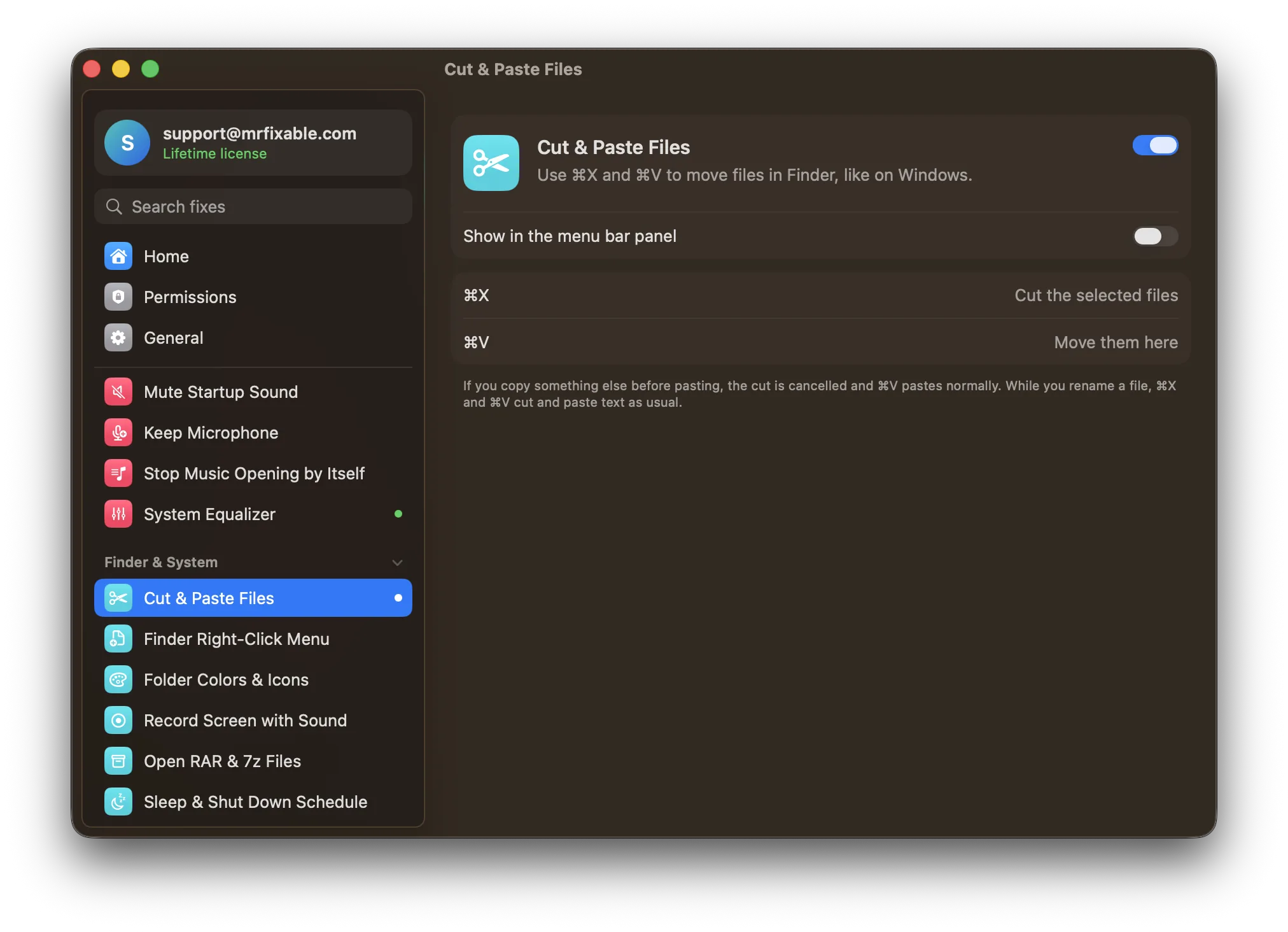
System & Finder fixes
- Cut & Paste FilesFinder has no Cut for files: ⌘X does nothing. The built-in way to move files is ⌘C, then ⌥⌘V in the folder you want, a command the Edit menu only shows while you hold ⌥. Cut & Paste Files lets you press ⌘X, then ⌘V, as on Windows, using Finder's own move.
- Finder Right-Click MenuTo copy a file's path, you select it and press ⌥⌘C, or hold ⌥ in the right-click menu. Finder can't make a new text file at all. Finder Right-Click Menu adds New Text File, New Markdown File, Copy Path, Open in Terminal and, with VS Code installed, Open in VS Code.
- Folder Colors & IconsmacOS 26 Tahoe can color a folder and add a symbol or emoji with Customize Folder, from the Action button in the Finder toolbar. Sonoma and Sequoia can't. Folder Colors & Icons does it from the right-click menu on all three, with any color, an emoji, a symbol or your own picture, and leaves your tags alone.
- Open RAR & 7z FilesArchive Utility, the Mac's built-in unzipper, can't open RAR or 7z files, and the only built-in way is the tar command in Terminal. Open RAR & 7z Files uses that same macOS decoder, so a double-click or Extract Here in Finder's right-click menu is enough. It also opens ISO, CAB, TAR, GZ and more.
- Startup ItemsSystem Settings › General › Login Items & Extensions lists the apps that open at login, but background helpers often appear only under the developer's name. Startup Items lists the apps, helpers and system services on one page, each with the name and icon of the app it belongs to, so you can turn off what you don't need.
- Sleep & Shut Down SchedulemacOS Ventura removed the sleep and shut down schedule from System Settings. The only built-in way left is the pmset command in Terminal, which allows one time and needs your password. Sleep & Shut Down Schedule lets you add as many sleep, shut down or restart times as you like, each with a one-minute warning you can cancel.
- Default AppsmacOS sets the default app one file type at a time: select a file, press ⌘I, pick an app under Open with and click Change All. Default Apps lists text, PDFs, images, videos, code, and web and email links on one page, and one choice sets a whole group, like every image type.
- App UninstallerDragging an app from Applications to the Trash leaves its settings, caches and saved data in your Library folder, sometimes gigabytes of them. App Uninstaller lists everything the app left behind, with sizes and a tick box for each, and moves the app and its leftovers to the Trash together, so you can still put them back.
- Free Up SpaceYou can't clear System Data directly. System Settings › General › Storage shows recommendations, but not the app caches and developer files that grow to many gigabytes. Free Up Space lists what's safe to remove, such as app caches, Xcode build files, npm and Gradle caches and old Downloads, with sizes, and frees what you tick.
- Battery Charge LimitmacOS Tahoe 26.4 and later on Apple silicon have a Charge Limit in System Settings › Battery, from 80% to 100%. Older versions only have Optimized Battery Charging. Battery Charge Limit stops charging at the level you choose, as low as 50%, pauses charging while the Mac sleeps, and works from macOS 14.2 Sonoma.
- Device BatteriesmacOS shows the battery of your AirPods, Magic Mouse, Keyboard and Trackpad only in Control Center, under Sound or Bluetooth. Device Batteries keeps the lowest level in your menu bar, lists every earbud, case, mouse, keyboard and trackpad when you point at it, and warns you before one runs out, at 15% to begin with.
- Keep AwakeThe built-in ways to keep a Mac awake are the caffeinate command in Terminal, or changing your sleep settings and remembering to change them back. Keep Awake does it from the menu bar: turn it on, choose 1 hour, 3 hours or Never, and your sleep settings in System Settings stay as they are.
- System Stats in Menu BarThe Mac's task manager is Activity Monitor, which you open from Spotlight, and ⌥⌘Esc force quits a frozen app. Neither tells you anything until you open it. System Stats in Menu Bar keeps CPU, GPU, temperature and memory in your menu bar, and one click lists the apps using the most, with a Quit button.
- Calendar in the Menu BarClicking the date in the Mac menu bar opens Notification Center, not a calendar. The closest built-in option is a Calendar widget there. Calendar in the Menu Bar adds a date you click to see the whole month with today marked, plus each day's events, including Google calendars you've added to the Calendar app.
- External Display BrightnessThe brightness keys and the Display slider in Control Center work on the built-in screen and Apple displays, but not on most other monitors, which you dim with buttons behind the screen. External Display Brightness adds a slider for each monitor to MrFixable's menu and makes the brightness keys work on the screen under the pointer.
- Copy Text from ScreenLive Text lets you select text in images, but only in apps that support it, like Photos, Preview and Safari. Copy Text from Screen works in every app: press ⇧⌘2, drag over any part of the screen, and the text in it is copied, even from videos and scanned PDFs. Recognition happens on your Mac.
- Record Screen with SoundThe built-in recorder, ⇧⌘5, records your screen and microphone, but before macOS 27 not the sound your Mac plays. Record Screen with Sound does: press ⌃⇧⌘R, pick a display or a window, and your Mac's audio is recorded with it, plus your voice on macOS 15 and later. No audio driver needed.
- Screenshot Settings⇧⌘5 › Options lets you choose where screenshots are saved and turn off the floating thumbnail, but the file format and the shadow around window screenshots need Terminal commands. Screenshot Settings puts all four in one place: any folder, PNG, JPG or HEIC, no shadow, and screenshots saved the moment you take them.
- Color PickermacOS has Digital Color Meter in Applications › Utilities, but you have to open it first, and getting a ready-to-paste code takes extra steps. Color Picker is quicker: press ⌥⇧⌘C in any app, click any pixel under the magnifier, and its HEX, RGB or HSL code is copied. Your last eight colors stay in MrFixable's menu.
- Safe Drives on SleepWhen a drive, hub or dock loses power while your Mac sleeps, macOS sees a drive pulled out without being ejected and shows “Disk Not Ejected Properly”. There's no setting to eject drives before sleep. Safe Drives on Sleep unmounts every external drive just before the Mac sleeps and mounts it again when it wakes.
- Lock, Sleep & Display Off ShortcutsmacOS locks the screen with ⌃⌘Q, but has no shortcut to turn the display off on keyboards with Touch ID, and Sleep is in the Apple menu. Lock, Sleep & Display Off Shortcuts adds ⌃⌥⌘L to lock, ⌃⌥⌘D to turn the display off while everything keeps running, and a Sleep shortcut you choose yourself.
- Presentation ModemacOS has no presentation mode, so before a talk or screen share you hide desktop icons, hide the Dock and keep the screen awake one setting at a time. Presentation Mode does all of it when you press ⌃⌥⌘P, and highlights the pointer and clicks so viewers can follow. Press ⌃⌥⌘P again to put everything back.
- Stop Photos OpeningPlug in an iPhone and Photos opens. You can turn this off in Photos by selecting the device and deselecting Open Photos, but only for that one device. Stop Photos Opening turns it off for every iPhone, iPad and camera at once, including ones you connect later, and keeps working when MrFixable isn't running.
- Hide Desktop IconsTo hide desktop icons, macOS makes you open System Settings › Desktop & Dock and turn off On Desktop under Show Items, or tidy them into Stacks from the View menu. Hide Desktop Icons hides every icon with one switch in MrFixable's menu. Your files stay in the Desktop folder, where Finder still reaches them.
- Show Hidden FilesFinder hides files that start with a dot, like .env, and folders such as your Library. Pressing ⇧⌘. in a Finder window shows them until you press it again. Show Hidden Files puts that setting on a switch in MrFixable's menu, so hidden files stay visible in every Finder window until you turn it off.
- Better FinderFinder hides many file extensions, mixes folders in with files and searches the whole Mac from inside a folder. You can fix most of it in Finder › Settings › Advanced and the View menu, but the full path in the window title needs Terminal. Better Finder turns on all seven of these options with one switch.
- No .DS_Store on DrivesFinder writes hidden .DS_Store files into folders you open, including on USB drives and network shares, where Windows PCs, TVs and cameras show them as junk. System Settings has no option for it, only two Terminal commands. No .DS_Store on Drives sets both with one switch. Files already on a drive stay until you delete them.
- Fit More Menu Bar IconsOn a MacBook with a notch, menu bar icons that don't fit disappear behind it, and macOS has no setting for the wide gaps between them. On macOS 26 you can only switch icons off in System Settings › Menu Bar. Fit More Menu Bar Icons narrows the gaps, so more icons fit beside the notch.
- Hide Menu Bar IconsOn macOS 26 Tahoe you can switch menu bar items off in System Settings › Menu Bar, but they're gone until you switch them back on. Hide Menu Bar Icons keeps them close instead: ⌘-drag the icons you rarely use to the left of a divider, and one click on the arrow hides or shows them.
- Hide Menu Item IconsmacOS 26 Tahoe added a small icon next to almost every menu command, and there's no setting to turn them off. Hide Menu Item Icons removes them in every app that uses standard menus, and each app changes the next time you open it. It appears only on macOS 26, since macOS 27 already hides most of them.
- Screenshots on the Screen You Took ThemmacOS saves every screenshot to the main display's desktop, even when you take it on your second monitor, and the floating preview can show up on the other screen too. Screenshots on the Screen You Took Them puts each screenshot on the desktop of the monitor you took it on, with its preview in that screen's corner.
Questions
How do I add Google Calendar to the Mac menu bar?
1. Open System Settings › Internet Accounts. 2. Click Add Account, choose Google and sign in. 3. Make sure Calendars is turned on. 4. Turn on Calendar in the Menu Bar in MrFixable. 5. Click the date it adds to the menu bar, then click Show My Events. Your Google events appear with your other calendars.How do I fix “Disk Not Ejected Properly” on a Mac?
Eject the drive before your Mac sleeps or you unplug it. 1. Click the eject button next to the drive in the Finder sidebar. 2. Wait for it to disappear, then unplug it. 3. If the warning appears after sleep, plug the drive straight into the Mac, or turn on Safe Drives on Sleep, which unmounts drives before every sleep.How do I disable “Disk Not Ejected Properly” on a Mac?
macOS has no setting to turn the warning off, because it means a drive vanished without being unmounted. Stop that happening instead: 1. Turn on Safe Drives on Sleep in MrFixable. 2. Leave your drives plugged in. Each one is unmounted just before the Mac sleeps and mounted again when it wakes, so no warning appears.How do I exit presentation mode on a Mac?
Press ⌃⌥⌘P (Control-Option-Command-P) again. Or: 1. Click the MrFixable icon in the menu bar. 2. Click Stop Presenting. Your desktop icons, Dock and screen settings go back to how they were. If you mean a Keynote or PowerPoint slideshow, press Esc to leave it and return to the editing view.How do I hide notifications on a Mac?
Turn on Do Not Disturb. 1. Click Control Center in the menu bar. 2. Click Focus. 3. Choose Do Not Disturb, for an hour or until you turn it off. Notifications then wait quietly in Notification Center. Presentation Mode hides your desktop icons and Dock but doesn't silence notifications, so use both before a talk.How do I stop Photos opening when I connect my iPhone to my Mac?
1. Connect the iPhone and unlock it. 2. Open Photos. 3. Select the iPhone in the sidebar. 4. Deselect Open Photos. That covers only this one device. To stop it for every iPhone, iPad and camera at once, including ones you connect later, turn on Stop Photos Opening in MrFixable instead.How do I delete .DS_Store files on a Mac?
Use Terminal. 1. Open Terminal from Applications › Utilities. 2. Type find /Volumes/NAME -name .DS_Store -delete, with your drive's name in place of NAME. 3. Press Return. Every .DS_Store file on that drive is deleted. No .DS_Store on Drives then stops new ones appearing, but it doesn't remove old ones.How do I hide the menu bar on a Mac?
1. Choose Apple menu › System Settings. 2. Click Menu Bar. 3. Set Automatically hide and show the menu bar to Always. It comes back when you move the pointer to the top. On macOS 14 and 15 the setting is in System Settings › Control Center. To hide only some icons, use Hide Menu Bar Icons.How do I change menu bar icons on a Mac?
1. Choose Apple menu › System Settings. 2. Click Menu Bar on macOS 26, or Control Center on macOS 14 and 15. 3. Choose whether icons like Wi-Fi, Sound or Battery show in the menu bar. That covers the icons at the top right. The small icons inside Tahoe's menus are removed by Hide Menu Item Icons.How do I take a screenshot of my second monitor on a Mac?
1. Press ⇧⌘4 (Shift-Command-4). 2. Move the pointer onto the second monitor. 3. Drag over the part you want and let go. Press ⇧⌘3 instead to capture every screen, one file each. macOS puts them all on the main display's desktop, so Screenshots on the Screen You Took Them shows each on its own screen.How do I change startup programs on a Mac?
1. Open System Settings › General › Login Items & Extensions. 2. Under Open at Login, select an app and click the − button to remove it, or + to add one. 3. Switch off background helpers you don't need in the list below. Startup Items in MrFixable shows the same lists with the app each helper belongs to.How do I brighten the screen on a Mac?
Press the brightness up key, F2 on most Mac keyboards, or click Control Center in the menu bar and drag the Display slider. System Settings › Displays has a Brightness slider too. These work on the built-in screen and Apple displays. For most other monitors, External Display Brightness adds a slider and makes the brightness keys work.