
Mac window manager and Dock fixes
MrFixable adds the Mac window manager features macOS leaves out. macOS 15 and later can tile a window to half the screen with Fn-Control and an arrow key, and ⌘Tab switches apps, not windows. These 16 fixes add quarter snapping, Windows-style Alt-Tab, always on top, saved layouts, Dock previews and windows that stay where you put them.
Try free for 14 daysBuy for $19.99 Lifetime license
16 of the fixes in MrFixable. Lifetime license, no subscription. Updated October 21, 2026. Works on macOS 14.2 Sonoma and later.
Windows & Dock fixes
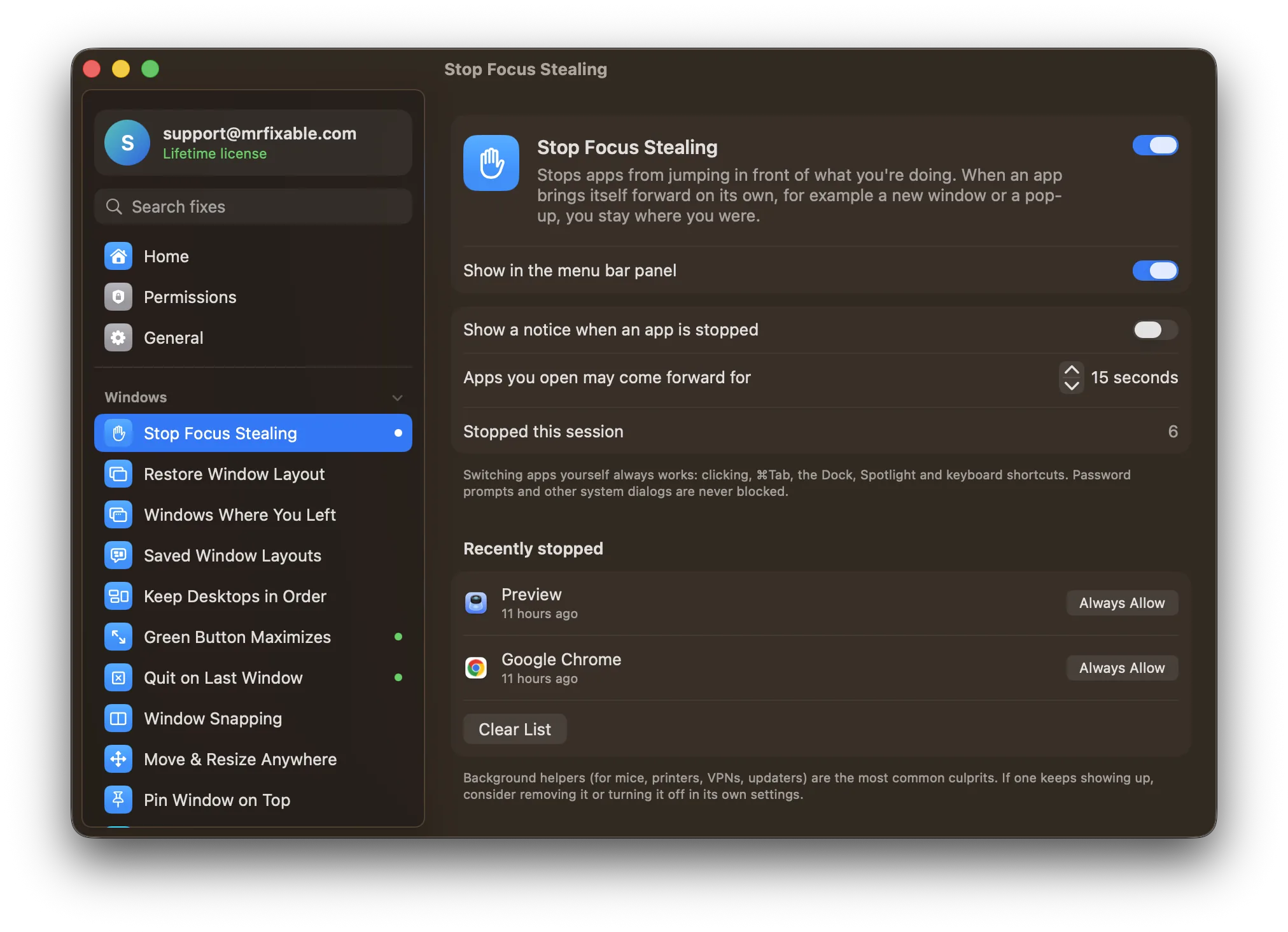
- Stop Focus StealingAny app can jump to the front while you type, and macOS has no setting to stop it. Removing login items in System Settings › General › Login Items & Extensions only cuts down on it. Stop Focus Stealing puts you straight back where you were and lists which app tried to take over.
- Restore Window LayoutWhen a monitor disconnects, or drops off while the Mac sleeps, macOS moves its windows to the screen that's left and doesn't move them back. There's no setting for it. Restore Window Layout remembers where your windows were for each display setup and puts them back a couple of seconds after the monitor returns.
- Open Windows Where You Left ThemmacOS leaves window placement to each app, and many open on the main display no matter where you used them last. Open Windows Where You Left Them remembers the screen and spot where you last moved or resized each app's window, and opens its new windows there, even after a restart.
- Saved Window LayoutsmacOS can't save where your windows are and bring them back later, so you drag everything into place again by hand. Saved Window Layouts saves every window on your desktop under a name like “Work” or “Coding”. One click puts each window back and opens any apps in the layout that are closed.
- Keep Desktops in OrdermacOS rearranges your desktops (Spaces) by which one you used most recently, so ⌃→ takes you somewhere different each time. You can stop it in System Settings › Desktop & Dock by turning off “Automatically rearrange Spaces based on most recent use”. Keep Desktops in Order switches that setting off for you in one click.
- Green Button MaximizesClicking the green button puts a window in full screen and hides the menu bar and Dock. On macOS 15 and later you can fill the screen with Fn-Control-F or Window › Move & Resize › Fill. Green Button Maximizes makes a plain click fill the screen, like Maximize on Windows, and a second click puts the window back.
- Quit on Last Window CloseClosing an app's last window on a Mac leaves the app running, with a dot under its Dock icon, until you press ⌘Q. macOS has no setting to change this. Quit on Last Window Close quits the app when you close its last window, like on Windows, but keeps apps playing sound or on a call open.
- Window SnappingmacOS 15 and later tile a window to half the screen when you drag it to an edge or press Fn-Control and an arrow key. Window Snapping adds a shortcut for every position: ⌃⌥ and an arrow for halves, ⌃⌥U, I, J and K for quarters, ⌃⌥↩ to fill, ⌃⌥⌘→ for the next display. It works on macOS 14 too.
- Move & Resize from AnywhereTo move a Mac window you grab its title bar, and to resize it you hunt for a thin edge. Window › Move & Resize only snaps it to set places. Move & Resize from Anywhere lets you hold ⌃⌘ and drag anywhere inside a window to move it, or right-drag to resize it, like on Linux.
- Pin Window on TopmacOS has no setting to keep a window on top. Picture in Picture floats some videos, and that's all. Pin Window on Top keeps a live view of any window above your other apps: press ⌃⌥P in the window you want, click the floating view to use it, and press ⌃⌥P again to unpin it.
- Window Switcher⌘Tab switches between apps, not windows, and ⌘` only cycles through the windows of the app you're in. Window Switcher adds Windows-style Alt-Tab: hold ⌥ and press Tab to see the open windows on your current desktop, with a preview of each, keep pressing Tab to move along, and let go to switch.
- Click Dock Icon to HideClicking the Dock icon of the app you're using does nothing on a Mac. To get it out of the way, you press ⌘H to hide the app or ⌘M to minimize one window. Click Dock Icon to Hide makes that click hide the app, or minimize its windows, and a second click brings it back, like the Windows taskbar.
- Dock Window PreviewsPointing at a Dock icon shows only the app's name. To see its windows you right-click the icon for a list of names, or press ⌃↓ for App Exposé. Dock Window Previews shows a picture of each of the app's windows when you hover over its icon, minimized ones included, and a click takes you there.
- Instant DockWith Automatically hide and show the Dock on, the Dock waits a moment after your pointer reaches the edge, then slides in slowly. System Settings has no option for the delay or the speed, only Terminal commands do. Instant Dock removes the delay with one switch and lets you choose an Instant, Fast or Normal slide.
- Dim Background WindowsmacOS marks the active window only with small cues, like the colored buttons in its corner, and has no setting to dim the others. Dim Background Windows darkens everything behind the window you're working in, from 10% to 70%, so it stands out. Dimmed windows still take clicks, and the dimming follows you.
- Dock Moves to Any Screen InstantlyWith more than one display, macOS moves the Dock to another screen only when you push the pointer against that screen's bottom edge and wait. Push too briefly and nothing happens. Dock Moves to Any Screen Instantly removes the push: the Dock comes to a screen as soon as your pointer reaches its bottom edge.
Questions
How do I stop focus stealing on macOS?
Turn on Stop Focus Stealing, because macOS has no setting for it. 1. Click the MrFixable icon in the menu bar. 2. Switch on Stop Focus Stealing and allow Accessibility when macOS asks. 3. Keep working. When an app jumps in front, you're put straight back, and the Recently stopped list shows which app it was.How do I move windows on a Mac?
1. Drag the window by its title bar, onto another display if you like. 2. On macOS 15 or later, press Fn-Control and an arrow key to move it to half the screen, or Fn-Control-C to center it. 3. If windows piled onto one screen after a monitor disconnected, Restore Window Layout moves them back when it returns.How do I restore windows on a Mac?
1. For a minimized window, click its thumbnail at the right end of the Dock. 2. For a window you tiled, press Fn-Control-R to give it back its previous size, on macOS 15 or later. 3. For windows that moved after a monitor disconnected, turn on Restore Window Layout, which puts them back when the monitor returns.How do I switch between Finder windows on a Mac?
1. Click Finder in the Dock. 2. Press ⌘` (Command and the key above Tab on US keyboards) to go to the next Finder window. 3. Or pick a window from the list at the bottom of the Window menu. Open Windows Where You Left Them then makes each app's new windows open on the screen you last used.How do I make macOS remember window positions?
macOS leaves it to each app, and many forget which screen you used. 1. Turn on Open Windows Where You Left Them. 2. Move or resize each app's window once, on the screen and in the spot you want. 3. From then on, that app's new windows open there, even after you restart your Mac.How do I change the order of screens on a Mac?
1. Press ⌃↑ (Control-Up Arrow) or F3 to open Mission Control. 2. Drag the desktops along the top into the order you want. 3. Turn on Keep Desktops in Order so macOS stops shuffling them. To arrange your monitors instead, open System Settings › Displays and click Arrange.Why do my Mac desktops keep changing order?
Because macOS rearranges Spaces by most recent use, a setting that's on by default. To stop it: 1. Open System Settings › Desktop & Dock. 2. Scroll to Mission Control. 3. Turn off “Automatically rearrange Spaces based on most recent use”. Keep Desktops in Order switches that same setting off for you in one click.How do I quit a window on a Mac?
1. Press ⌘W, or click the red button in the window's top-left corner, to close it. 2. Press ⌘Q, or choose Quit from the app's menu, to quit the whole app. 3. Press ⌥⌘Esc and choose Force Quit if the app is stuck. With Quit on Last Window Close on, closing the last window quits the app as well.Can I click a Dock icon to minimize an app on a Mac?
Yes, with Click Dock Icon to Hide. On its own, macOS does nothing when you click the app you're in. 1. Turn on Click Dock Icon to Hide and allow Accessibility. 2. Click the Dock icon of the app you're using, and it hides. 3. Click again to bring it back. Choose Minimize its windows in settings if you prefer.How do I see window previews when I hover over the Mac Dock?
macOS shows only the app's name when you hover. 1. Turn on Dock Window Previews. 2. Allow Accessibility, and Screen Recording for pictures of each window. 3. Hover over a running app in the Dock and click the window you want. Without the fix, right-click the icon for a list of window names.How do I make the Mac Dock appear faster?
System Settings has no option for it, but Terminal does: run defaults write com.apple.dock autohide-delay -float 0; killall Dock. Or use MrFixable: 1. Turn on Instant Dock. 2. If your Dock doesn't hide yet, switch on Automatically hide the Dock in its settings. 3. Choose an Instant, Fast or Normal slide.How do I stop the Dock from disappearing on a Mac?
1. Open System Settings › Desktop & Dock. 2. Turn off Automatically hide and show the Dock. You can also press ⌥⌘D (Option-Command-D) to switch it either way. The Dock then stays on screen all the time. If you like the extra space but not the wait, keep it hidden and turn on Instant Dock instead.How do I highlight the active window on a Mac?
macOS has no setting for it, only greyed-out buttons on the other windows. 1. Turn on Dim Background Windows and allow Accessibility. 2. Set the Darkness slider anywhere from 10% to 70%, 30% to start. 3. Keep working: everything behind your window is darkened, and the dimming follows you when you switch.How do I move the Dock to the other monitor on a Mac?
1. Move the pointer to the bottom edge of the screen where you want the Dock. 2. Keep pushing down until it appears. This needs Displays have separate Spaces on, in System Settings › Desktop & Dock, which is the default. With Dock Moves to Any Screen Instantly on, reaching the bottom edge is enough.How do I arrange windows on a Mac?
1. Click a window. 2. On macOS 15 or later, choose Window › Move & Resize and pick a half, a quarter or an arrangement such as Left & Right. 3. Or drag the window to a screen edge to tile it. Saved Window Layouts saves a whole arrangement and restores it in one click.How do I resize a window on a Mac?
1. Move the pointer to any edge or corner of the window until it turns into a two-headed arrow. 2. Drag to resize. 3. On macOS 15 or later, press Fn-Control-F to fill the screen. With Move & Resize from Anywhere, hold ⌃⌘ and right-drag anywhere in the window instead of finding the edge.