
Switching from Windows to Mac
Updated October 22, 2026. Checked on macOS 26 Tahoe.
Things to know in your first week
None of these need fixing. They're just different, and they stop feeling strange quickly.
- ⌘ is your CtrlCopy, paste, save and undo use the Command key: ⌘C, ⌘V, ⌘S, ⌘Z. Control ⌃ is rarely used.
- Window buttons are top leftRed closes, yellow minimizes, green goes full screen. Closing a window usually doesn't quit the app.
- The menu bar belongs to the app in frontEach app's menus (File, Edit…) are at the top of the screen, not inside its window.
- Right-click is thereClick with two fingers on a trackpad, use the right button of a mouse, or hold Control and click.
- Spotlight is your Start searchPress ⌘Space and type to open any app, file or setting.
Windows names on a Mac
| On Windows | On a Mac |
|---|---|
| Print Screen | ⇧⌘3 for the whole screen, ⇧⌘4 for part of it |
| Snipping Tool | The Screenshot app: press ⇧⌘5 |
| File Explorer | Finder |
| Taskbar | The Dock |
| Start menu search | Spotlight: press ⌘Space |
| Windows key and Ctrl in shortcuts | Command ⌘ |
| Alt | Option ⌥ |
| Task Manager | Activity Monitor |
| Ctrl-Alt-Delete to end a frozen app | ⌥⌘Esc opens Force Quit |
| Alt-F4 | ⌘W closes the window, ⌘Q quits the app |
| Control Panel and Settings | System Settings |
| Recycle Bin | Trash |
| Notepad | TextEdit |
The Windows features you'll miss
What macOS does instead, and the fix that brings each one back.
- Alt-Tab between windows
On a Mac: ⌘Tab switches apps, not windows.
- Maximize a window
On a Mac: The green button switches to full screen instead.
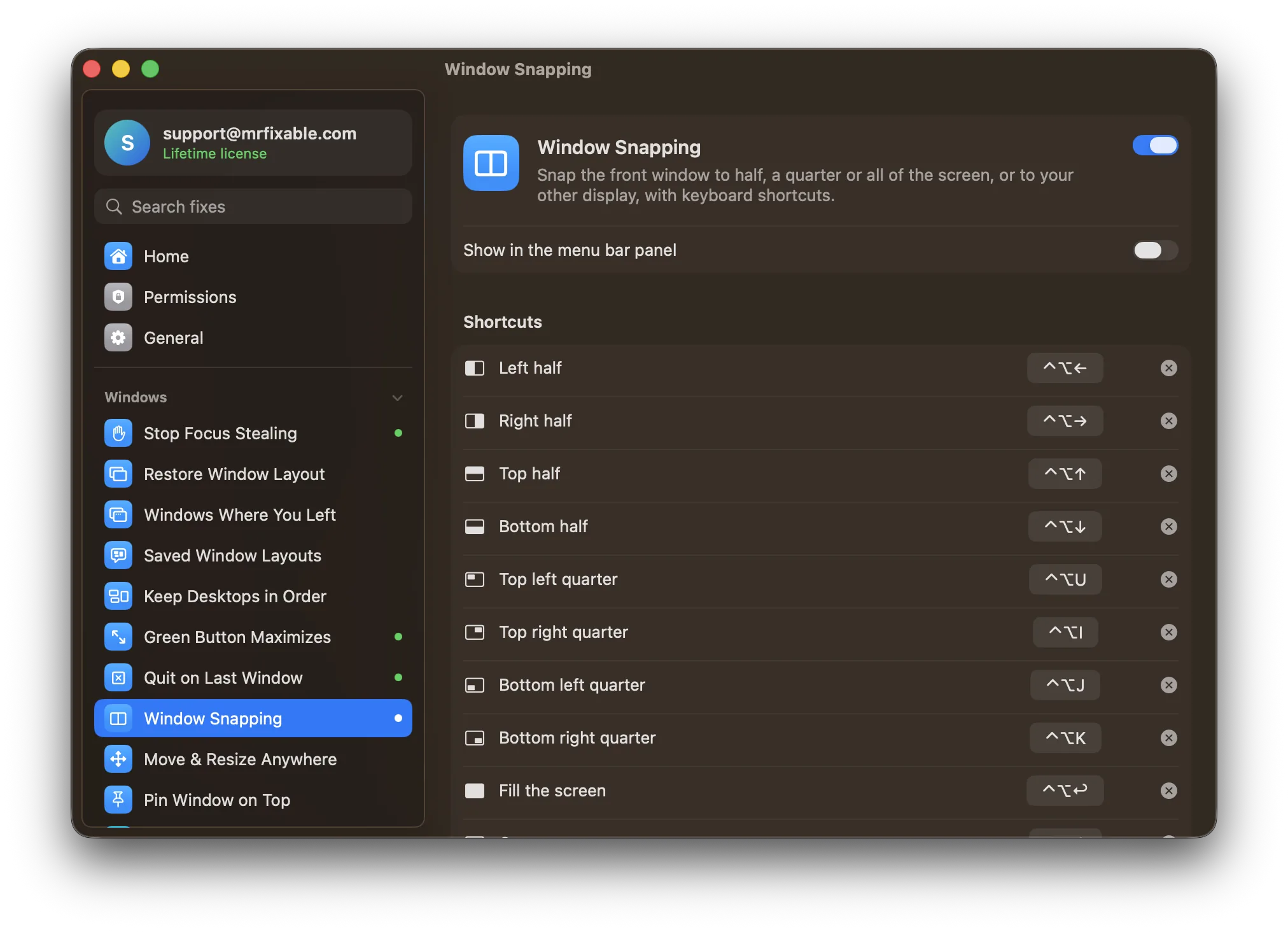
- Snap windows with ⊞ and the arrows
On a Mac: Built in only from macOS Sequoia, with no shortcuts for quarters or other displays.
- Volume mixer
On a Mac: One volume slider for everything.
- Task Manager and Ctrl-Alt-Delete
On a Mac: Split between Force Quit and Activity Monitor.
- ✕ closes the app
On a Mac: The app keeps running after its last window closes.
- Window previews on the taskbar
On a Mac: The Dock shows apps, not their windows.
- Cut and paste files
On a Mac: ⌘X doesn't work in Finder; moving needs ⌥⌘V.
- Right-click → New → Text Document
On a Mac: Finder can make folders, not files.
- Home, End and a PC keyboard
On a Mac: Home and End scroll the page; Alt and ⊞ are swapped.
- Mouse back and forward buttons
On a Mac: Ignored in Safari, Finder and Mail.
- Normal mouse scrolling
On a Mac: Mouse and trackpad share one, reversed, direction.
- Clipboard history with ⊞V
On a Mac: Only a basic one in Spotlight, from macOS Tahoe.
- Print Screen
On a Mac: Screenshots use ⇧⌘3, ⇧⌘4 and ⇧⌘5, and pile up on the desktop.
- Show hidden files
On a Mac: Finder hides them, with no View option to show them.
- Keep a window always on top
On a Mac: No built-in way to pin a window above the others.
Questions from Windows users
How do I print screen on a Mac?
Press ⇧⌘3 to save a screenshot of the whole screen, or ⇧⌘4 and drag to capture part of it. Press ⇧⌘4, then Space, and click to capture one window. Screenshots land on your desktop as PNG files. Macs have no Print Screen key, so these shortcuts do its job.What is the Snipping Tool on a Mac?
The Mac's Snipping Tool is the Screenshot app. Press ⇧⌘5 to open its toolbar: capture the whole screen, a window or a selection, record the screen as a video, set a timer and choose where screenshots are saved. ⇧⌘4 is the quickest way to snip part of the screen.Where is File Explorer on a Mac?
File Explorer is called Finder on a Mac. Click the blue smiling face at the left end of the Dock, or click the desktop and press ⌘N for a new Finder window. Finder's sidebar shows Downloads, Documents, Desktop, AirDrop, iCloud Drive and any drives you connect.What is the Mac version of the taskbar?
The Dock at the bottom of the screen is the Mac's taskbar. It holds the apps you keep, the apps that are open (with a dot under them) and the Trash. Unlike the taskbar, it shows apps, not each window, and hovering an icon shows no preview of its windows.Where is the Windows key on a Mac?
A Mac keyboard has no Windows key. Command ⌘ does most of the jobs Ctrl does on Windows, like ⌘C and ⌘V, and Spotlight (⌘Space) replaces the Start menu search. On a Windows keyboard plugged into a Mac, the Windows key acts as ⌘ and Alt acts as Option ⌥.What is Task Manager on a Mac?
Task Manager is called Activity Monitor on a Mac. Open it from Applications › Utilities, or press ⌘Space and type Activity Monitor. It shows each app's CPU, memory, energy, disk and network use, and you can quit a process from it with the ✕ button at the top of the window.What's the Mac equivalent of Ctrl-Alt-Delete?
Press ⌥⌘Esc (Option, Command and Escape) to open the Force Quit window, then pick the frozen app and click Force Quit. You can also right-click its Dock icon with Option held down. To see everything that's running and how much it uses, open Activity Monitor instead.Is a Mac hard to learn coming from Windows?
Not for the basics, which take a few days: ⌘ instead of Ctrl, the menu bar at the top of the screen, and apps that keep running after you close their window. What takes longer are small habits like Alt-Tab, Maximize and cutting files, which macOS does differently or not at all.How do I move my files from a Windows PC to a Mac?
Use Apple's free Windows Migration Assistant. Install it on the PC, then open Migration Assistant on the Mac from Applications › Utilities. With both computers on the same network, follow the steps to copy your documents, photos, email accounts, contacts and browser bookmarks to the Mac.Does MrFixable make my Mac look like Windows?
No. Your Mac keeps looking and working like a Mac. MrFixable only brings back the specific Windows behaviors you choose, with one switch each, such as Alt-Tab between windows, cut and paste in Finder or a volume mixer. Every fix starts off, and switching one off undoes it.