
KeyboardHome & End Like Windows
Mac Home key and End key
On a Mac, the Home key scrolls to the top of the document and End to the bottom, without moving your text cursor. To reach the start or end of a line, macOS uses ⌘← and ⌘→. Home & End Like Windows makes Home and End move along the line while you type, and leaves them scrolling everywhere else.
Try free for 14 daysBuy for $19.99 Lifetime license
One of 68 fixes in MrFixable. Lifetime license, no subscription. Updated October 22, 2026. Works on macOS 14.2 Sonoma and later. Checked on macOS 26 Tahoe.
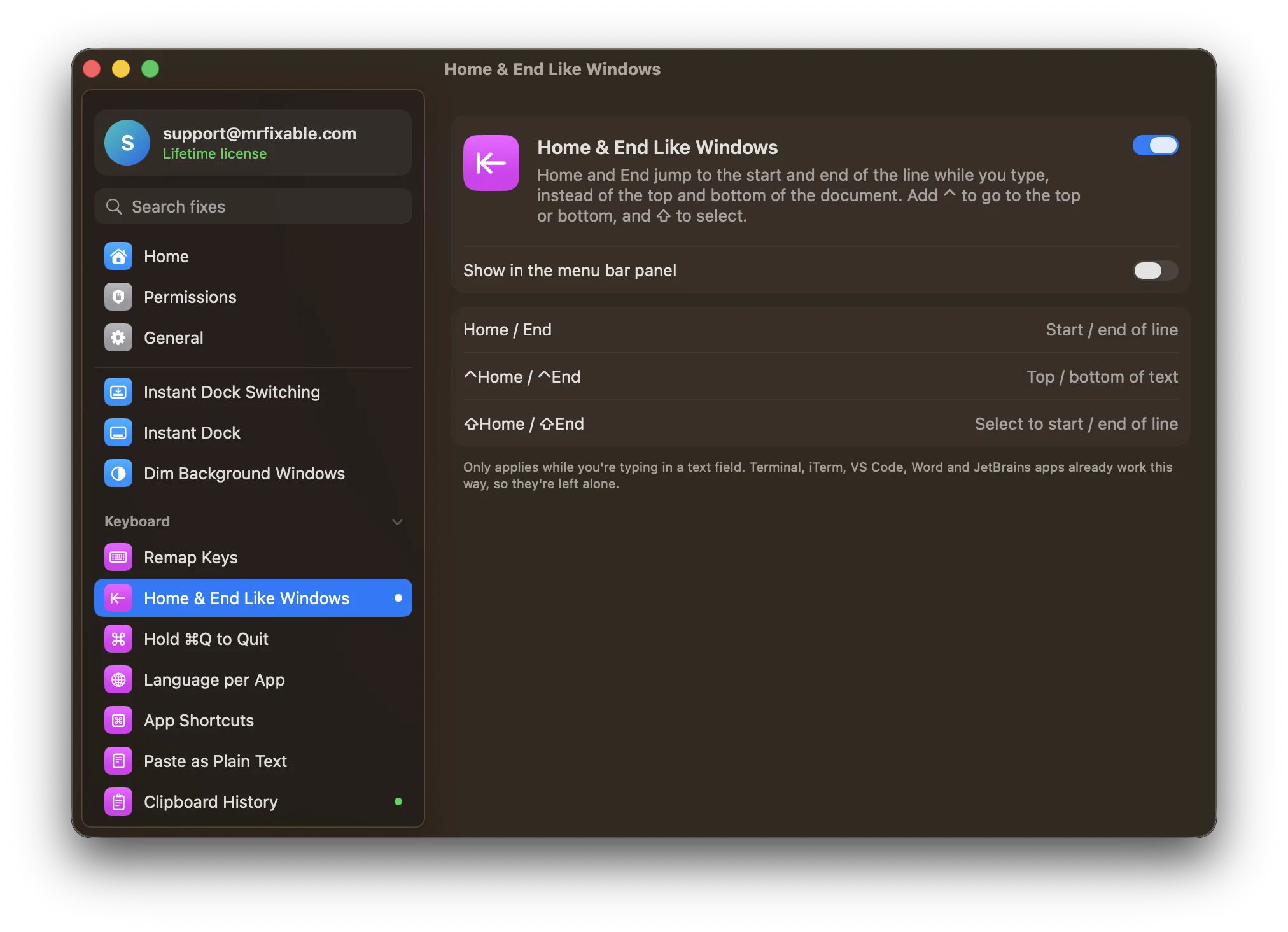
What Home & End Like Windows does
The problem
On a Mac, Home and End scroll to the top and bottom of the document, and your text cursor stays where it was. macOS moves to the start and end of a line with ⌘← and ⌘→ instead, which doesn't help when your fingers expect Home and End.
With Home & End Like Windows
While you type, Home and End jump to the start and end of the line, as on Windows. Outside text fields, they keep scrolling the page as usual.
- Start and end of the lineHome goes to the start of the line and End to the end. Add ⇧ to select as you go.
- Top and bottom with ⌃⌃Home and ⌃End go to the top and bottom of the text, like Ctrl-Home and Ctrl-End on Windows.
- Only while you typeThe keys change only in a text field, so they still scroll web pages and documents you're reading. Terminal, iTerm, VS Code, Word and JetBrains apps already work this way, so they're left alone.
Good to know
Needs Accessibility access, which macOS requires for an app that changes keystrokes and checks whether you're typing in a text field.
Made for keyboards with Home and End keys, such as a full-size Mac keyboard or a Windows keyboard.
Switch it off and Home and End scroll the page again, as macOS normally does.
Questions
What is the End key on a Mac?
The End key scrolls to the bottom of a document on a Mac, without moving the text cursor. Full-size Mac keyboards and Windows keyboards have one. On a MacBook, Fn-Right Arrow does the same. To jump to the end of a line, press ⌘→. With Home & End Like Windows on, End goes to the end of the line.How do I make the Home and End keys work on a Mac?
macOS has no setting for this. 1. Turn on Home & End Like Windows in MrFixable. 2. Give MrFixable Accessibility access when asked, in System Settings › Privacy & Security › Accessibility. 3. Click in any text field and press Home or End. They now move to the start or end of the line, as on Windows.How do I use the Home and End keys on a Mac?
Press Home to scroll to the top of a document and End to scroll to the bottom. Press ⌘← or ⌘→ to move the cursor to the start or end of the line, and ⌘↑ or ⌘↓ for the top or bottom. With Home & End Like Windows, Home and End move along the line while you type.Where is the Home key on a Mac keyboard?
Full-size Mac keyboards with a number pad have Home and End above the arrow keys, next to Page Up and Page Down. MacBook keyboards don't: press Fn-Left Arrow for Home and Fn-Right Arrow for End. Windows keyboards have them too, and Home & End Like Windows makes them work the Windows way.Can the Home and End keys select text on a Mac?
Yes, with Home & End Like Windows on. ⇧Home selects to the start of the line and ⇧End to the end. ⌃⇧Home and ⌃⇧End select to the top or bottom of the text, as on Windows. Without the fix, use ⇧⌘← and ⇧⌘→ to select to the start or end of a line.
Sources
Guides
- Home and End keys on a Mac: shortcuts and how to fix themHome and End keys on a Mac scroll the page instead of moving the cursor. The shortcuts that jump along the line, Fn keys on a MacBook, and a Windows-style fix.
- How to use a Windows keyboard on a Mac: Alt, Ctrl and Windows keyUse a Windows keyboard on a Mac: what the Windows key, Alt and Ctrl do, how to swap them in System Settings, and how to make Home and End work as on a PC.