
KeyboardLock Keyboard for Cleaning
Keyboard cleaner for Mac
A Mac has no built-in keyboard cleaner mode: macOS can't switch the keyboard off, and locking the screen with ⌃⌘Q doesn't help, because wiping still types into the password field. Lock Keyboard for Cleaning turns off every key, including brightness, volume and media keys, while your mouse and trackpad keep working. It unlocks by itself after 2 minutes.
Try free for 14 daysBuy for $19.99 Lifetime license
One of 68 fixes in MrFixable. Lifetime license, no subscription. Updated October 22, 2026. Works on macOS 14.2 Sonoma and later. Checked on macOS 26 Tahoe.
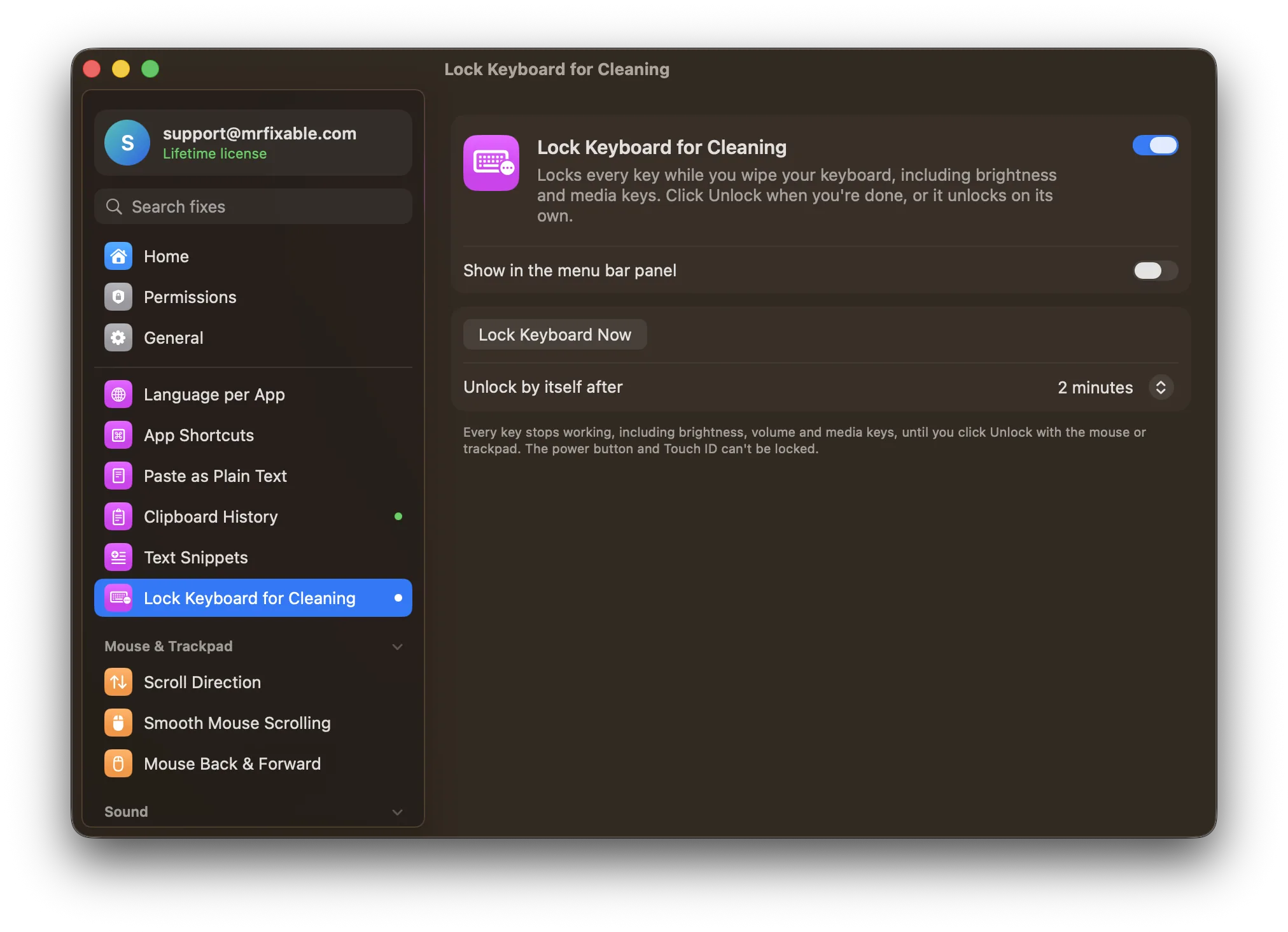
What Lock Keyboard for Cleaning does
The problem
Wipe your keyboard while the Mac is on and every key you touch does something: letters land in your documents, the screen dims, and a stray ⌘Q can quit an app. Locking the screen doesn't help, because the keys still type into the password field.
With Lock Keyboard for Cleaning
Every key stops working, including the brightness, volume and media keys, while your mouse and trackpad keep working. Click Unlock when you're done, or the keyboard unlocks on its own.
- One click to lockClick Lock Keyboard in MrFixable's menu. A window in the middle of the screen shows how long until it unlocks, with a large Unlock button.
- Unlocks by itselfIf you forget, the keyboard unlocks after 2 minutes by default, or after 1 or 5 minutes, as you choose.
- Every key, even media keysLetters, modifier keys, and the brightness, volume and media keys are all ignored, on the MacBook and on any keyboard you've plugged in, so nothing changes while you wipe.
Good to know
Needs Accessibility access, which macOS requires for an app that stops keystrokes before they reach other apps.
The power button and Touch ID can't be locked, so avoid pressing them.
Switch the fix off and the keyboard unlocks straight away.
Questions
How do I disable my Mac keyboard?
macOS has no setting that turns the keyboard off. To lock it for a while: 1. Turn on Lock Keyboard for Cleaning in MrFixable. 2. Click Lock Keyboard in MrFixable's menu. 3. Click Unlock with your mouse or trackpad when you're done. It's made for cleaning, so it always unlocks within 1, 2 or 5 minutes.How do I lock my Mac keyboard for cleaning?
1. Click MrFixable in the menu bar, then click Lock Keyboard. 2. Wipe the keys while the window in the middle of the screen counts down. 3. Click Unlock with your mouse or trackpad. If you forget, the keyboard unlocks by itself after 2 minutes, or after the 1 or 5 minutes you chose in the fix's settings.Can you lock a Mac keyboard for cleaning?
Not with macOS alone. Locking the screen with ⌃⌘Q still lets keys type into the password field, and the brightness and volume keys keep working. Lock Keyboard for Cleaning turns off every key, including media keys, while the mouse and trackpad keep working. Only the power button and Touch ID can't be locked.How do I clean a MacBook keyboard without pressing keys?
For a thorough clean, shut down your Mac and unplug it, as Apple recommends. For a quick wipe while it's on: 1. Click Lock Keyboard in MrFixable's menu. 2. Wipe with a soft, slightly damp, lint-free cloth. 3. Click Unlock with your trackpad. Keys you touch in between do nothing.How do I lock a MacBook Air or MacBook Pro keyboard for cleaning?
It works the same on every MacBook Air and MacBook Pro running macOS 14.2 Sonoma or later. Turn on Lock Keyboard for Cleaning, click Lock Keyboard in MrFixable's menu, and wipe. The built-in trackpad keeps working, so you can click Unlock. Avoid the power button and Touch ID, which can't be locked.How do I disable a MacBook keyboard for cleaning without it staying off?
Choose a time under Unlock by itself after in Lock Keyboard for Cleaning's settings: 1 minute, 2 minutes or 5 minutes. The lock window counts down, and the keyboard comes back on its own when time runs out. Switching the fix off also unlocks the keyboard straight away, so you can't get stuck.