
KeyboardRemap Keys
Remap keys on Mac
To remap keys on a Mac, open System Settings › Keyboard › Keyboard Shortcuts › Modifier Keys. That only covers Caps Lock, Control, Option, Command and Globe. Remap Keys goes further: it remaps 26 keys, including Home, End, Page Up, § and a Windows keyboard's Insert and Menu keys, in every app, on all keyboards or just one kind.
Try free for 14 daysBuy for $19.99 Lifetime license
One of 68 fixes in MrFixable. Lifetime license, no subscription. Updated October 22, 2026. Works on macOS 14.2 Sonoma and later. Checked on macOS 26 Tahoe.
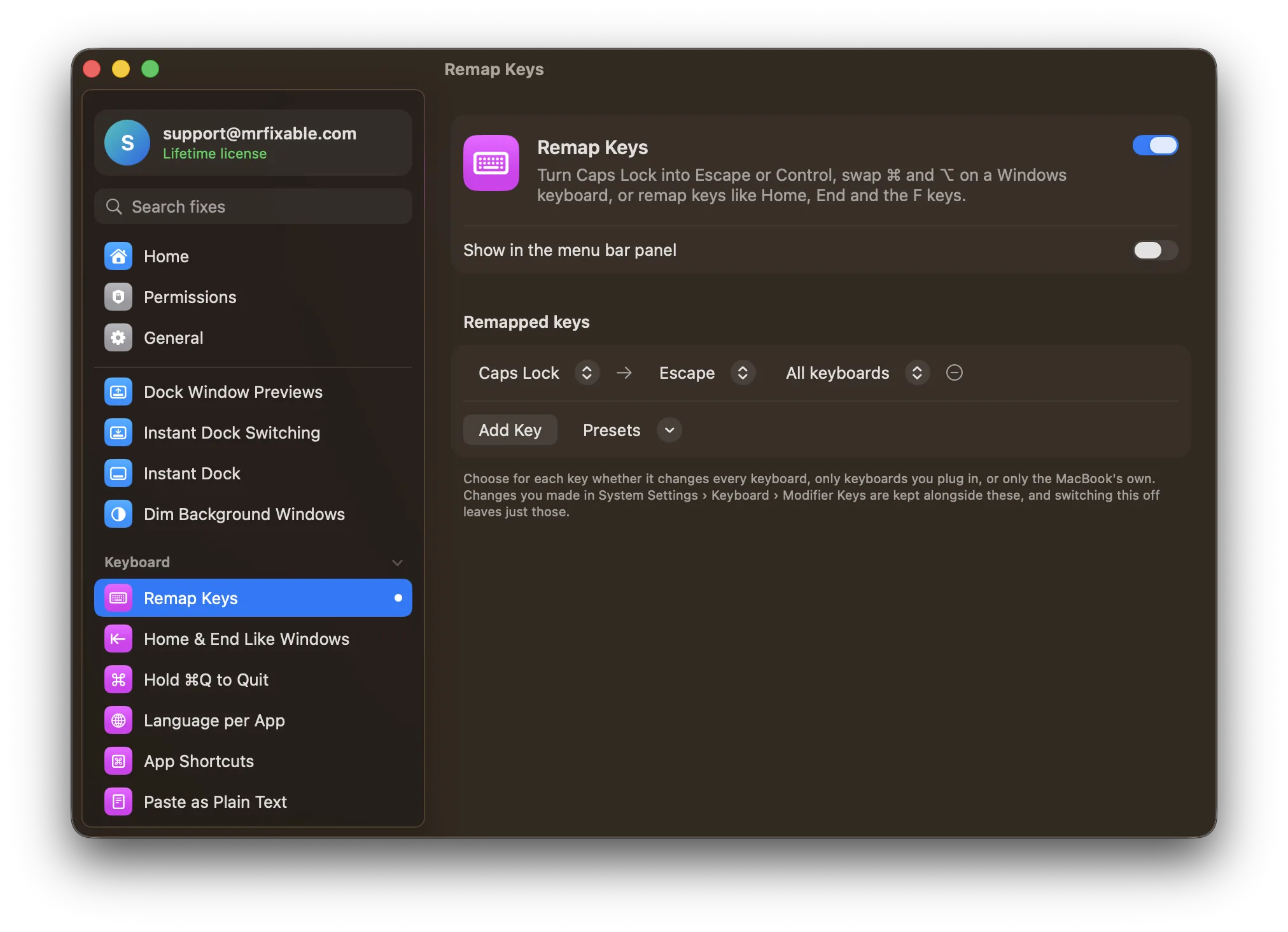
What Remap Keys does
The problem
System Settings › Keyboard › Keyboard Shortcuts › Modifier Keys can change what the modifier keys do, like Caps Lock, Control, Option and Command, and nothing else. Keys like §, Home, Insert or the Menu key on a Windows keyboard stay exactly where they are.
With Remap Keys
Pick a key and what it should act as, and it works that way in every app. Each change can apply to every keyboard, only keyboards you plug in, or only the MacBook's own.
- Ready-made presetsCaps Lock → Escape, Caps Lock → Control, swap § and `, or swap ⌘ and ⌥ on a Windows keyboard. The Windows keyboard preset changes plugged-in keyboards only, so your MacBook's own keys stay as they are.
- Remap 26 keysCaps Lock, Escape, Tab, Return, Delete, Forward Delete, Home, End, Page Up, Page Down, the left and right ⌃ ⌥ ⌘ ⇧ keys, § and `, F13 to F15, and Insert, Print Screen and the Menu key on Windows keyboards.
- One keyboard or all of themFor each key, choose All keyboards, Plugged-in keyboards or MacBook keyboard. A Windows keyboard can have ⌘ and ⌥ swapped while the MacBook keeps its own layout.
- Works with System SettingsChanges you made in Modifier Keys are kept alongside these. Switch the fix off and only your System Settings changes remain.
Good to know
No special permission needed. It uses macOS's own key-mapping layer, so it works in every app without a keyboard driver.
macOS forgets key mappings when your Mac restarts, so MrFixable sets them again each time it starts, and again after your Mac wakes from sleep.
After a crash or force quit, the key changes stay in macOS until MrFixable opens again. If the fix is off by then, MrFixable takes them out.
Switch it off and your keys go back to normal, apart from any changes you made in System Settings.
Questions
Can you remap keys on a Mac?
Yes, but System Settings only remaps the modifier keys, under Keyboard › Keyboard Shortcuts › Modifier Keys. For keys like Home, End, § or Insert, macOS has only the hidutil command in Terminal, and its changes are lost when you restart. Remap Keys uses that same built-in layer and sets your keys again each time MrFixable starts.How do I remap my Mac keyboard?
Open System Settings › Keyboard, click Keyboard Shortcuts, then click Modifier Keys in the sidebar. Choose a keyboard, pick a new action from each key's pop-up menu, and click Done. For keys outside that list, turn on Remap Keys in MrFixable, click Add Key, pick the key and choose what it acts as.How do I change keys on a MacBook?
Open System Settings › Keyboard › Keyboard Shortcuts › Modifier Keys, select the MacBook's built-in keyboard, and change Caps Lock, Control, Option, Command or Globe. To change other keys on the MacBook only, add them in Remap Keys and set the last menu to MacBook keyboard, so a plugged-in keyboard stays as it is.How do I disable Caps Lock on a Mac?
Open System Settings › Keyboard, click Keyboard Shortcuts, then Modifier Keys. Set Caps Lock key to No Action and click Done. To make Caps Lock useful instead, choose Escape or Control there, or use the Caps Lock → Escape or Caps Lock → Control preset in Remap Keys, which works alongside your System Settings changes.How do I remap a Windows keyboard on a Mac?
Turn on Remap Keys, open Presets and choose Windows keyboard: swap ⌘ and ⌥. The Alt key next to the space bar then acts as ⌘, like on a Mac keyboard. It applies only to plugged-in keyboards, so your MacBook's keys don't change. You can also remap Insert, Print Screen and the Menu key.Can I remap a key on one keyboard only?
Yes. For each remapped key, choose All keyboards, Plugged-in keyboards or MacBook keyboard in Remap Keys. That way a Windows keyboard can have ⌘ and ⌥ swapped while your MacBook's own keys stay as they are. System Settings › Keyboard › Keyboard Shortcuts › Modifier Keys also works per keyboard, but for modifier keys only.
Sources
Guides
- How to use a Windows keyboard on a Mac: Alt, Ctrl and Windows keyUse a Windows keyboard on a Mac: what the Windows key, Alt and Ctrl do, how to swap them in System Settings, and how to make Home and End work as on a PC.
- Home and End keys on a Mac: shortcuts and how to fix themHome and End keys on a Mac scroll the page instead of moving the cursor. The shortcuts that jump along the line, Fn keys on a MacBook, and a Windows-style fix.