
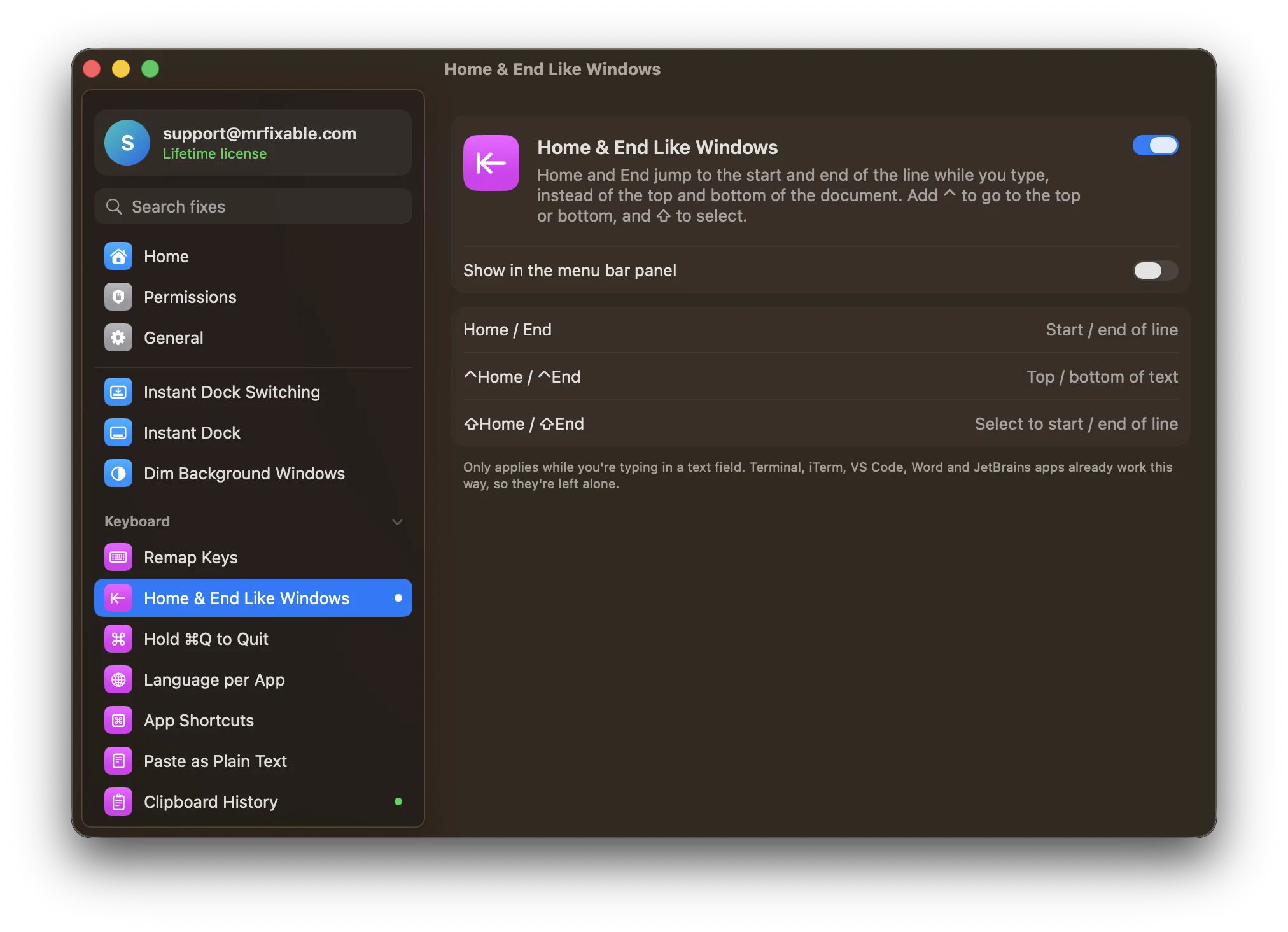
On a Mac, Home and End scroll to the top and bottom of the document without moving your text cursor. To jump to the start or end of the line, press ⌘← or ⌘→. A MacBook keyboard has no Home or End key: Fn-← and Fn-→ act as Home and End. Making the keys work like Windows takes an app.
Coming from Windows, you press End to jump to the end of the line you're typing. On a Mac, the page scrolls to the bottom instead, and your cursor stays where it was.
What do Home and End do on a Mac?
In most Mac apps, Home and End scroll to the top and bottom of the document without moving the text cursor. It's a long-standing Mac convention, but it's the opposite of what Windows and Linux users expect.
What are the Mac shortcuts for Home and End?
macOS uses the arrow keys instead:
| To go to | Press |
|---|---|
| Start of the line | ⌘← |
| End of the line | ⌘→ |
| Top of the document | ⌘↑ |
| Bottom of the document | ⌘↓ |
| Previous / next word | ⌥← / ⌥→ |
Add ⇧ Shift to any of these to select text as you go. On a MacBook keyboard without Home and End keys, Fn-← and Fn-→ act as Home and End, with the same scrolling behavior.
Questions
Where is the End key on a Mac?
On a full-size keyboard, Home and End sit in the group of keys above the arrow keys. A MacBook keyboard doesn't have them, so press Fn-→ for End and Fn-← for Home. Either way, End scrolls to the bottom, and ⌘→ is what moves the cursor to the end of the line.
Why don't Home and End move the cursor in my Mac app?
They aren't broken: in most Mac apps they scroll the view and leave the cursor where it was. A few apps, such as Microsoft Word and VS Code, already move the cursor to the start or end of the line, like on Windows.
Making Home and End work like on Windows
Home & End Like Windows in MrFixable makes Home and End jump to the start and end of the line while you type. Add ⌃ to go to the top or bottom of the document, and ⇧ to select, just like on a PC.
Using a Windows keyboard? Remap Keys can swap ⌘ and ⌥ so they sit where your Mac expects them, or turn Caps Lock into Escape or Control.