
Mouse and trackpad fixes for Mac
macOS ties the Mac mouse scroll direction to the trackpad: Natural scrolling in System Settings › Mouse and System Settings › Trackpad is one setting. A regular wheel also scrolls in jumps, and most Mac apps ignore the side buttons. These three fixes give each device its own direction, smooth out the wheel and make back and forward work.
Try free for 14 daysBuy for $19.99 Lifetime license
3 of the fixes in MrFixable. Lifetime license, no subscription. Updated October 21, 2026. Works on macOS 14.2 Sonoma and later.
Mouse & Trackpad fixes
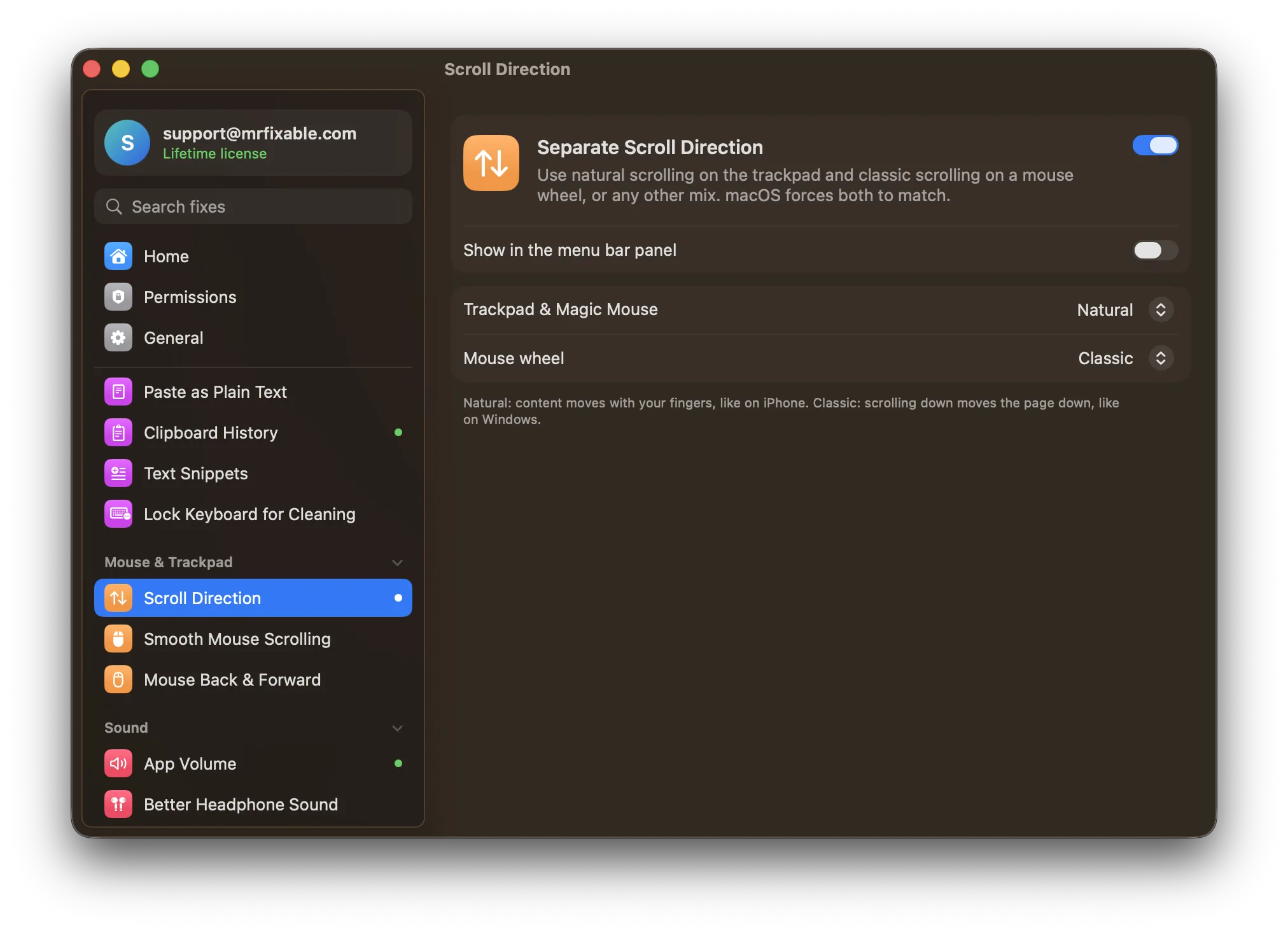
- Separate Scroll DirectionNatural scrolling in System Settings › Mouse and System Settings › Trackpad is one setting, so turning it off for the mouse turns it off for the trackpad too. Separate Scroll Direction gives each its own direction. It starts with natural scrolling on the trackpad and Magic Mouse, and classic scrolling on a mouse wheel, like on Windows.
- Smooth Mouse ScrollingA regular mouse wheel scrolls in line-sized jumps on a Mac, while a trackpad glides, and macOS has no setting to change it. The Scroll speed slider in Accessibility settings only changes how far you scroll. Smooth Mouse Scrolling turns each notch into a short glide, with the distance and glide length you choose.
- Mouse Back & ForwardThe side buttons on a mouse go back in Chrome and Firefox, but Safari, Finder, Mail and most Mac apps ignore them. Their Back and Forward commands are on ⌘[ and ⌘] instead. Mouse Back & Forward makes the side buttons press each app's own Back and Forward commands, with any mouse and no mouse software.
Questions
How do I fix mouse side buttons on a Mac?
macOS has no setting for side buttons, and most Mac apps ignore them. 1. Turn on Mouse Back & Forward in MrFixable. 2. Allow Accessibility access when macOS asks. 3. Press a side button in Safari or Finder to check. If back and forward are reversed, turn on Swap back and forward buttons.Why are my side mouse buttons not working?
Most Mac apps, like Safari, Finder and Mail, don't listen for side buttons, so the clicks arrive and nothing happens. To fix it: 1. Turn on Mouse Back & Forward. 2. Allow Accessibility access. 3. Press a side button: it now runs the app's own Back or Forward command. Chrome and Firefox already support the buttons.How do I change the mouse scroll direction on a Mac?
1. Open System Settings › Mouse. 2. Turn Natural scrolling off for classic scrolling, or on to scroll like a trackpad. The trackpad changes with it, because macOS uses one setting for both. To give the mouse and trackpad different directions, turn on Separate Scroll Direction and choose a direction for each.What is smooth scrolling?
Smooth scrolling means a page glides to a stop instead of jumping a fixed number of lines with each notch of the wheel. Trackpads and the Magic Mouse scroll smoothly on a Mac, but regular mouse wheels jump. Smooth Mouse Scrolling turns each notch into a short glide, with the distance and glide length you choose.