
Mouse & TrackpadSeparate Scroll Direction
Reverse the mouse scroll wheel on Mac
To reverse the mouse scroll wheel on a Mac, turn off Natural scrolling in System Settings › Mouse, but that same switch changes the trackpad too. Separate Scroll Direction gives each its own direction. It starts with natural scrolling on the trackpad and Magic Mouse, and classic scrolling on a mouse wheel, like on Windows.
Try free for 14 daysBuy for $19.99 Lifetime license
One of 68 fixes in MrFixable. Lifetime license, no subscription. Updated October 22, 2026. Works on macOS 14.2 Sonoma and later. Checked on macOS 26 Tahoe.
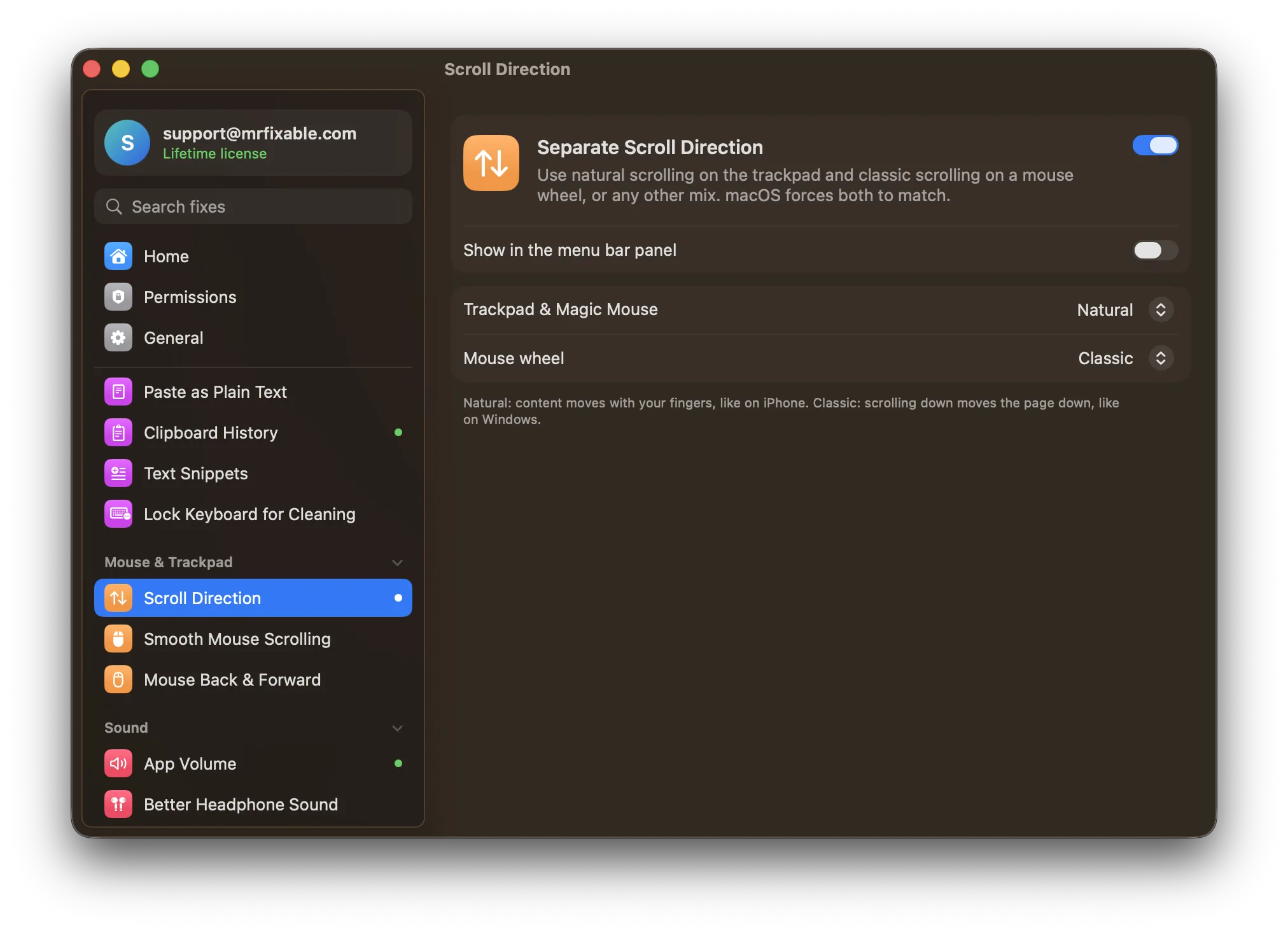
What Separate Scroll Direction does
The problem
macOS has a Natural scrolling switch in both System Settings › Trackpad and System Settings › Mouse, but they're one setting: turn it off for the mouse and it turns off for the trackpad too. If you use both, one of them always scrolls backwards.
With Separate Scroll Direction
The trackpad and the mouse wheel each scroll the way you choose: natural on one and classic on the other, or any mix. MrFixable tells them apart on its own, so nothing changes when you switch between them.
- The usual pick, readyIt starts with natural scrolling on the trackpad and classic scrolling on the mouse wheel. Change either one.
- Magic Mouse counts as a trackpadThe Magic Mouse scrolls smoothly, like a trackpad, so it follows your trackpad setting. Mice with a regular wheel follow the mouse wheel setting.
- Works with smooth scrollingTurn on Smooth Mouse Scrolling too, and the smooth glide goes in the direction you chose here.
Good to know
Needs Accessibility access, which macOS requires for an app that changes scrolling before it reaches other apps.
Leave macOS's own Natural scrolling switch as it is. MrFixable reads it and only reverses the device that should go the other way.
Switch it off and both devices follow macOS's setting again.
Questions
Can you scroll on an Apple mouse?
Yes. The Magic Mouse has no wheel, but its top is a touch surface: slide one finger up or down to scroll, or sideways to scroll left and right. It scrolls smoothly, like a trackpad. Separate Scroll Direction treats it as a trackpad, so it follows your trackpad direction, not your mouse wheel direction.How do I change the scroll direction of a mouse on a Mac?
1. Open System Settings › Mouse. 2. Turn Natural scrolling off for classic scrolling, or on for natural scrolling. 3. Scroll to check. This setting also changes the trackpad. To change the mouse wheel only, turn on Separate Scroll Direction and choose Natural or Classic for Mouse wheel and for Trackpad & Magic Mouse.How do I change natural scrolling on a Mac only for the mouse?
macOS can't do it alone, because Mouse and Trackpad share one Natural scrolling setting. 1. Turn on Separate Scroll Direction in MrFixable. 2. Set Mouse wheel to Classic. 3. Leave Trackpad & Magic Mouse on Natural. That's how it starts, so usually there's nothing to change. Leave macOS's own switch as it is.Why does changing the mouse scroll direction change the trackpad too?
Because macOS has only one Natural scrolling setting. It appears under both System Settings › Mouse and System Settings › Trackpad, but changing one changes the other. Separate Scroll Direction reads that setting and reverses only the device that should go the other way, so the mouse wheel and the trackpad can differ.What is natural scrolling on a Mac mouse?
Natural scrolling means the content moves with your fingers, like on an iPhone: roll the wheel toward you and you go back up the page. Classic scrolling is the opposite, as on Windows: rolling toward you moves down the page. macOS turns natural scrolling on by default, for both the mouse and the trackpad.Can a Mac mouse wheel scroll smoothly as well?
Yes. Turn on Smooth Mouse Scrolling alongside Separate Scroll Direction. Each notch of the wheel then becomes a short glide, like a trackpad, and the glide goes in the direction you chose for the mouse wheel. Trackpads and the Magic Mouse already scroll smoothly, so only regular mouse wheels change.
Sources
Guides
- How to change scroll direction for a mouse only on a MacChange the scroll direction for a mouse only on a Mac. Why macOS ties the mouse and trackpad to one Natural scrolling switch, and how to set each one separately.
- How to scroll on a Mac with a trackpad, mouse or keyboardHow to scroll on a Mac with a trackpad, mouse or keyboard, how to show scroll bars and change scroll speed, and how to get smooth scrolling on a mouse.
- Mouse side buttons not working on a Mac? Why, and the fixMouse back and forward buttons work in Chrome but not in Safari, Finder or Mail on a Mac. Why most Mac apps ignore them, the workaround, and a fix for every app.
Compare
- Coming from Windows?On Windows: Normal mouse scrolling. Separate Scroll Direction brings it to your Mac. See every Windows habit and its Mac fix.
- Separate Scroll Direction vs Mac Mouse FixMac Mouse Fix is a $2.99 app, free for 30 days, that adds gestures, custom button actions and smooth scrolling to a mouse. MrFixable's Mouse Back & Forward does one part of that: it makes your mouse's side buttons go back and forward in Safari, Finder, Mail and other apps. Smooth scrolling is a separate MrFixable fix.
- Separate Scroll Direction vs Scroll ReverserScroll Reverser is a free, open-source app that sets the scroll direction for each trackpad, mouse or other device. MrFixable’s Separate Scroll Direction is a Scroll Reverser alternative for the usual case: reverse the mouse wheel and keep natural scrolling on the trackpad. It works with Smooth Mouse Scrolling. Scroll Reverser has finer control.