
Windows & DockStop Focus Stealing
Stop macOS focus stealing
macOS focus stealing happens because any app can bring itself to the front while you type, and macOS has no setting to stop it. Removing login items in System Settings › General › Login Items & Extensions cuts down on it, but doesn't stop it. Stop Focus Stealing puts you straight back and lists which app it was.
Try free for 14 daysBuy for $19.99 Lifetime license
One of 68 fixes in MrFixable. Lifetime license, no subscription. Updated October 22, 2026. Works on macOS 14.2 Sonoma and later. Checked on macOS 26 Tahoe.
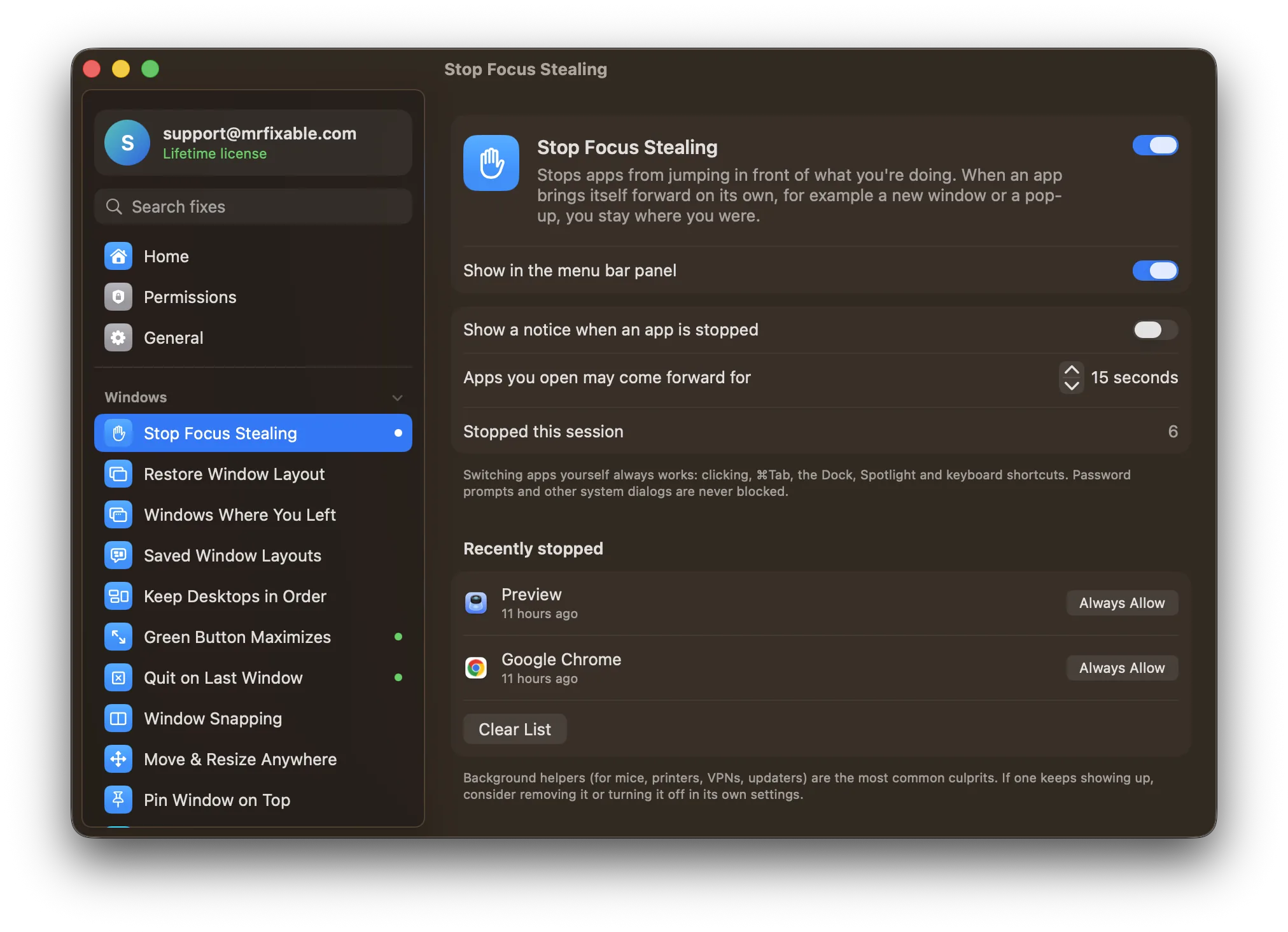
What Stop Focus Stealing does
The problem
Any app can bring itself to the front: a window that finishes loading, a pop-up, an updater, a helper for your mouse or printer. Your typing lands in the wrong app, or Return presses a button you never saw. macOS has no setting to stop it.
With Stop Focus Stealing
When an app jumps in front on its own, you're put straight back where you were, usually before you notice. The app keeps running behind you. Click it in the Dock when you want it.
- Switching apps still worksClicking, ⌘Tab, the Dock, Spotlight and keyboard shortcuts always work. An app you just opened can still come forward when it finishes loading, within 15 seconds by default (5 to 60, as you choose).
- See which app did itThe Recently stopped list shows each app that tried to take over, and when. Background helpers, like mouse, printer or VPN software, are marked as such. They're the usual culprits and are otherwise hard to find.
- Allow the apps you trustLet any app always come forward, for example a calendar whose reminders you never want to miss. Click Always Allow in the list, or add an app yourself.
- A notice if you want oneTurn on a small notice to see each time an app is stopped. It's off by default, because the list tells you the same thing without interrupting.
Good to know
Needs Accessibility access, which macOS requires for an app that switches you back to the app you were in.
Password prompts, permission requests and other system dialogs always get through.
MrFixable can't tell you why an app came forward, only which app it was. To stop it for good, change that app's own settings or remove it.
Switch it off and apps behave exactly as before.
Questions
Why do my Mac apps keep losing focus?
Another app brought itself to the front. Usually it's an app that finished loading, an update or alert window, or a background helper for your mouse, printer or VPN. macOS lets any app do this. Stop Focus Stealing puts you straight back, and its Recently stopped list shows which app it was, so you can deal with it.Is there a setting in macOS to stop focus stealing?
No. macOS has no switch for it. Removing login items you don't need, in System Settings › General › Login Items & Extensions, cuts down on apps that pop up after you log in. It doesn't stop an app that decides to come forward later. Stop Focus Stealing adds the switch macOS is missing.Does macOS have focus follows mouse?
No. macOS has no focus follows mouse setting: a window gets your typing when you click it, not when the pointer moves over it. MrFixable doesn't add focus follows mouse either. What Stop Focus Stealing does is keep your typing where you put it, so other apps can't take over the keyboard on their own.Will I miss password prompts or important alerts?
No. Password prompts, permission requests and other system dialogs always get through. Notifications appear as usual, because they show up without taking over your keyboard. If you want an app's own reminder windows to come forward, like a calendar's, add that app to the list of apps that are always allowed.Can I let some apps come to the front?
Yes. Open Stop Focus Stealing in MrFixable's settings and click Always Allow next to an app in the Recently stopped list. You can also click Add App… under “Always allow these apps to come forward” and pick any app. Remove an app from that list to stop it again.Can an app I just opened still come to the front?
Yes. An app you open yourself may come forward when it finishes loading, within 15 seconds by default. You can set that anywhere from 5 to 60 seconds in the fix's settings. An app that takes longer stays behind the window you're using, so click it in the Dock when you want it.