
Windows & DockOpen Windows Where You Left Them
Make macOS remember window position
To make macOS remember window position across monitors, you need a fix: macOS leaves it to each app, and many open on the main display, set in System Settings › Displays. Open Windows Where You Left Them remembers the screen and spot where you last moved or resized each app's window, and opens its new windows there.
Try free for 14 daysBuy for $19.99 Lifetime license
One of 68 fixes in MrFixable. Lifetime license, no subscription. Updated October 22, 2026. Works on macOS 14.2 Sonoma and later. Checked on macOS 26 Tahoe.
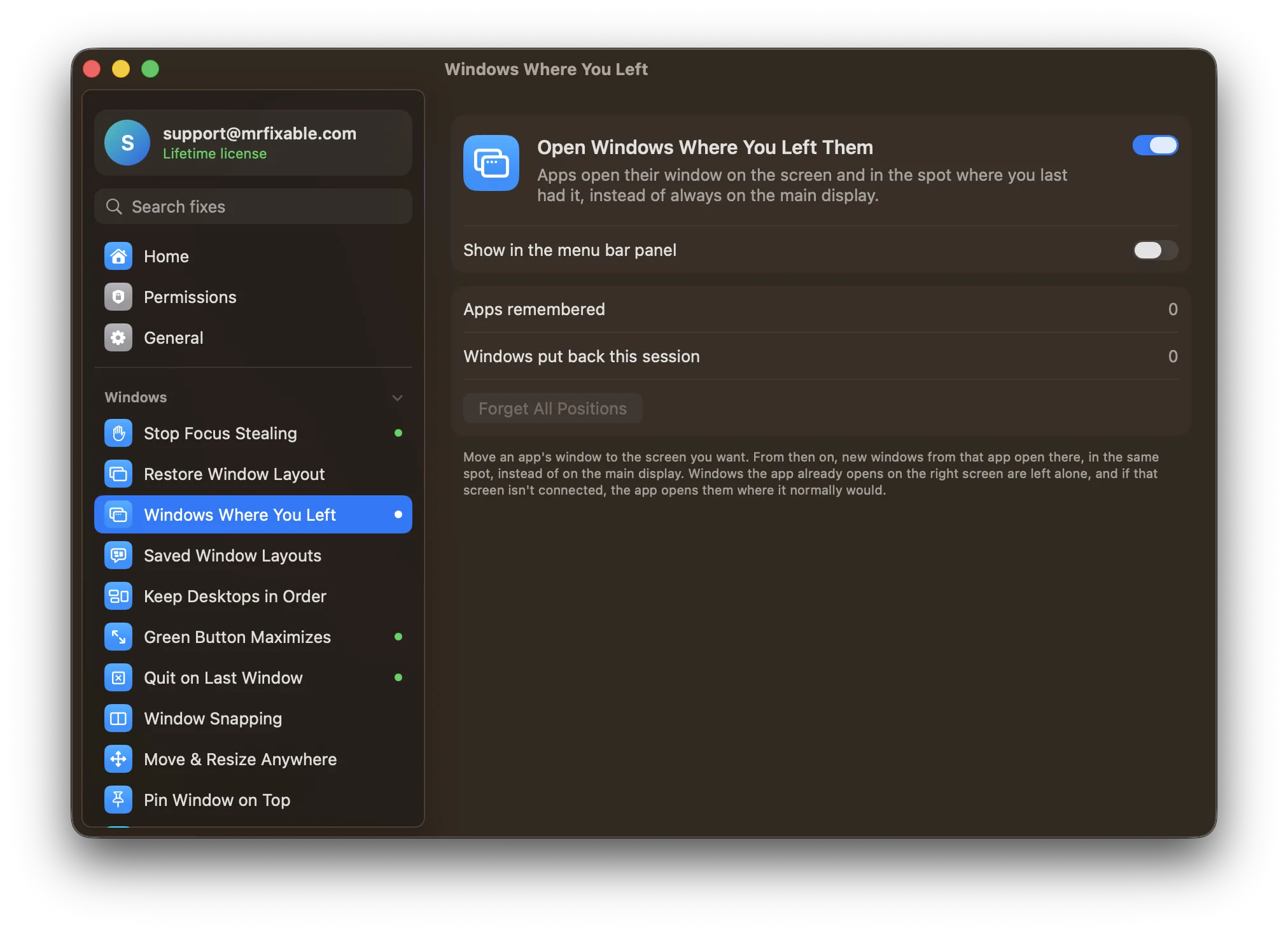
What Open Windows Where You Left Them does
The problem
You move an app's window to your second screen every day, and every time it opens again, it's back on the main display. You can assign an app to a desktop from its Dock menu, but that only works with “Displays have separate Spaces” on, and it doesn't remember where on the screen the window was.
With Open Windows Where You Left Them
Each app's new windows open on the screen where you last had them, in the same spot. They're placed before they appear, so nothing flashes on the wrong screen or slides across.
- Learns as you goMove or resize an app's window, and MrFixable remembers that screen and spot for the app. There's nothing to set up, and it remembers after a restart.
- Same spot, kept on screenA window goes back to the same place on that screen, kept fully inside it if the screen has changed size. New windows from the same app step down a little, so none hides exactly behind another.
- Knows your monitorsEach screen is recognized by a lasting ID, so the same monitor is known again after you unplug it, plug it back in or restart.
- Leaves the rest aloneWindows the app already opens on the right screen aren't touched, and a tab you drag out of a browser stays where you drop it. Forget All Positions clears everything.
Good to know
Needs Accessibility access, which macOS requires for any app that moves other apps' windows.
Only does something while more than one display is connected. If the remembered screen isn't connected, the app opens its window where it normally would.
Applies to normal windows only: dialogs, panels, full-screen and minimized windows are left alone.
Switch it off and apps open their windows where they choose again.
Questions
How do I switch between Finder windows on a Mac?
1. Click a Finder window, or Finder in the Dock. 2. Press ⌘` (Command and the key above Tab on US keyboards) to go to the next Finder window. 3. Or open the Window menu and pick a window from the list at the bottom. To see every Finder window at once, press ⌃↓ (Control-Down Arrow).How do I make my Mac remember window positions?
macOS leaves it to each app, and many remember a spot but not the screen. With Open Windows Where You Left Them on, move or resize an app's window once, and its new windows open on that screen, in that spot. It keeps remembering after you restart your Mac, with nothing to set up.How do I make macOS remember window position with multiple monitors?
Turn on Open Windows Where You Left Them, then move each app's window to the monitor you want it on. From then on, when that app opens a window on the wrong screen, MrFixable moves it to the screen and spot you last used. It works with an external monitor, a second display or more.How do I save window positions on a Mac?
macOS has no built-in way to save them. Open Windows Where You Left Them saves a position for each app automatically whenever you move or resize its window. To save a whole arrangement of windows under a name, like “Work”, and restore it with one click, use Saved Window Layouts in MrFixable instead.How do I move a window that's off screen on a Mac?
Click the window's app in the Dock, then press Fn-Control-C or choose Window › Move & Resize › Center to bring the window to the middle of the screen, on macOS 15 or later. On macOS 14, Window Snapping's ⌃⌥C does the same. You can also press Fn-Control-F to fill the screen, then resize it.Does it work after I unplug and reconnect my monitor?
Yes. Screens are recognized by a lasting ID, so the same monitor is known again when you plug it back in, even after a restart. While a remembered screen is unplugged, the app opens its windows where it normally would. Once the monitor is back, new windows open on it again.Does it move windows that are already open?
No. It places an app's windows as they open, so windows already on screen stay where they are. To put windows that are already open back where they were after a display reconnects, turn on Restore Window Layout as well. The two fixes work together without getting in each other's way.
Sources
Guides
- Why Mac apps open on the wrong monitor, and how to fix itAn app you always use on your second screen keeps opening on the first. How macOS decides where windows open, the built-in fixes, and how to make apps remember.
- How to move the Dock to another monitor on a MacThe Dock moves to another screen when you push the pointer against that screen's bottom edge. How it works, the setting it needs, and how to remove the push.