
Mac apps open on the wrong monitor because many put new windows on the main display, or remember a spot but not which screen it was on. Built in, make the screen you use most your main display in System Settings › Displays, or assign an app to a desktop on that screen from its Dock icon's Options menu.
You move an app's window to your external monitor every single time, and every time it opens again, it's back on your laptop screen. Or you unplug your monitor for a meeting, plug it back in, and every window is piled onto one display.
How macOS decides where a window opens
For most apps, macOS opens a new window on the screen you're working on: the one with the window you're currently using. Many apps also remember where their window was last time and put it back there.
Things go wrong when an app does neither:
- Some apps always open on the main display, ignoring where you were.
- Some remember a position, but not which screen it was on, so they land in the right spot on the wrong display.
- When a display disconnects, macOS moves its windows onto the remaining screen. When it comes back, it doesn't move them back.
How do you make an app open on a specific monitor?
- Assign an app to a desktop. With "Displays have separate Spaces" on, right-click the app's icon in the Dock, choose Options, and pick This Desktop while you're on the screen you want. The app then opens there.
- Set your main display to the screen you use most, in System Settings › Displays › Use as main display. Apps that always open on the main display will then open there.
Assigning works per app, and only with separate Spaces turned on.
Questions
How do I move a window to my other monitor?
Drag it by its title bar across to the other screen. If the screens are arranged differently from how they sit on your desk, fix that first in System Settings › Displays › Arrange, so the pointer crosses where you expect.
Is there a setting to make apps remember their monitor?
No. macOS leaves it to each app, and many remember a spot but not the screen. Assigning an app to a desktop, above, is the closest built-in option.
How do I move the Dock to my other monitor?
Move the pointer to the bottom edge of that screen and keep pushing down for a moment. See how to move the Dock to another monitor for the setting it needs.
Making every app remember its screen
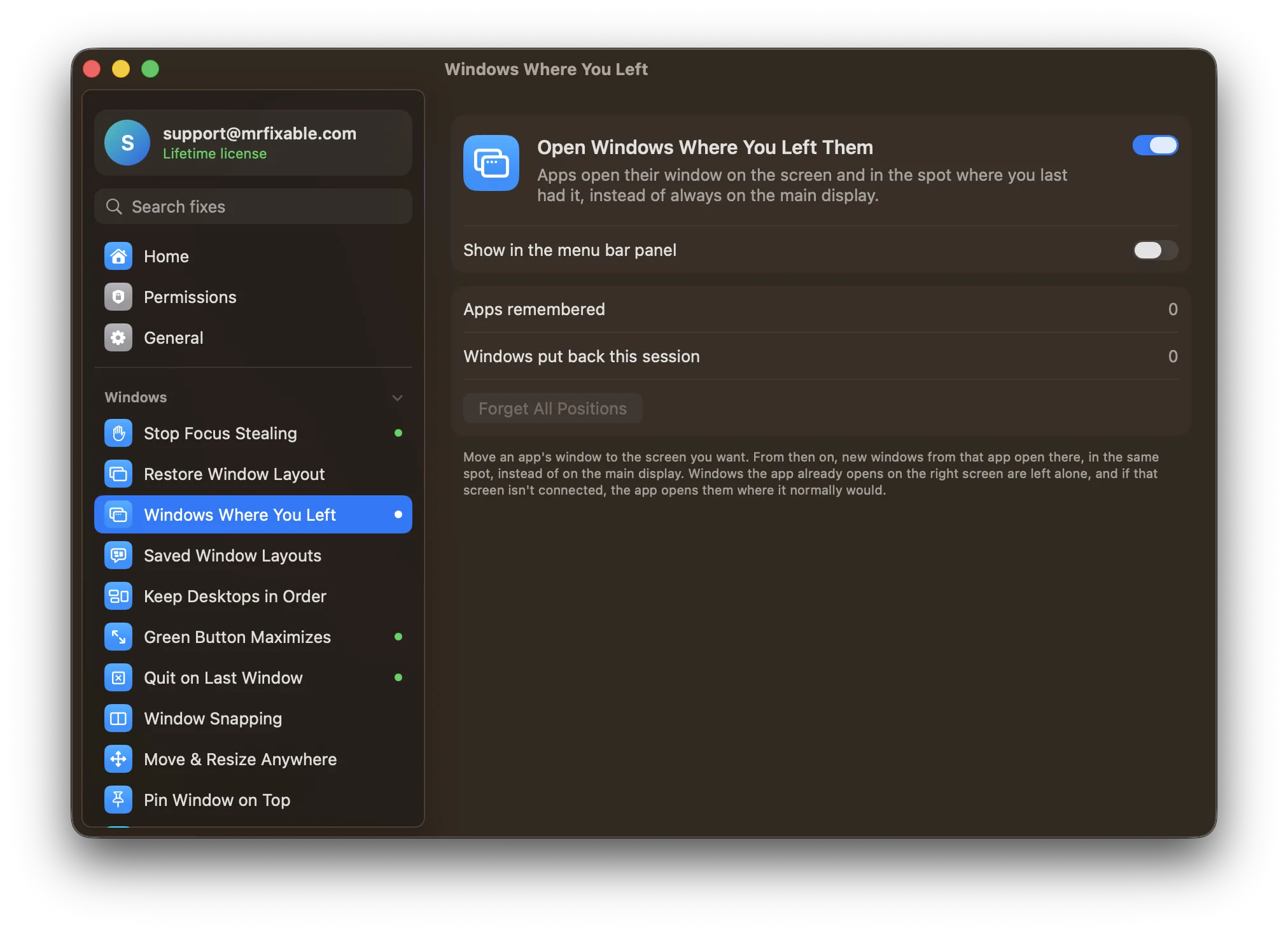
Open Windows Where You Left Them in MrFixable remembers the screen and spot where you last had each app's window. The next time that app opens a window, MrFixable places it there before it appears, so there's no flash on the wrong screen and no window sliding across.
Restore Window Layout fixes the other half: when you reconnect a display, it puts your windows back where they were before the display went away. It remembers positions while MrFixable is running, and leaves minimized and full-screen windows as they are.
And if you have setups you switch between, like "Coding" or "Writing", Saved Window Layouts put every window back in place with one click.