
Windows & DockSaved Window Layouts
Save a window layout on Mac
To save a window layout on Mac, you need an app: macOS has no way to save where your windows are and bring them back. Saved Window Layouts saves every window on your desktop under a name like “Work” or “Coding”. One click puts each window back in place and opens any apps in the layout that are closed.
Try free for 14 daysBuy for $19.99 Lifetime license
One of 68 fixes in MrFixable. Lifetime license, no subscription. Updated October 22, 2026. Works on macOS 14.2 Sonoma and later. Checked on macOS 26 Tahoe.
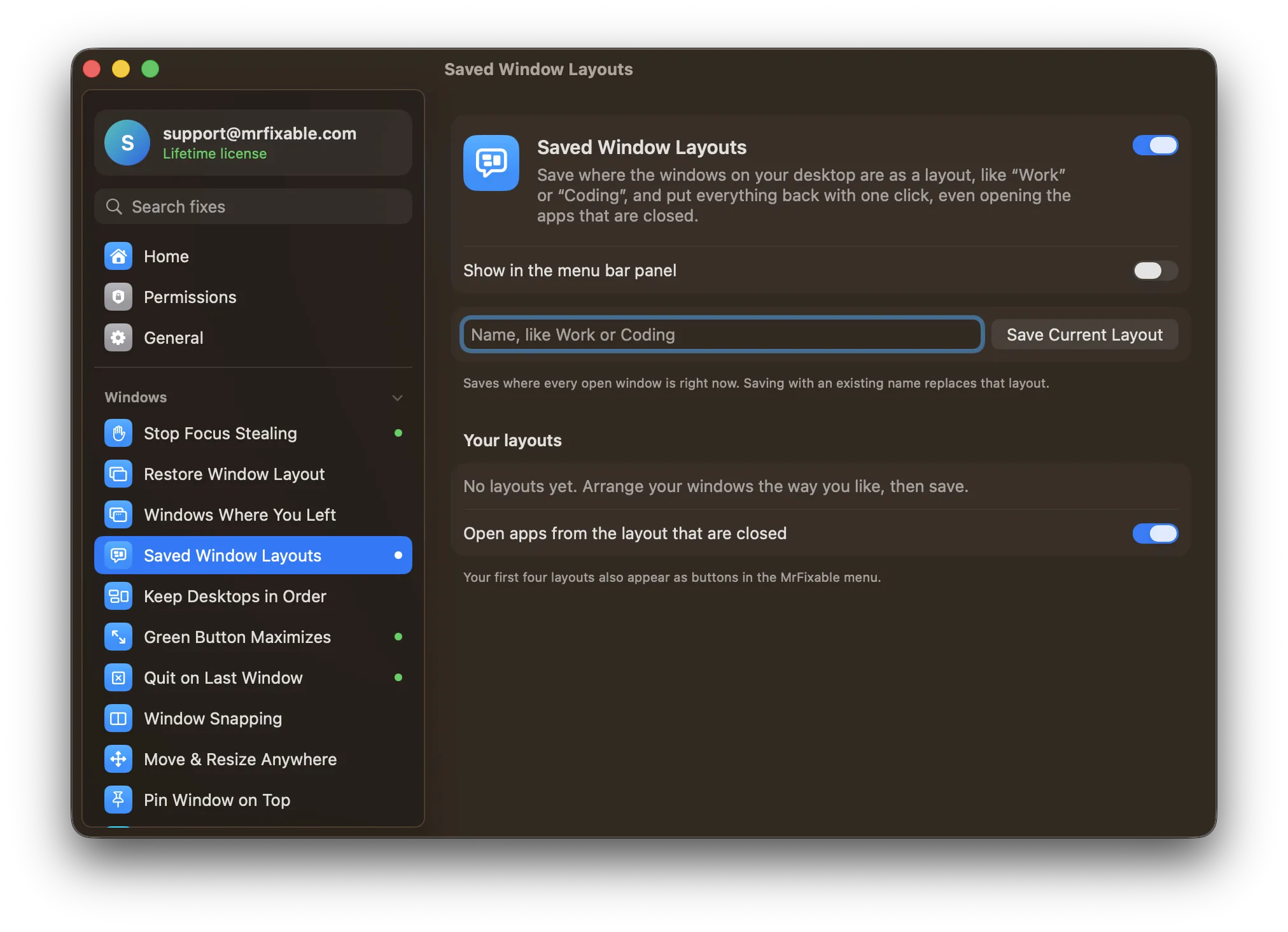
What Saved Window Layouts does
The problem
You arrange a dozen windows just right for coding, then switch to email and meetings, and the arrangement is gone. macOS can't save a set of window positions and bring them back later, so you drag everything into place again by hand.
With Saved Window Layouts
Save where every window is as a named layout, like “Work” or “Coding”. One click puts every window back in place, and opens the apps that are closed.
- Name it and saveArrange your windows, type a name and click Save Current Layout. Saving with a name you already use replaces that layout, and Replace with Current Windows updates one from its menu.
- Opens what's missingApps in the layout that are closed are opened for you, on by default. Windows are matched by title, then by order, and minimized windows come back out of the Dock.
- One click from the menu barYour first four layouts appear as buttons in the MrFixable menu, so switching setups doesn't mean opening settings.
Good to know
Needs Accessibility access, which macOS requires for any app that moves and resizes other apps' windows.
A layout saves the windows on the desktop you're on. Minimized and full-screen windows, and apps you've hidden, aren't saved.
A layout moves and resizes app windows. It doesn't reopen particular documents, files or web pages.
If an app in the layout can't be opened, MrFixable tells you which one after restoring. Layouts stay saved when you switch the fix off.
Questions
How do I arrange windows on a Mac?
1. Drag a window by its title bar, and resize it from an edge or corner. 2. On macOS 15 or later, press Fn-Control and an arrow key to tile the front window, or Fn-Control-Shift and an arrow to put two windows side by side. 3. Save the arrangement with Saved Window Layouts to restore it later.How do I save a window layout on a Mac?
macOS doesn't have a way to save one. Turn on Saved Window Layouts, arrange your windows, type a name like “Work” and click Save Current Layout. To bring it back, click Restore next to the layout in settings, or click its button in the MrFixable menu. Every window goes back where it was.Is there a workspace manager app for Mac?
Yes. Saved Window Layouts in MrFixable works as a simple workspace manager: save the windows on your desktop as a named layout, then restore it from settings or the MrFixable menu. It moves and resizes windows and opens closed apps. It doesn't reopen particular documents, files or websites inside those apps.Can it open the apps in my layout too?
Yes. Apps that are closed are opened in the background before their windows are moved into place. This is on by default. Switch off “Open apps from the layout that are closed” if you only want to arrange the apps that are already running. Apps that can't be opened are listed after restoring.How many layouts can I save?
As many as you like. Each layout shows how many windows and apps it holds and when you saved it. The first four also appear as buttons in the MrFixable menu, so switching between them takes one click. Delete a layout, or replace it with your current windows, from its menu.Does a layout include all my desktops?
No. A layout saves the windows on the desktop you're on, so make one layout per desktop if you use several. Minimized and full-screen windows, and apps you've hidden, aren't saved. When you restore, minimized windows of apps in the layout come back out of the Dock.
Sources
Guides
- How to arrange windows on a Mac and save the layoutHow to arrange windows on a Mac with the Window menu and Fn-Control shortcuts, see them all at once, and save a window layout to put back with one click.
- Why Mac apps open on the wrong monitor, and how to fix itAn app you always use on your second screen keeps opening on the first. How macOS decides where windows open, the built-in fixes, and how to make apps remember.