
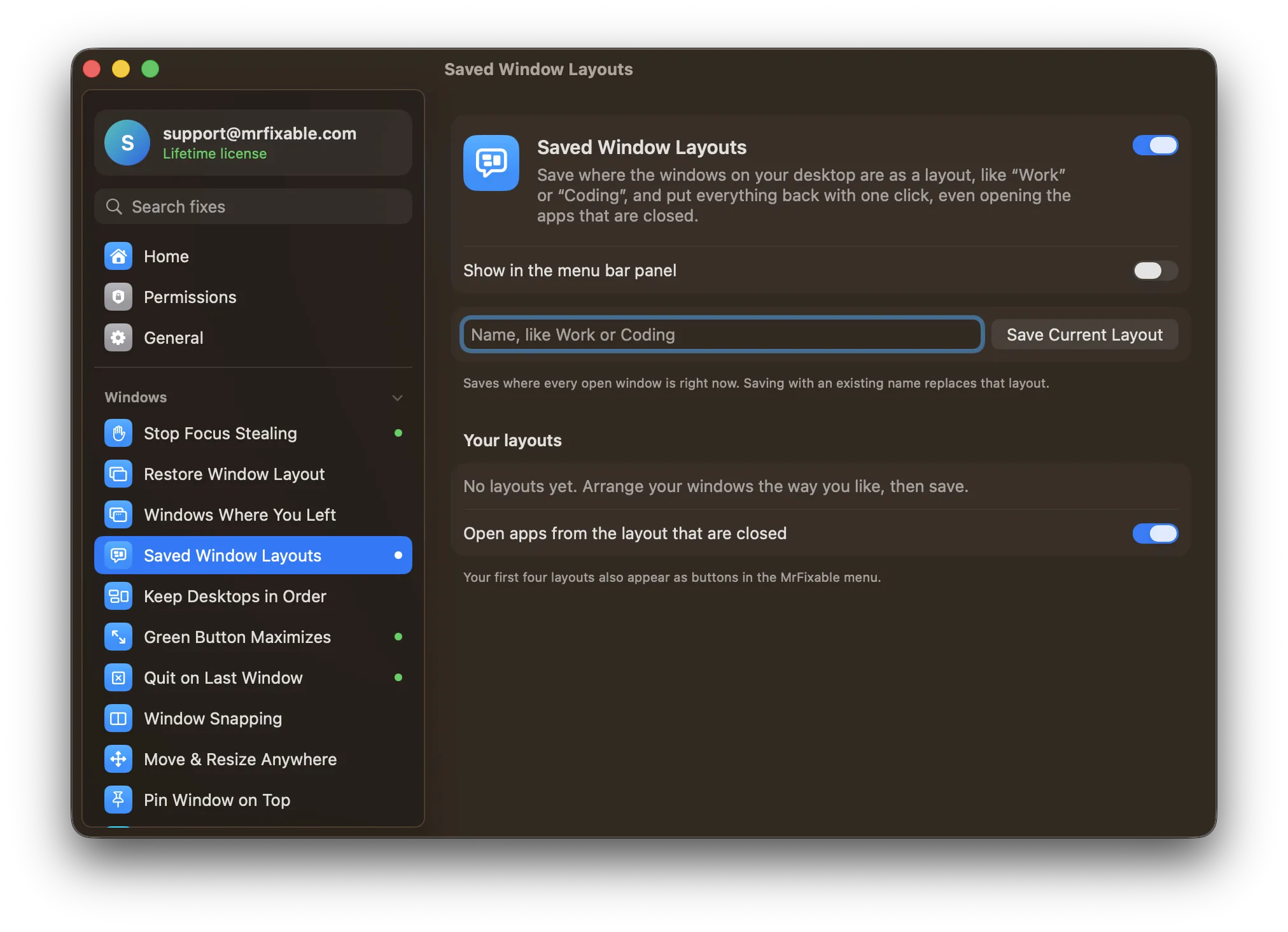
To arrange windows on a Mac, choose Window › Move & Resize in almost any app and pick a layout under Arrange, or press Fn⌃⇧← to put two windows side by side. This needs macOS 15 Sequoia or later. macOS can't save an arrangement, so Saved Window Layouts in MrFixable puts it back with one click.
Most people don't arrange their windows once. They do it every morning: mail on the left, the browser on the right, notes in a corner. Here's how to do it quickly in macOS, and how to stop doing it by hand.
Arrange windows with the Window menu
Since macOS 15 Sequoia, every app's Window menu can arrange several windows at once:
- Click the window you want in the first spot, so it's in front.
- In the menu bar, choose Window › Move & Resize.
- Under Arrange, pick a layout: Left & Right, Right & Left, Top & Bottom, Bottom & Top, Quarters, or one of the layouts that put one window on one half and two more in the quarters next to it.
- The front window takes the first spot, and macOS fills the other spots with your other open windows.
- To put one window back the way it was, choose Window › Move & Resize › Return to Previous Size, or press Fn⌃R.
You can also hold the pointer over the green button at the top left of a window (don't click it) and choose a layout from the menu that appears.
Fn is the key with the 🌐 globe on newer Mac keyboards, and ⌃ is Control. These are the shortcuts Apple lists:
| Shortcut | Layout |
|---|---|
| Fn⌃⇧← | Left & Right |
| Fn⌃⇧→ | Right & Left |
| Fn⌃⇧↑ | Top & Bottom |
| Fn⌃⇧↓ | Bottom & Top |
| Fn⌃⌥⇧← | Left & Quarters |
| Fn⌃⌥⇧→ | Right & Quarters |
Quarters has no shortcut. To place a single window instead of several, see how to snap windows side by side.
Other ways to arrange windows
- Drag a window next to another one. As it gets close, macOS lines it up against the other window without overlapping it. Drag an edge toward a neighbor and it stops right at that window's edge.
- Drag to the screen edge. On macOS 15 or later, dragging a window to the left or right edge fills that half of the screen.
- Mission Control (F3, ⌃↑, or swipe up with three fingers) spreads out every open window so you can see them all and click the one you want.
- Stage Manager, in Control Center, keeps the window you're using in the middle and lines up your other apps on the side.
All of these arrange windows for now. None of them remembers the arrangement. Quit an app, restart your Mac or unplug a display, and you start again.
Save your window layout and put it back
Saved Window Layouts in MrFixable saves where every window is as a named layout, like "Work" or "Coding", and puts them all back in one go:
- Arrange your windows the way you like them.
- Open Saved Window Layouts in MrFixable, type a name, and click Save Current Layout.
- Later, click Restore next to the layout. Your first four layouts also appear as buttons in the MrFixable menu, so putting them back is one click from the menu bar.
What it does when you restore:
- Moves and resizes each window to the place and size you saved. Minimized windows come back out of the Dock.
- Opens apps that are closed, then waits for their windows to appear. You can turn this off with Open apps from the layout that are closed.
- Finds the right window by its title, so your mail window goes back to the mail spot, then by order for windows whose titles changed.
- Tells you what it couldn't do, for example which apps from the layout weren't open.
To change a layout, arrange the windows again and choose Replace with Current Windows from its menu, or save again with the same name. Full-screen and minimized windows aren't included when you save, and the fix needs Accessibility permission to move other apps' windows.
Related
- Windows piling onto one screen when you reconnect a display: Restore Window Layout puts them back automatically.
- Placing one window with a shortcut, including on macOS 14 Sonoma, which has no built-in tiling: Window Snapping.
- Apps opening on the wrong monitor: see why Mac apps open on the wrong monitor.
Questions
How do I arrange windows side by side on a Mac?
Click the first window, then press Fn⌃⇧← or choose Window › Move & Resize › Left & Right. The front window fills the left half and another open window fills the right. This works on macOS 15 Sequoia and later. On older versions, use Split View from the green button instead.
Can a Mac save my window layout?
Not on its own. macOS can reopen windows when you log back in, but it has no way to save an arrangement by name and put it back later. Saved Window Layouts in MrFixable does that: save the layout once, then restore it from the menu bar with one click.
Does macOS have a window layout manager?
Partly. Since macOS 15 Sequoia, Window › Move & Resize arranges two, three or four windows into halves and quarters, with shortcuts for most layouts. It doesn't remember layouts, open the apps that belong in them, or restore them later. A window layout manager like Saved Window Layouts adds those parts.
What does a Mac workspace app do?
A workspace app saves a set of apps and window positions for one kind of work, such as writing, coding or calls, and brings the whole set back when you need it. Saved Window Layouts works this way: it opens any closed apps from the layout and moves every window into place.
Sources
- Tile windows on Mac
- Tile windows on Mac (macOS Sequoia 15)
- Mac window tiling icons & keyboard shortcuts
- How to use the function keys on your Mac
- Move and arrange app windows on Mac
- View open windows and spaces in Mission Control on Mac
- Organize your Mac desktop with Stage Manager
- Use apps in Split View on Mac
- Shut down or restart your Mac