
Windows & DockWindow Snapping
Mac window snapping with keyboard shortcuts
Mac window snapping is built in since macOS 15: drag a window to a screen edge, or press Fn-Control and an arrow key, to tile it to half the screen. Window Snapping adds a shortcut for every position: ⌃⌥ and an arrow for halves, ⌃⌥U, I, J and K for quarters, ⌃⌥↩ to fill, and ⌃⌥⌘→ for your next display.
Try free for 14 daysBuy for $19.99 Lifetime license
One of 68 fixes in MrFixable. Lifetime license, no subscription. Updated October 22, 2026. Works on macOS 14.2 Sonoma and later. Checked on macOS 26 Tahoe.
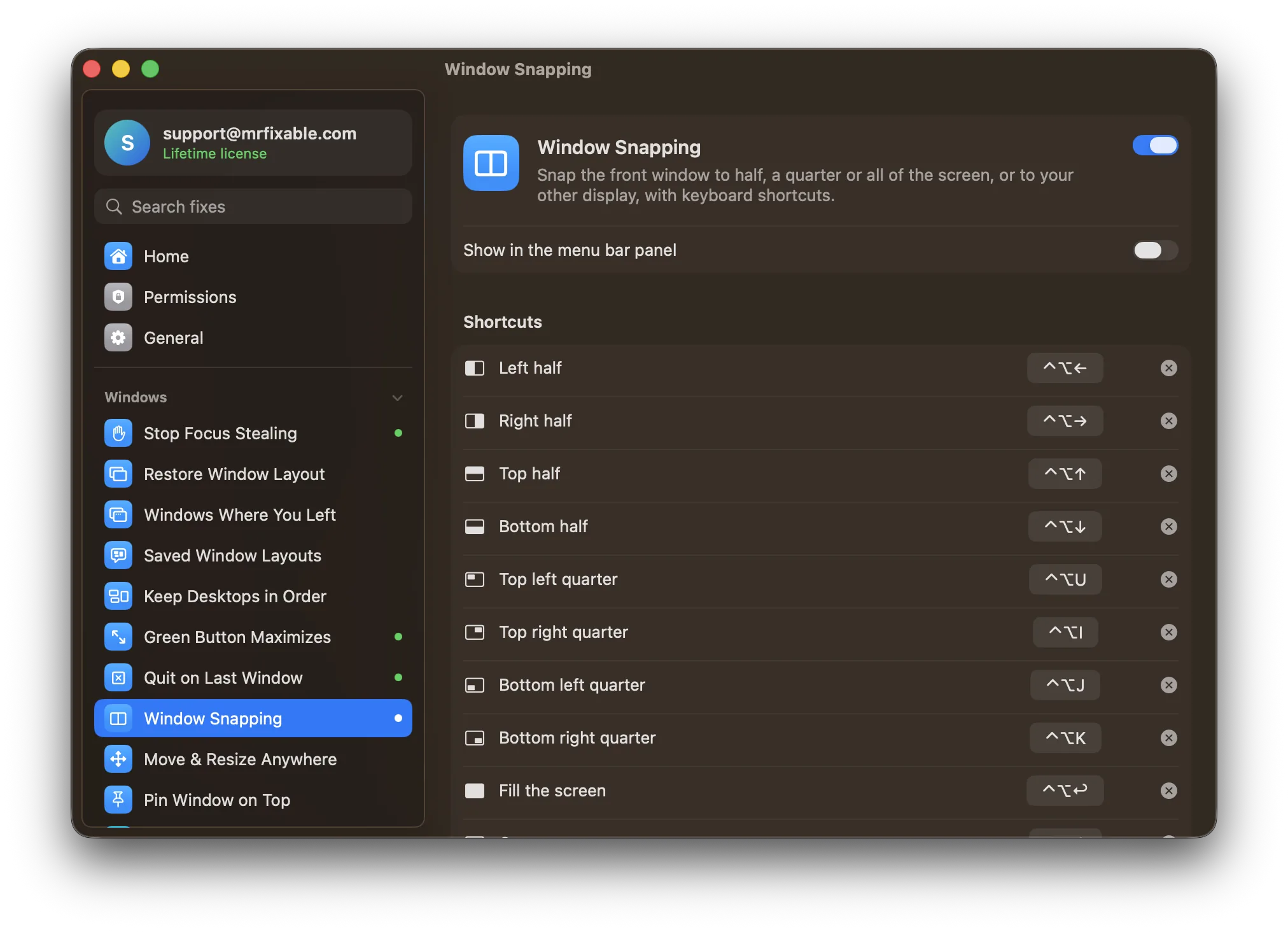
What Window Snapping does
The problem
Putting two windows side by side means dragging edges until they fit. macOS 15 and later can tile a window to half the screen, but quarter positions have no shortcuts, there's no shortcut to send a window to your other display, and macOS 14 has no tiling at all.
With Window Snapping
Press a shortcut and the front window fills the left half, a quarter, or the whole screen, or moves to your other display. Every position has its own shortcut, and you can change any of them.
- Halves and quarters⌃⌥ and an arrow key snaps the window to the left, right, top or bottom half. ⌃⌥U, I, J and K snap it to the four corners.
- Fill, center, or move it⌃⌥↩ fills the screen without going full screen, ⌃⌥C centers the window, and ⌃⌥⌘→ moves it to your next display.
- Your shortcuts, your wayChange or clear any shortcut, or click Restore Default Shortcuts. If another app already uses one, MrFixable marks it, so you know why it doesn't work.
- Works on macOS 14 tooThe same shortcuts work on macOS 14 Sonoma, which has no built-in tiling, and on later versions alongside macOS's own.
Good to know
Needs Accessibility access, which macOS requires for any app that moves and resizes other apps' windows.
Windows stay out of the menu bar and the Dock, on every display.
If Rectangle, Magnet, Moom, Spectacle or BetterSnapTool is running, MrFixable tells you, so two apps don't fight over the same shortcuts.
macOS's own tiling shortcuts use Fn-Control, and Window Snapping uses ⌃⌥, so you can use both.
Questions
How do I snap windows on a Mac?
1. On macOS 15 or later, drag a window to the left or right edge of the screen, or to a corner, and let go when the outline appears. 2. Or click the window and press Fn-Control and an arrow key. 3. For quarters and other displays, turn on Window Snapping and use ⌃⌥ and an arrow key.Can you snap windows on a Mac?
Yes, on macOS 15 Sequoia or later: drag a window to a screen edge or corner, or press Fn-Control and an arrow key. macOS 14 Sonoma and earlier have no tiling, only full-screen Split View. Window Snapping adds keyboard shortcuts for halves, quarters, fill, center and other displays, and works the same way on macOS 14.How do I snap windows on a Mac with a keyboard shortcut?
1. Click the window you want to move. 2. On macOS 15 or later, press Fn-Control and an arrow key for a half, or Fn-Control-F to fill. 3. With Window Snapping on, press ⌃⌥ and an arrow for a half, ⌃⌥U, I, J or K for a quarter, or ⌃⌥⌘→ to move it to your next display.How do I enable window snapping on a Mac?
1. Open System Settings › Desktop & Dock. 2. Under Windows, turn on “Drag windows to left or right edge of screen to tile” and “Drag windows to menu bar to fill screen”. 3. To make windows snap with the keyboard, including quarters, turn on Window Snapping in MrFixable and allow Accessibility access when asked.How do I disable window snapping on a Mac?
1. Open System Settings › Desktop & Dock. 2. Under Windows, turn off “Drag windows to left or right edge of screen to tile” and “Drag windows to menu bar to fill screen”. 3. To stop MrFixable's shortcuts, switch off Window Snapping, or clear the shortcuts you don't want in its settings.How do I snap windows in macOS Sonoma?
macOS 14 Sonoma has no window snapping of its own. 1. Install MrFixable, which runs on macOS 14.2 or later. 2. Turn on Window Snapping and allow Accessibility access. 3. Click a window and press ⌃⌥← or ⌃⌥→ for a half, ⌃⌥U, I, J or K for a quarter, or ⌃⌥↩ to fill the screen.Why doesn't Mac have window snapping?
Apple only added window tiling in macOS 15 Sequoia; before that, a Mac could only put two apps side by side in full-screen Split View. 1. On macOS 15 or later, drag a window to a screen edge or press Fn-Control and an arrow key. 2. On macOS 14, or for quarters, turn on Window Snapping.Is it an alternative to Magnet or Rectangle?
It does the same core job: keyboard shortcuts that snap the front window to halves, quarters or the full screen, center it, and move it to another display. If that's all you use, you don't need a separate window manager. If you keep one, MrFixable tells you when both are running, so shortcuts don't clash.
Sources
Guides
- How to snap windows side by side on a MacSnap two windows side by side on a Mac: drag to a screen edge or press Fn-Control and an arrow on macOS 15 and later, or use Split View on older versions.
- How to arrange windows on a Mac and save the layoutHow to arrange windows on a Mac with the Window menu and Fn-Control shortcuts, see them all at once, and save a window layout to put back with one click.
- How to keep a window always on top on a MacHow to keep a window always on top on a Mac: Stickies and Picture in Picture can float, and any other window can stay pinned in front with one shortcut.
- How to resize a window on a Mac, with or without the edgesHow to resize a window on a Mac by dragging an edge, with Fn-Control shortcuts and the Window menu, and how to move or resize it from anywhere inside it.
- How to maximize a window on a Mac without going full screenThe Mac's green button goes full screen. How to maximize a window instead: Fn-Control-F, the Fill menu, a title-bar double-click, or a one-click green button.
Compare
- Coming from Windows?On Windows: Snap windows with ⊞ and the arrows. Window Snapping brings it to your Mac. See every Windows habit and its Mac fix.
- Window Snapping vs BetterTouchToolA BetterTouchTool alternative for Mac makes sense if you only use it for a few common jobs. BetterTouchTool lets you build almost any gesture, shortcut or automation yourself. MrFixable gives you ready-made fixes instead, like Window Snapping, Window Switcher, Clipboard History and Mouse Back & Forward, each turned on with one switch, for $19.99 once.
- Window Snapping vs MagnetA Magnet alternative for Mac is MrFixable's Window Snapping. It snaps the front window to halves, quarters or the full screen, or moves it to your next display, with keyboard shortcuts. Magnet costs $4.99 on the Mac App Store and also snaps windows you drag to a screen edge. MrFixable costs $19.99 once, with 67 other fixes.
- Window Snapping vs RectangleA Rectangle alternative for Mac is MrFixable's Window Snapping. It snaps the front window to halves, quarters or the full screen, or moves it to your next display, with keyboard shortcuts. Rectangle is free, open source and does more, including drag-to-snap and thirds. MrFixable makes sense if you'd also use its 67 other fixes.