
Windows & DockGreen Button Maximizes
Mac maximize window shortcut and green button
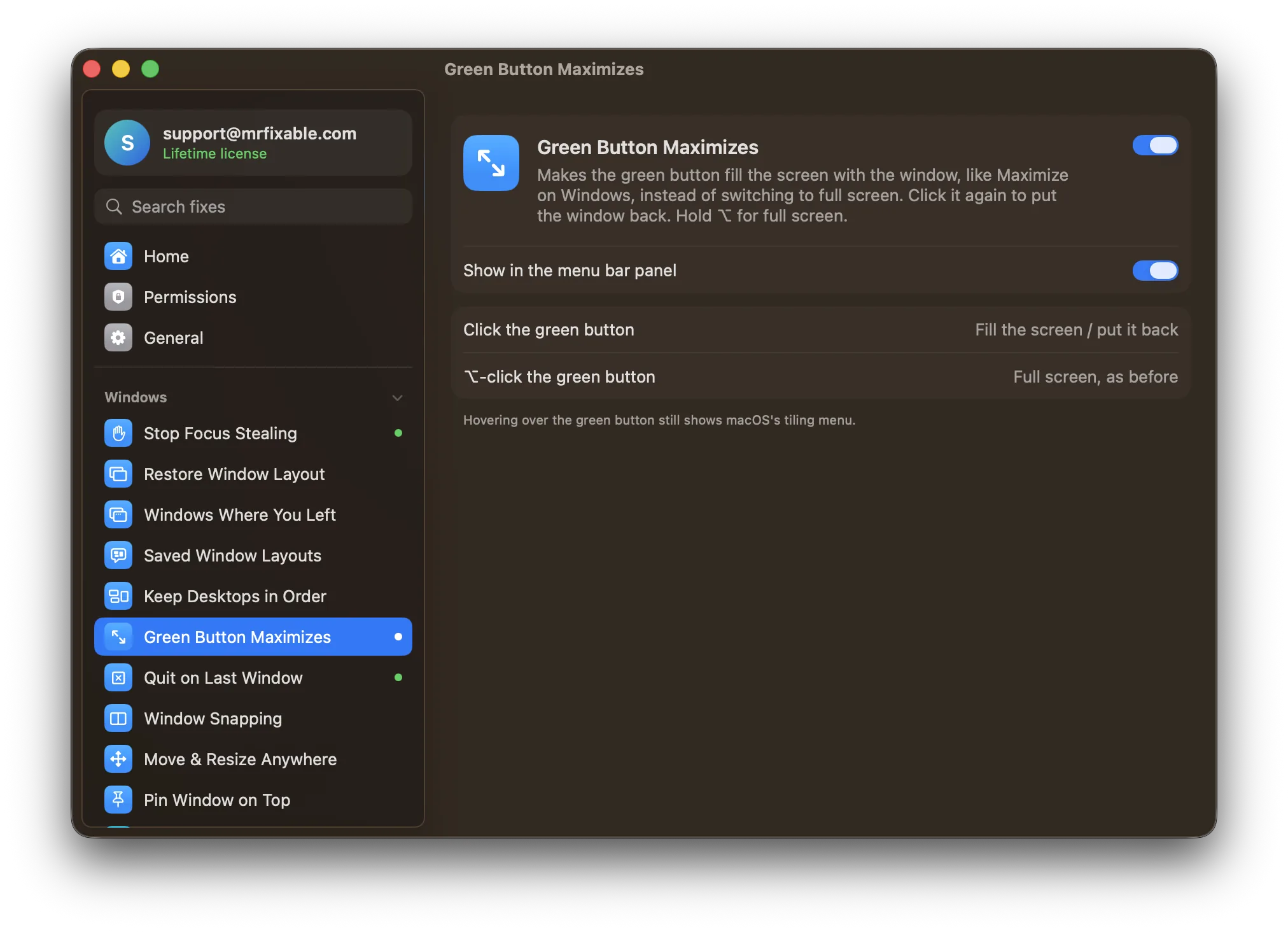
The Mac maximize window shortcut is Fn-Control-F on macOS 15 or later, or choose Window › Move & Resize › Fill. Clicking the green button switches to full screen instead. Green Button Maximizes makes a plain click on the green button fill the screen, with the menu bar and Dock still showing, and a second click puts it back.
Try free for 14 daysBuy for $19.99 Lifetime license
One of 68 fixes in MrFixable. Lifetime license, no subscription. Updated October 22, 2026. Works on macOS 14.2 Sonoma and later. Checked on macOS 26 Tahoe.
What Green Button Maximizes does
The problem
On a Mac, the green button switches a window to full screen: it moves to its own space, and the menu bar and Dock disappear. Since macOS 15 you can hold the pointer over the button and choose Fill from a menu, but that's a menu, not a click.
With Green Button Maximizes
Click the green button and the window fills the screen, with your menu bar and Dock still there. Click it again and the window goes back to the size and place it had.
- One click, like WindowsThe window fills the screen it's on, between the menu bar and the Dock, just like Maximize on Windows.
- Click again to put it backA second click puts the window back exactly where it was, at its old size. If you've moved or resized it in between, the click fills the screen again instead.
- Full screen is still thereHold the pointer over the green button for macOS's tiling menu, with full screen under Full Screen Tile, or press ⌃⌘F (Control-Command-F).
Good to know
Needs Accessibility access, which macOS requires for an app that resizes other apps' windows.
A window that's already in full screen is left alone, so its green button still takes you out of full screen.
Switch it off and the green button goes back to full screen.
Questions
How do I maximize a window on a Mac?
1. Click the window. 2. Press Fn-Control-F, or choose Window › Move & Resize › Fill, to fill the screen on macOS 15 or later. 3. Or double-click its title bar, which fills the screen when that's set to Fill in System Settings › Desktop & Dock. Green Button Maximizes does it with one click.How do I maximize my Mac or MacBook screen?
1. Click the green button in the window's top-left corner, or press ⌃⌘F (Control-Command-F), to make the app full screen. 2. Press ⌃⌘F again to leave full screen. 3. To fill the screen but keep the menu bar and Dock, press Fn-Control-F instead, or turn on Green Button Maximizes and click the green button.What is the shortcut to maximize a window on a Mac?
1. Press Fn-Control-F to fill the screen, on macOS 15 or later. 2. Press Fn-Control-R to give the window back its previous size. 3. On macOS 14, or for a shortcut without Fn, turn on Window Snapping and press ⌃⌥↩ (Control-Option-Return). Green Button Maximizes is the mouse version: one click on the green button.How do I minimize a window on a Mac?
1. Press ⌘M (Command-M), or click the yellow button in the window's top-left corner. 2. To minimize every window of the app you're in, press ⌥⌘M. 3. To bring a window back, click it at the right end of the Dock. Turn on “Minimize windows into application icon” in System Settings › Desktop & Dock to keep the Dock tidy.How do I maximize a window on a Mac without full screen?
1. Click the window. 2. Press Fn-Control-F, or choose Window › Move & Resize › Fill, on macOS 15 or later. The window fills the screen and the menu bar and Dock stay. 3. For the same with one click, turn on Green Button Maximizes, then click the green button. Click it again to put the window back.Why won't my window maximize?
Usually the green button is set to full screen, or the window can't be resized. 1. Press Fn-Control-F to fill the screen instead. 2. If double-clicking the title bar does nothing, set that action to Fill in System Settings › Desktop & Dock. 3. A dimmed green button means the window has a fixed size and can't be maximized.Why does the green button make my window full screen?
That's how macOS works: the green button switches the window to full screen, in its own space, and hides the menu bar and Dock. Green Button Maximizes changes the click to fill the screen instead. Full screen is still in the green button's hover menu, and ⌃⌘F still works.
Sources
Guides
- How to maximize a window on a Mac without going full screenThe Mac's green button goes full screen. How to maximize a window instead: Fn-Control-F, the Fill menu, a title-bar double-click, or a one-click green button.
- How to resize a window on a Mac, with or without the edgesHow to resize a window on a Mac by dragging an edge, with Fn-Control shortcuts and the Window menu, and how to move or resize it from anywhere inside it.