
To maximize a window on a Mac without going full screen, press Fn-Control-F on macOS 15 Sequoia or later, or choose Window › Move & Resize › Fill. Clicking the green button doesn't do this: it switches the window to full screen and hides the menu bar and Dock. macOS 14 and earlier have no Fill command.
On Windows, the square button makes a window fill the screen. On a Mac, the green button in the top-left corner looks like the same thing, but it does something else: it switches the window to full screen. The window moves to its own space, the menu bar and Dock disappear, and switching to another app slides the whole screen away.
Most people coming from Windows just want the window to fill the screen and stay put. Here's how.
Built in: Fill (macOS Sequoia and later)
Since macOS 15 Sequoia, macOS can fill the screen without going full screen:
- Keyboard: press Fn-Control-F (Fn is the 🌐 key on newer Mac keyboards). Keyboards without a Fn key can use the menu below.
- Menu: choose Window › Move & Resize › Fill in almost any app.
- Green button: hold the pointer over the green button (don't click) and choose Fill from the menu that appears.
- Double-click the title bar: in System Settings › Desktop & Dock, set Window title bar double-click action to Fill.
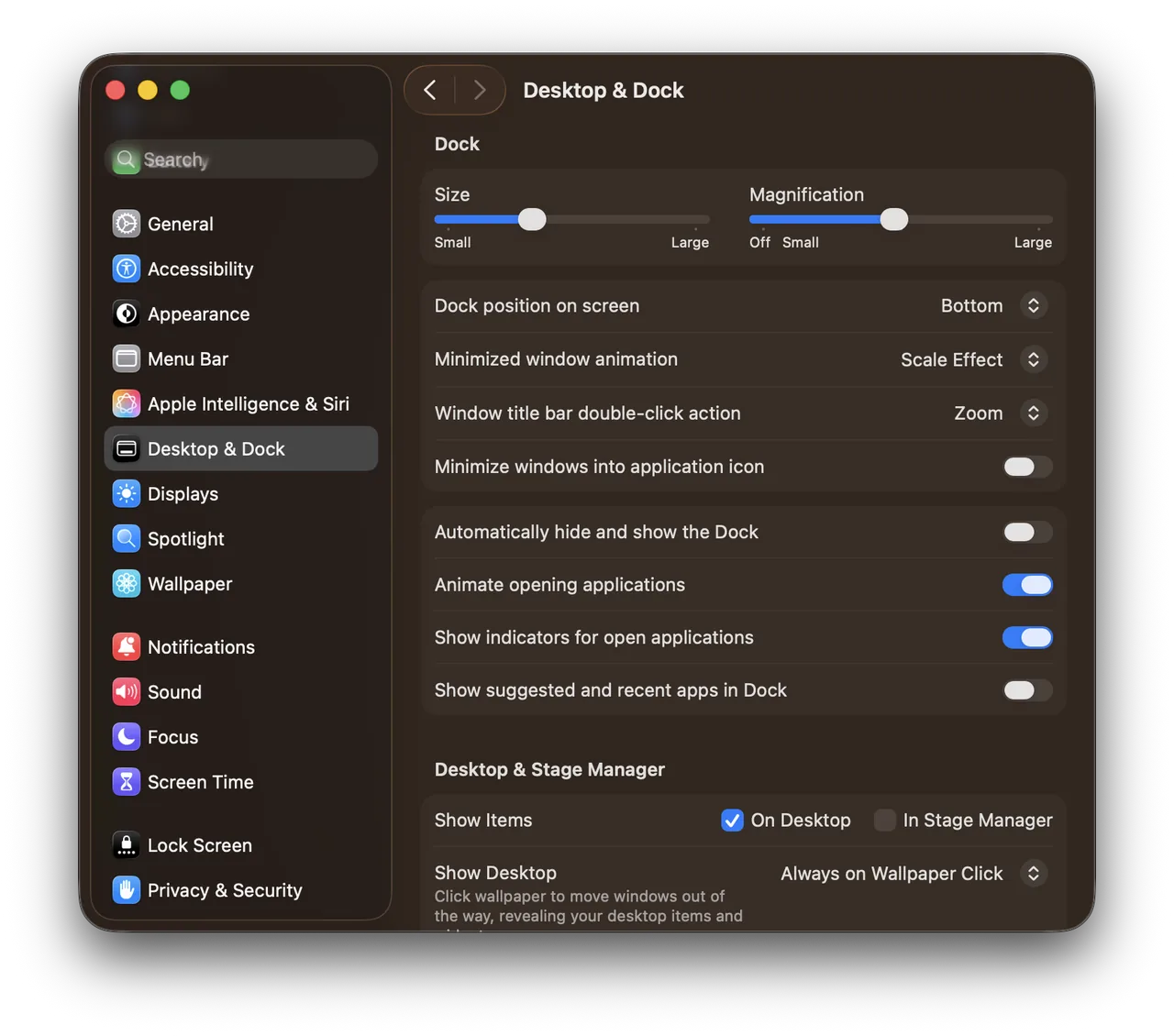
Real screenshot from a MacBook Pro (13-inch, M1, 2020) running macOS 26.1, taken October 22, 2026.
Fn-Control-R puts the window back to its previous size, and Fn-Control with an arrow key snaps it to half the screen.
Why doesn't ⌥-clicking the green button maximize?
Many guides say to Option-click the green button. That "zooms" the window, and each app decides how big that is: often it fits the content rather than the screen, so you get a window that's taller but not wider. It's the reason maximizing on a Mac feels inconsistent.
Questions
How do I minimize a window on a Mac?
Press ⌘M, or click the yellow button at the top left of the window. The window goes into the Dock until you click it there. ⌥⌘M minimizes all of the app's windows.
How do I get out of full screen on a Mac?
Press ⌃⌘F, or move the pointer to the top of the screen until the window's buttons appear and click the green button. The window goes back to its own place on your desktop.
Why won't my window maximize?
Some windows can't be resized, such as many settings windows and dialogs, so their green button is dimmed. If Fill is missing from the Window menu, check your macOS version: it arrived in macOS 15.
One click, like Windows
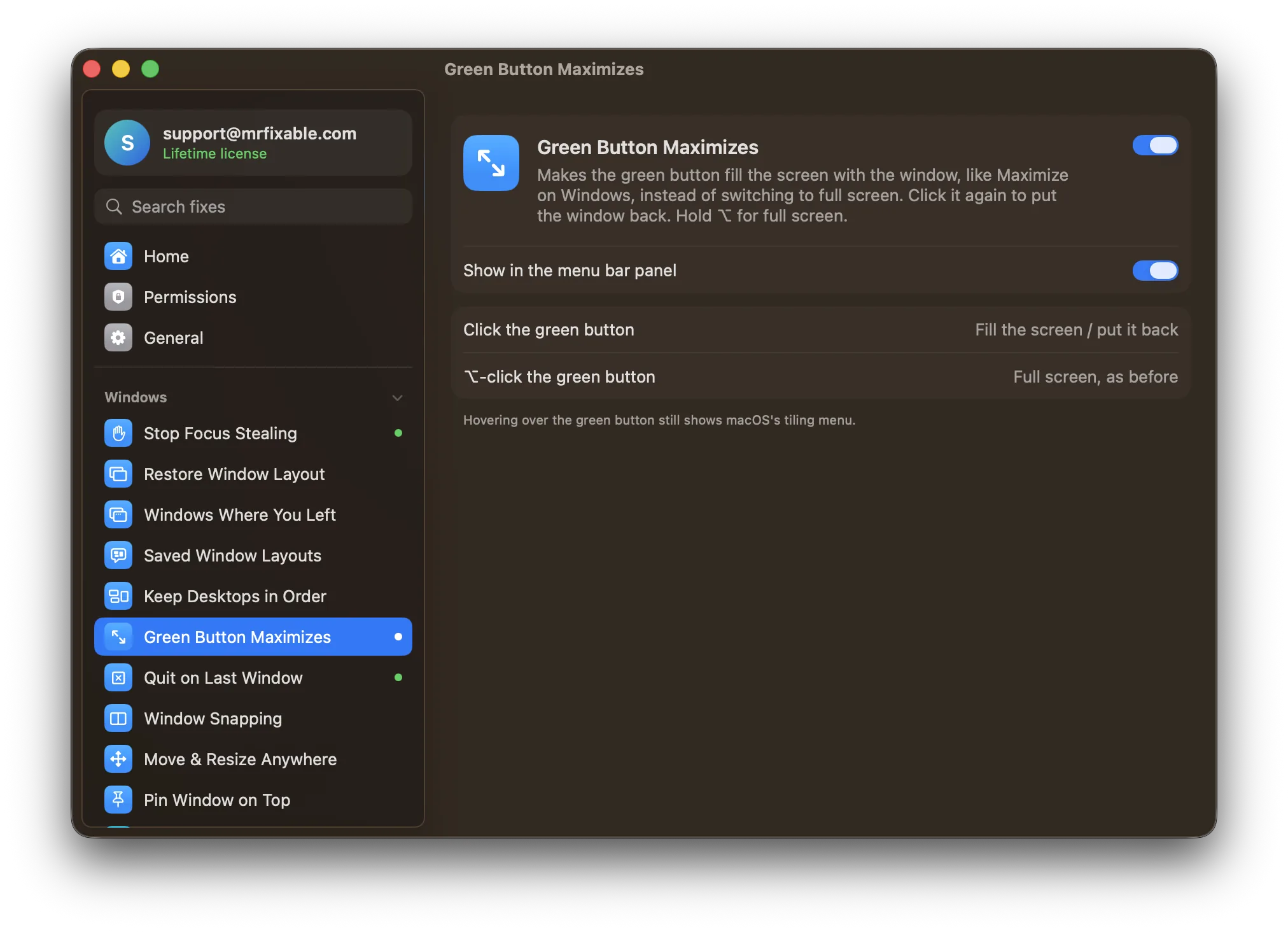
Green Button Maximizes in MrFixable makes the green button work like Maximize on Windows:
- Click it and the window fills the screen, with your menu bar and Dock still there.
- Click it again to put the window back where it was.
- Hold ⌥ and click when you do want full screen.
Hovering over the button still shows macOS's tiling menu.
With the keyboard, on any macOS version
Window Snapping adds shortcuts for every layout, including on macOS Sonoma, which has no built-in tiling:
| Shortcut | Window goes to |
|---|---|
| ⌃⌥↩ | Fill the screen |
| ⌃⌥← / ⌃⌥→ | Left or right half |
| ⌃⌥↑ / ⌃⌥↓ | Top or bottom half |
| ⌃⌥U, I, J, K | A quarter of the screen |
| ⌃⌥C | Center |
| ⌃⌥⌘→ | Your other display |
You can change any of them. For snapping two windows side by side, see how to snap windows on a Mac. Coming from Windows? See everything that works differently.