
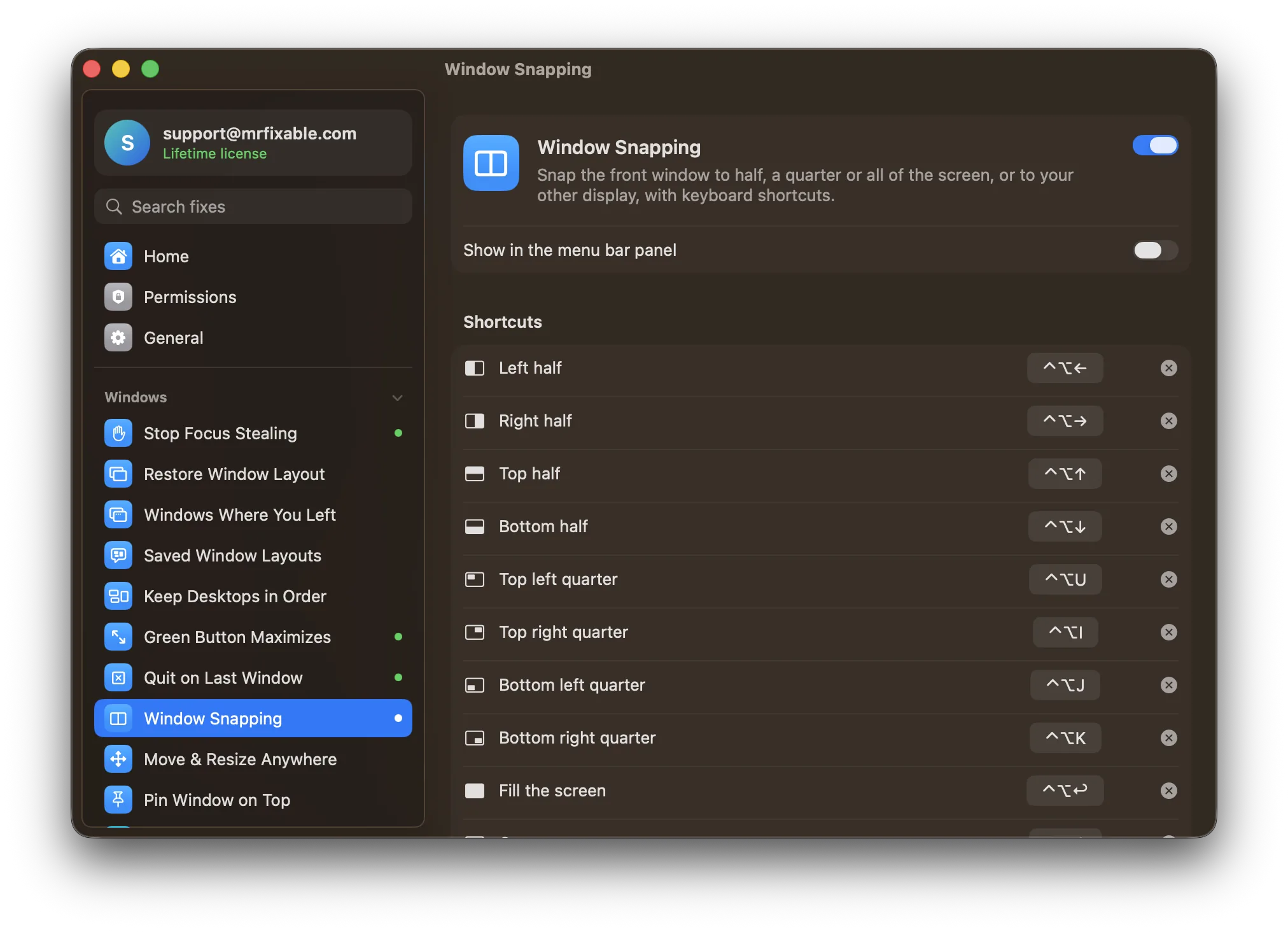
To snap windows side by side on macOS 15 Sequoia or later, drag a window to the left or right edge of the screen, or press Fn-Control-Left Arrow or Fn-Control-Right Arrow. Then do the same with the second window on the other side. On older versions of macOS, use Split View instead, which puts both apps in full screen.
Arranging two windows side by side should take one move. On a Mac it used to take a dozen careful drags. Here's what works today.
How do you snap windows on macOS Sequoia and later?
Since macOS Sequoia 15, macOS can tile windows on its own:
- Drag a window to the left or right edge of the screen to fill that half. Drag it to a corner to fill a quarter.
- Keyboard: press Fn-Control-Left Arrow or Fn-Control-Right Arrow for a half, and Fn-Control-F to fill the screen.
- Menu: choose Window › Move & Resize, or hover over the green button at the top left of a window.
On older macOS versions, the only built-in option is full-screen Split View: hold the pointer over the green button and choose to tile the window to the left or right. Both apps then go into their own full-screen Space.
What built-in tiling doesn't do
- No shortcut to throw a window onto your other display and tile it there in one go.
- Quarter positions have no shortcuts unless you create them yourself in System Settings › Keyboard › Keyboard Shortcuts › App Shortcuts.
- Moving a window still means finding its title bar. Many apps hide or shrink it.
Questions
How do I turn off window snapping on a Mac?
On macOS 15 or later, open System Settings › Desktop & Dock and, under Windows, turn off Drag windows to left or right edge of screen to tile (on macOS 15: Drag windows to screen edges to tile). In the same place, turning off Tiled windows have margins removes the gaps between tiled windows.
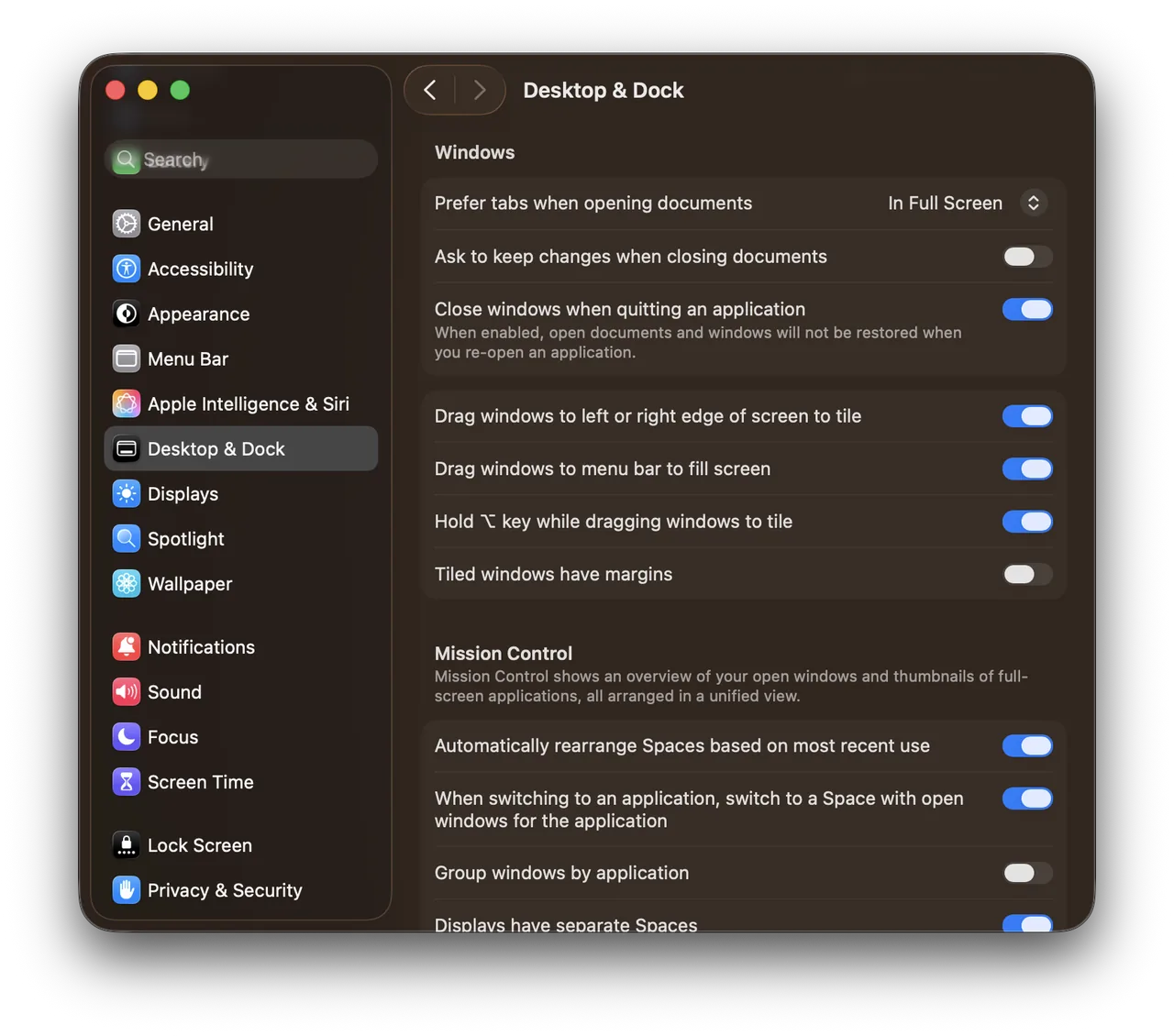
Real screenshot from a MacBook Pro (13-inch, M1, 2020) running macOS 26.1, taken October 22, 2026.
Why doesn't my Mac have window snapping?
Window tiling arrived in macOS 15 Sequoia. On macOS 14 Sonoma and earlier, the built-in option is Split View, which puts two apps side by side in full screen, not on your desktop.
Snapping and moving with one keystroke
Window Snapping in MrFixable gives you shortcuts for every position: halves, quarters, full screen, and send to the other display, on any version of macOS it supports.
Move & Resize from Anywhere removes the title-bar hunt: hold ⌃⌘ and drag anywhere inside a window to move it, or right-drag to resize it from wherever your pointer is, like on Linux desktops.
If you already like macOS's own tiling, keep it. MrFixable's fixes are separate switches, so you can use just the parts you're missing.