
Windows & DockMove & Resize from Anywhere
Move a Mac window without the title bar
You can't move a Mac window without the title bar in macOS itself, except with Window › Move & Resize, which snaps it to set places like the left half (Fn⌃←). Move & Resize from Anywhere lets you hold ⌃⌘ and drag anywhere inside a window to move it, or right-drag to resize it.
Try free for 14 daysBuy for $19.99 Lifetime license
One of 68 fixes in MrFixable. Lifetime license, no subscription. Updated October 22, 2026. Works on macOS 14.2 Sonoma and later. Checked on macOS 26 Tahoe.
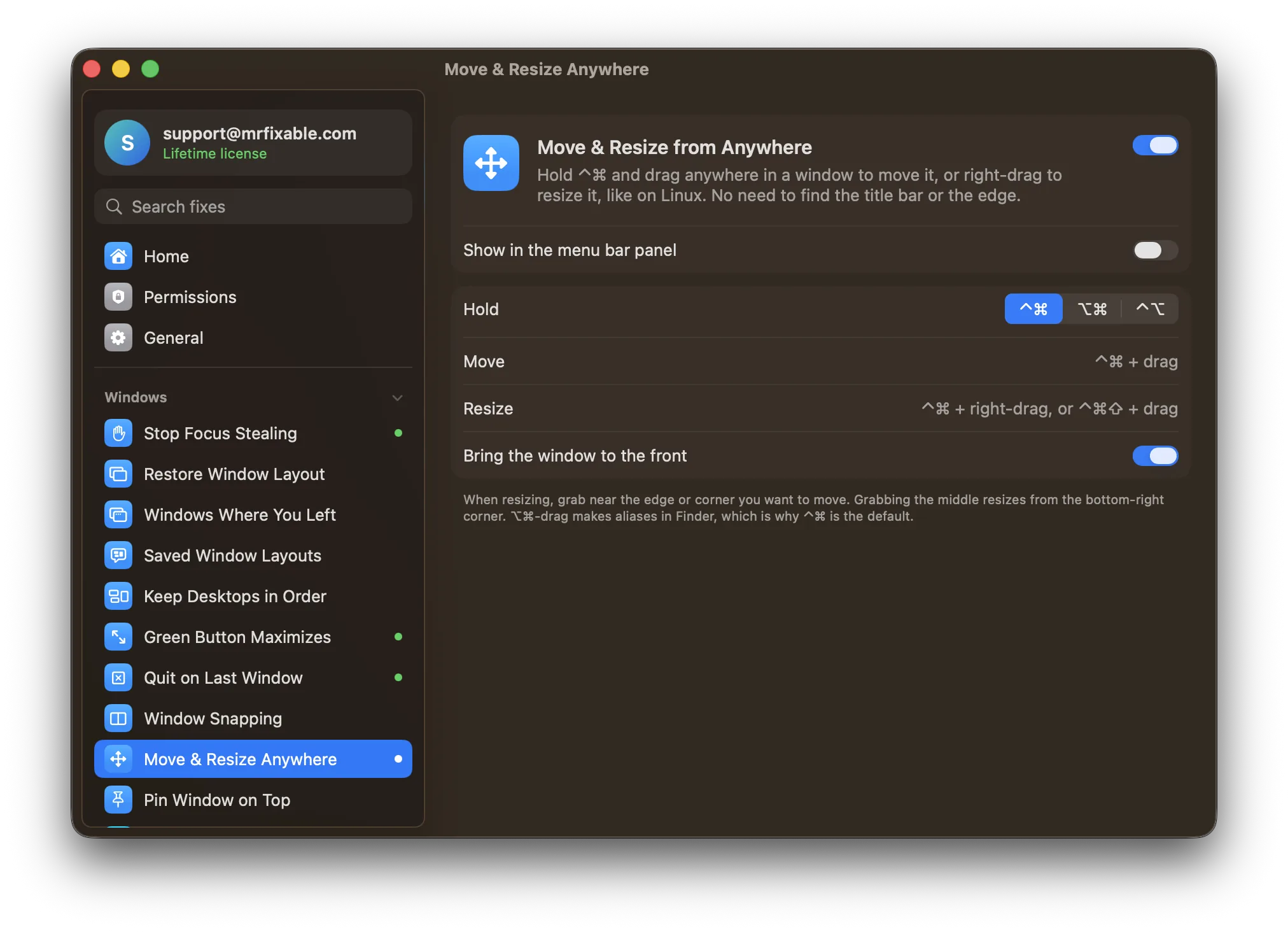
What Move & Resize from Anywhere does
The problem
To move a window on a Mac, you grab its title bar. To resize it, you hunt for a thin edge or corner. When the title bar is full of tabs and buttons, or most of the window is off the screen, there's little left to grab.
With Move & Resize from Anywhere
Hold ⌃⌘ and drag anywhere inside a window to move it, or right-drag to resize it, like on Linux. No more aiming for the title bar or the edge.
- Move from anywhereHold ⌃⌘ and drag with the left button, from any point in the window. The window follows the pointer, and the app never sees the click.
- Resize from any edgeHold ⌃⌘ and right-drag, or add ⇧ and drag on a trackpad. Grab near the edge or corner you want to move, or grab the middle to resize from the bottom-right corner.
- Pick your keysChoose ⌃⌘, ⌥⌘ or ⌃⌥. ⌃⌘ is the default because ⌥⌘-drag makes aliases in Finder.
- Brings the window forwardThe window you grab comes to the front, so you see what you're moving. Turn off Bring the window to the front in the settings to move windows that stay behind.
Good to know
Needs Accessibility access, which macOS requires for any app that moves and resizes other apps' windows.
Full-screen windows aren't moved, and windows can't be made smaller than 160 × 100 points.
Window › Move & Resize, added in macOS 15 Sequoia, snaps windows to halves and quarters. This fix is for free moving and resizing, anywhere you like.
Switch it off and dragging with those keys held works as it did before.
Questions
How do I resize the Mac screen?
Open System Settings › Displays and pick a size from Larger Text to More Space to make everything on screen bigger or smaller. To resize a single window instead, drag its edge or corner, or choose Window › Move & Resize. With Move & Resize from Anywhere, hold ⌃⌘ and right-drag anywhere inside the window.How do I resize a window on a Mac?
Drag any edge or corner of the window. To snap it to a set size, choose Window › Move & Resize, or press Fn⌃F to fill the screen and Fn⌃← for the left half. With Move & Resize from Anywhere, hold ⌃⌘ and right-drag anywhere in the window, starting near the edge you want to move.How do I move a Mac window with the keyboard?
Click the window, then press Fn⌃ (Fn-Control) with an arrow key to send it to that half of the screen. Fn⌃F fills the screen, Fn⌃C centers the window and Fn⌃R puts it back to its previous size. These shortcuts come from Window › Move & Resize, on macOS 15 Sequoia and later.How do I stop a Mac from resizing windows?
Open System Settings › Desktop & Dock and scroll to Windows. Turn off Drag windows to left or right edge of screen to tile, and Drag windows to menu bar to fill screen. To stop tiling with ⌥ held as well, turn off Hold ⌥ key while dragging windows to tile. Windows then keep their size.How do I move a window to another screen on a Mac?
Drag the window by its title bar across to the other display. With Move & Resize from Anywhere, hold ⌃⌘ and drag from anywhere inside the window instead. To do it from the keyboard, MrFixable's Window Snapping fix moves the front window to your next display with ⌃⌥⌘→, which you can change in its settings.How do I move a window to another desktop on a Mac?
Press ⌃↑ (Control-Up Arrow) to open Mission Control. Then drag the window onto another desktop in the row at the top of the screen. To make a new desktop first, click the + button at the right end of that row. Press ⌃← or ⌃→ to switch between your desktops.
Sources
Guides
- How to resize a window on a Mac, with or without the edgesHow to resize a window on a Mac by dragging an edge, with Fn-Control shortcuts and the Window menu, and how to move or resize it from anywhere inside it.
- How to snap windows side by side on a MacSnap two windows side by side on a Mac: drag to a screen edge or press Fn-Control and an arrow on macOS 15 and later, or use Split View on older versions.
Compare
- Move & Resize from Anywhere vs BetterTouchToolA BetterTouchTool alternative for Mac makes sense if you only use it for a few common jobs. BetterTouchTool lets you build almost any gesture, shortcut or automation yourself. MrFixable gives you ready-made fixes instead, like Window Snapping, Window Switcher, Clipboard History and Mouse Back & Forward, each turned on with one switch, for $19.99 once.
- Move & Resize from Anywhere vs OnyXThe best OnyX alternative for Mac depends on what you use OnyX for. OnyX is a free utility that checks your disk, rebuilds indexes, clears caches and changes many hidden settings. MrFixable covers the everyday parts as simple switches, such as Free Up Space, App Uninstaller, Show Hidden Files and Screenshot Settings, for $19.99 once.