
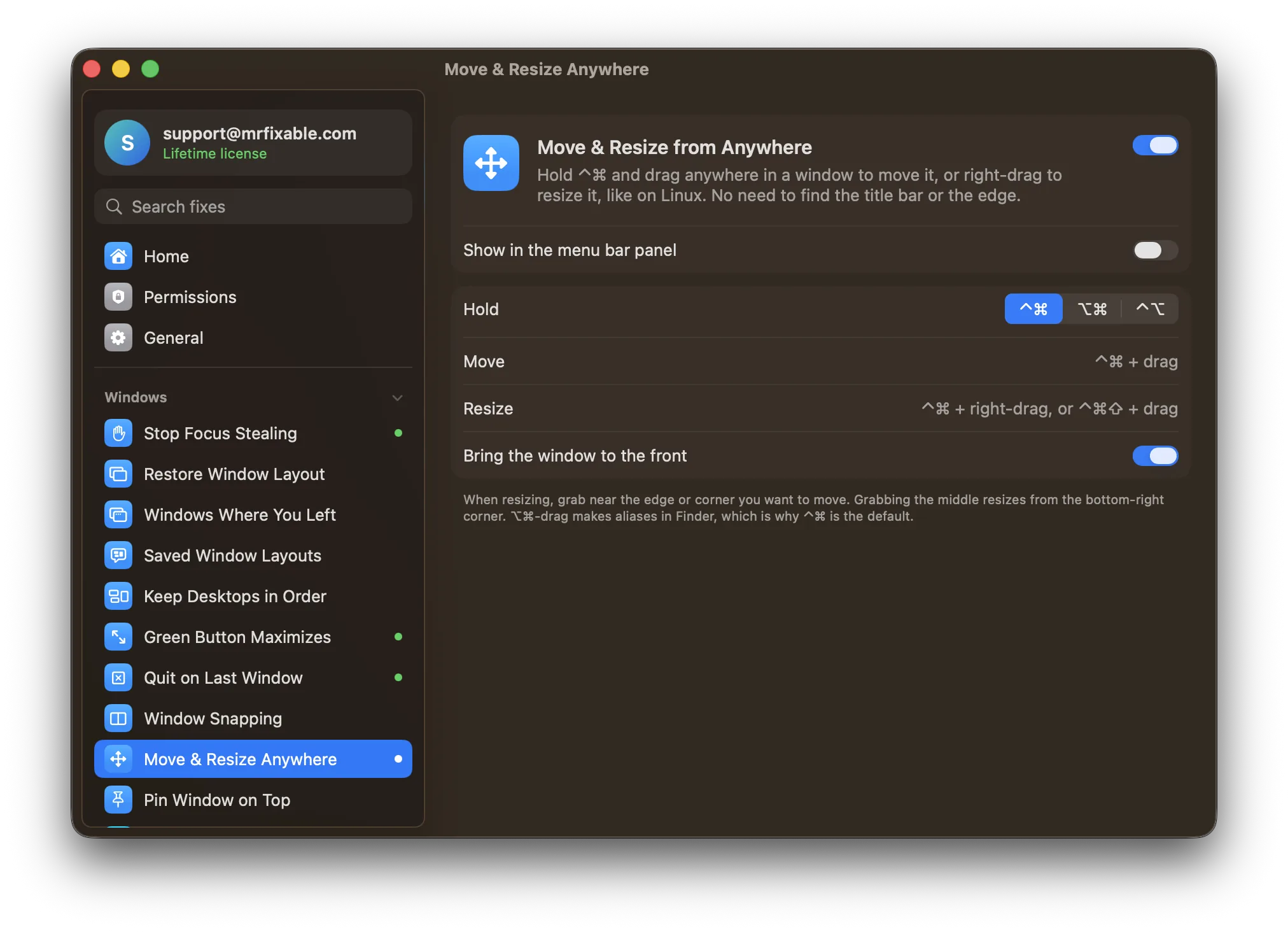
To resize a window on a Mac, drag any edge or corner of the window. Double-click an edge to expand that side. On macOS 15 Sequoia or later, Window › Move & Resize and Fn⌃ with an arrow key give fixed sizes. Move & Resize from Anywhere in MrFixable lets you right-drag anywhere inside a window to resize it.
Resizing sounds simple until the edge you need is one pixel wide, sits under another window, or is off the bottom of the screen. Here are all the ways macOS gives you, and one that doesn't need the edge at all.
Resize a window by dragging
- Move the pointer to an edge or a corner of the window. The pointer changes to a two-headed arrow when you're in the right place.
- Drag. An edge changes one side. A corner changes the width and height together.
- To expand one side quickly, double-click that edge.
- To match a window next to it, drag the edge toward the other window. As it nears that window's edge, it lines up and stops.
Some windows can't be resized, such as many settings windows and alerts. Their edges don't change the pointer.
Resize with the keyboard or the Window menu
On macOS 15 Sequoia or later, macOS can resize the front window to fixed sizes:
- Click the window to bring it to the front.
- In the menu bar, choose Window › Move & Resize.
- Choose a size, or use its shortcut. Fn is the key with the 🌐 globe on newer Mac keyboards, and ⌃ is Control.
| Shortcut | Window goes to |
|---|---|
| Fn⌃F | Fill the screen |
| Fn⌃C | Center |
| Fn⌃← / Fn⌃→ | Left or right half |
| Fn⌃↑ / Fn⌃↓ | Top or bottom half |
| Fn⌃R | Back to its previous size |
You can also hold the pointer over the green button at the top left of the window and pick a size. Clicking the green button does something else: it switches the window to full screen. For filling the screen without that, see how to maximize a window on a Mac.
How do you move a Mac window with the keyboard?
macOS has no shortcut to slide a window around freely. On macOS 15 Sequoia or later, Fn⌃← and Fn⌃→ move the front window to the left or right half, and Fn⌃C centers it. When a second display is connected, many apps' Window menu also has a Move to command naming that display.
Move and resize from anywhere inside the window
Move & Resize from Anywhere in MrFixable means you never have to find the title bar or the edge again:
- Turn on Move & Resize from Anywhere and allow Accessibility when MrFixable asks.
- To move a window, hold ⌃⌘ and drag anywhere inside it.
- To resize it, hold ⌃⌘ and drag with the right mouse button. On a trackpad, hold ⌃⌘⇧ and drag.
- Grab near the edge or corner you want to move. Grabbing the middle resizes from the bottom-right corner.
More details:
- Pick the keys you hold: ⌃⌘, ⌥⌘ or ⌃⌥. ⌃⌘ is the default because ⌥⌘-drag makes aliases in Finder.
- The window comes to the front when you grab it. You can switch that off with Bring the window to the front.
- It's handy when a title bar is out of reach, for example a window that opened partly under the menu bar or off the edge of the screen. Grab any part you can see.
- Full-screen windows and the desktop aren't affected, and clicks without the keys held work as normal.
If you also want windows to snap to halves and quarters with a shortcut on any macOS version MrFixable supports, Window Snapping does that, including sending a window to your other display.
Questions
How do I resize my Mac screen?
Open System Settings › Displays and click one of the resolution thumbnails for your display. Larger sizes show bigger text, smaller ones fit more on screen. Click Default to go back to the best setting. If you meant a single window, drag its edge or corner, or use Window › Move & Resize.
How do I stop my Mac from resizing windows?
Open System Settings › Desktop & Dock and, under Windows, turn off Drag windows to left or right edge of screen to tile and Drag windows to menu bar to fill screen. Windows then stay the size you made them when you drag them near the edges. This applies to macOS 15 Sequoia and later.
What is the shortcut to resize a window on a Mac?
On macOS 15 Sequoia or later, press Fn⌃F to fill the screen, Fn⌃← or Fn⌃→ for half the screen, and Fn⌃R to go back to the previous size. There's no built-in shortcut for a size you choose yourself, so for that you drag an edge.
How do I move a window to another desktop on a Mac?
Open Mission Control with F3 or ⌃↑, then drag the window onto one of the desktops in the row at the top of the screen. You can also drag it onto the + at the top right to make a new desktop for it. The window stays on that desktop afterwards.