
Windows & DockClick Dock Icon to Hide
Click the Dock icon to minimize an app on Mac
On a Mac, clicking the Dock icon to minimize the app you're using does nothing: the app stays where it is. Built in, you press ⌘H to hide the app or ⌘M to minimize the front window. Click Dock Icon to Hide makes that Dock click hide the app, or minimize its windows, like the Windows taskbar.
Try free for 14 daysBuy for $19.99 Lifetime license
One of 68 fixes in MrFixable. Lifetime license, no subscription. Updated October 22, 2026. Works on macOS 14.2 Sonoma and later. Checked on macOS 26 Tahoe.
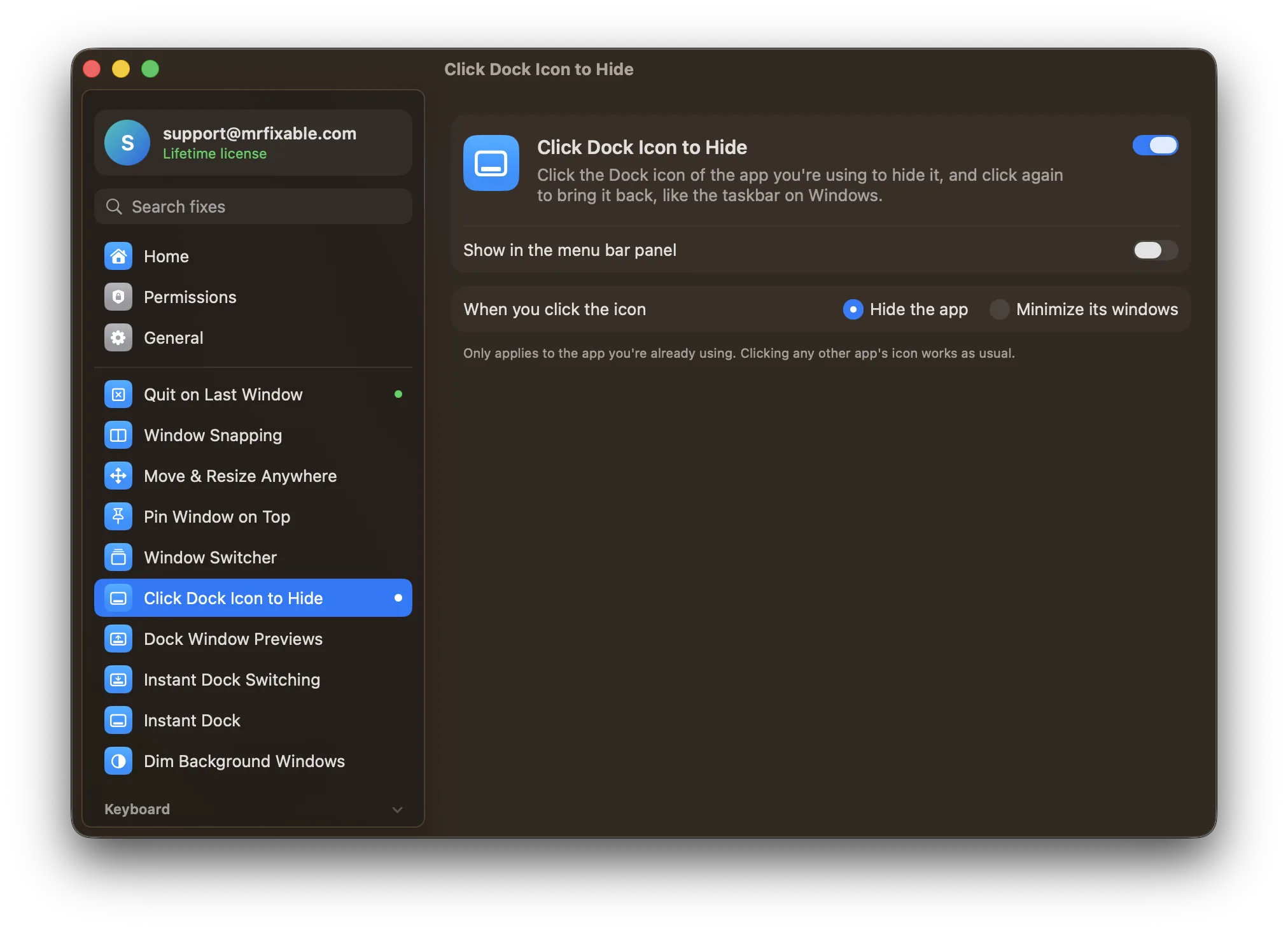
What Click Dock Icon to Hide does
The problem
On Windows, clicking the taskbar button of the app you're using minimizes it. On a Mac, clicking the Dock icon of the app you're already in just leaves it where it is. To get it out of the way you need ⌘H to hide it, or ⌘M to minimize one window at a time.
With Click Dock Icon to Hide
Click the Dock icon of the app you're using and it hides. Click it again and it comes back, like the taskbar on Windows.
- Hide or minimizeChoose what a click does: Hide the app, the default, or Minimize its windows, which sends every one of its windows into the Dock.
- Only the app you're inIt only applies to the app you're already using. Clicking any other app's icon works as usual, and so does clicking an app that has no windows showing.
- Modifier clicks untouchedClicks with ⌘, ⌥, ⌃ or ⇧ held go straight to the Dock, so its own shortcuts keep working.
Good to know
Needs Accessibility access, which macOS requires for an app to see which Dock icon you clicked.
Bringing the app back is the Dock's own click, so nothing changes there.
Switch it off and clicking the icon of the app you're in works as macOS normally does.
Questions
How do I click a Dock icon to minimize an app on a Mac?
Turn on Click Dock Icon to Hide in MrFixable and allow Accessibility when macOS asks. Then click the Dock icon of the app you're using, and it hides. In the fix's settings, choose Minimize its windows if you'd rather send every window into the Dock. Click the icon again to bring the app back.What's the difference between hiding and minimizing on a Mac?
Hiding (⌘H) takes all of an app's windows off the screen at once, and clicking the app in the Dock or ⌘Tab brings them all back. Minimizing (⌘M) sends one window into the Dock, where it waits as a small thumbnail until you click it. Click Dock Icon to Hide can do either.How do I bring a hidden app back on a Mac?
Click its Dock icon again, or switch to it with ⌘Tab. All its windows come back where they were. If you set the fix to Minimize its windows, click a window's thumbnail in the Dock to bring that one back. With Minimize windows into application icon on, they're under the app's icon instead.How do I hide the Dock permanently on a Mac?
macOS can't remove the Dock completely. The closest is to hide it until you need it: open System Settings › Desktop & Dock and turn on Automatically hide and show the Dock, or press ⌥⌘D (Option-Command-D). The Dock then stays out of sight and slides in only when your pointer reaches the screen's edge.Can I make the Mac Dock hide and show faster?
Yes. System Settings has no option for the speed, but Instant Dock, another MrFixable fix, removes the wait before a hidden Dock appears and lets you pick an Instant, Fast or Normal slide. It changes macOS's own hidden Dock settings, so the Dock stays quick even when MrFixable isn't running.Does it change what happens when I click other apps?
No. It only applies to the app you're already using, while it has windows showing. Clicking any other app's icon works as usual and switches to that app. Clicks with ⌘, ⌥, ⌃ or ⇧ held also go straight to the Dock, so the Dock's own shortcuts keep working as before.