
Rectangle alternative for Mac
By Mohammed Chaara. Updated October 21, 2026. Facts about Rectangle come from its own website or App Store page, listed at the end.
What Rectangle is
Rectangle is a free, open-source window manager (MIT license) for macOS 14 or later, with older versions for macOS 10.13 to 13. It moves and resizes windows with keyboard shortcuts or by dragging them to screen edges and corners, with halves, quarters, thirds and more, and repeating a shortcut cycles through sizes. It supports portrait displays and can use Spectacle's shortcuts. You download it from rectangleapp.com or GitHub, or install it with Homebrew. Rectangle Pro is a separate paid app with a 10-day free trial, adding custom sizes, app layouts and iCloud sync.
Rectangle vs MrFixable
| Rectangle | MrFixable | |
|---|---|---|
| Price | Free. Rectangle Pro is paid, with a 10-day free trial | $19.99 once (lifetime license) for all 68 fixes, with a 14-day free trial |
| Open source | Yes, MIT license | No |
| macOS support | macOS 14 or later, older versions for macOS 10.13 to 13 | macOS 14.2 Sonoma or later, tested on macOS 26 Tahoe |
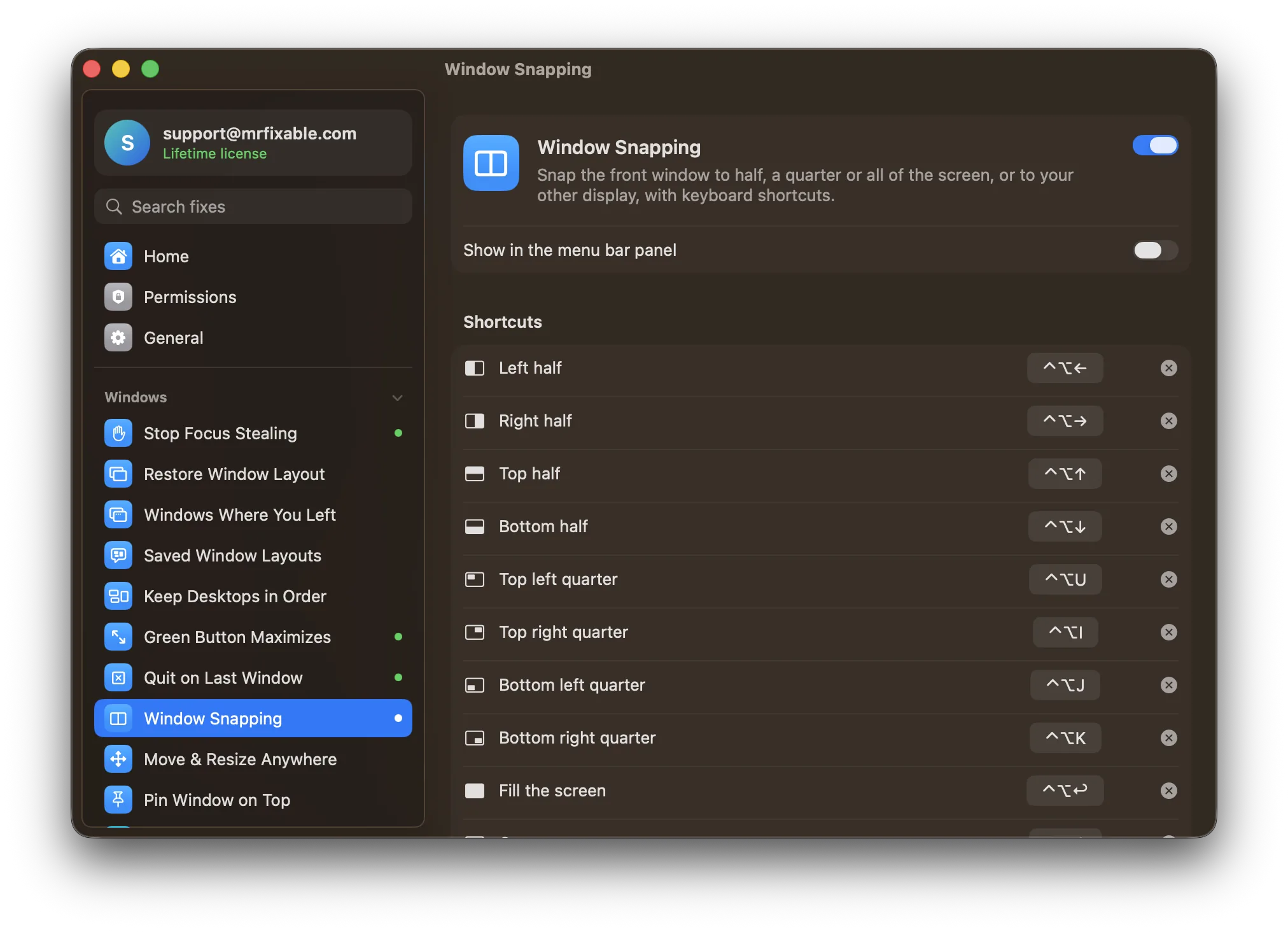
| Keyboard shortcuts | Yes, set in its settings; repeat a shortcut to cycle sizes | Yes, one for every position; change or clear any of them |
| Drag to a screen edge | Yes: edges, corners, and the bottom edge for thirds | No. On macOS 15 and later, macOS's own tiling does this |
| Window sizes | Halves, quarters, thirds, two thirds, maximize and more | Halves, quarters, fill the screen, center and next display |
| Setup | Install, allow Accessibility, choose Rectangle's or Spectacle's shortcuts | Turn on the fix and allow Accessibility; the shortcuts are already set |
| What else is included | Window management only; Rectangle Pro adds more | 67 other fixes, like Window Switcher and Saved Window Layouts |
Where each one is better
- It's free and open source.
- It snaps windows you drag to edges and corners on every macOS it supports, including thirds along the bottom edge.
- More sizes, such as thirds and two thirds, and repeating a shortcut cycles through sizes.
- It can use Spectacle's shortcuts, which helps if you're coming from Spectacle.
- Rectangle Pro adds custom sizes, app layouts and iCloud sync if you need more.
- It comes with 67 other fixes, such as Window Switcher, Move & Resize from Anywhere and Saved Window Layouts, for one $19.99 lifetime license.
- If Rectangle or another window manager is running, Window Snapping tells you, and it marks any shortcut another app already uses.
- A short list of positions that's quick to learn, with every shortcut shown in one place.
Switching from Rectangle
Quit Rectangle, and if it opens at login, remove it in System Settings › General › Login Items & Extensions, so two apps don't fight over the same shortcuts. Then turn on Window Snapping in MrFixable and allow Accessibility access. Check the shortcut list in its settings: if you used other keys in Rectangle, record them there, or clear the ones you don't need.
Questions
Is Rectangle free?
Yes. Rectangle is free and open source under the MIT license, and you can download it from rectangleapp.com or install it with Homebrew. Rectangle Pro is a separate paid app with a 10-day free trial. MrFixable costs $19.99 once, with a 14-day free trial, for all 68 fixes.Is Rectangle better than MrFixable for window snapping?
For snapping alone, yes. Rectangle does more for free: drag-to-snap areas, thirds, and shortcuts that cycle through sizes. MrFixable's Window Snapping covers halves, quarters, fill, center and next display with shortcuts. Choose MrFixable if you'd also use fixes like Window Switcher, Saved Window Layouts or per-app volume.Can I run Rectangle and MrFixable at the same time?
Yes, but give each shortcut to one app. When Rectangle is running, Window Snapping shows a warning, because both use the same kind of shortcuts. Clear the matching shortcuts in one app, or switch Window Snapping off and keep using MrFixable's other fixes next to Rectangle.Does macOS have window snapping built in?
Yes, since macOS 15 Sequoia. Drag a window to the left or right edge or a corner of the screen to tile it, or use Window › Move & Resize in the app's menu bar. Turn edge tiling on or off in System Settings › Desktop & Dock under Windows.