
To move the Dock to another monitor, move the pointer to the bottom edge of that screen and keep pushing down for a moment: the Dock slides over. This only works with Displays have separate Spaces turned on in System Settings › Desktop & Dock. To choose the screen the Dock starts on, make it your main display.
With two or more displays, your Dock lives on one of them. Move to the other screen and it doesn't follow. Here's how macOS decides where the Dock goes, and how to make it come to you.
Why won't the Dock move to my other monitor?
- With "Displays have separate Spaces" on (the default), the Dock can move to any screen. To move it, put the pointer at the bottom edge of the screen you want and keep pushing down for a moment. The Dock slides over.
- With it off, the Dock stays on your main display and never moves.
You'll find the setting in System Settings › Desktop & Dock › Mission Control › Displays have separate Spaces. Changing it takes effect after you log out and back in.
How do you choose which screen the Dock starts on?
The Dock starts on your main display: the one with the white bar at the top in System Settings › Displays › Arrange. To change it, select the screen you want in Displays and choose Use as main display. The main display is also where your desktop files appear.
Making the Dock move without the push
The push exists so the Dock doesn't jump screens every time you graze the bottom edge. If you'd rather it come over the moment your pointer reaches the bottom, the Dock has a hidden setting for how long you have to push. Open Terminal and run:
defaults write com.apple.dock digduration-duration -float 0
killall Dock
The Dock restarts and comes back on your main display. From then on, reaching the bottom of a screen is enough. To go back to the normal push:
defaults delete com.apple.dock digduration-duration
killall Dock
We tested this on macOS Tahoe 26.1. Hidden settings can change between macOS versions.
Can the Dock follow you to the screen you're using?
No. There's no way to make the Dock follow you just by moving to another screen, without going to the bottom. The Dock only moves when it sees the pointer at a screen's bottom edge. Apps that claim otherwise either draw a copy of the Dock or move your pointer for you.
Questions
How do I stop the Dock from disappearing on a Mac?
Turn off Automatically hide and show the Dock in System Settings › Desktop & Dock, or press ⌥⌘D. The Dock then stays on screen on whichever display it's on.
Can I keep the Dock visible in full screen?
No. macOS hides the Dock while an app is in full screen, and has no setting to keep it there. Move the pointer to the bottom edge of the screen and the Dock appears.
Move the Dock without the push, in one switch
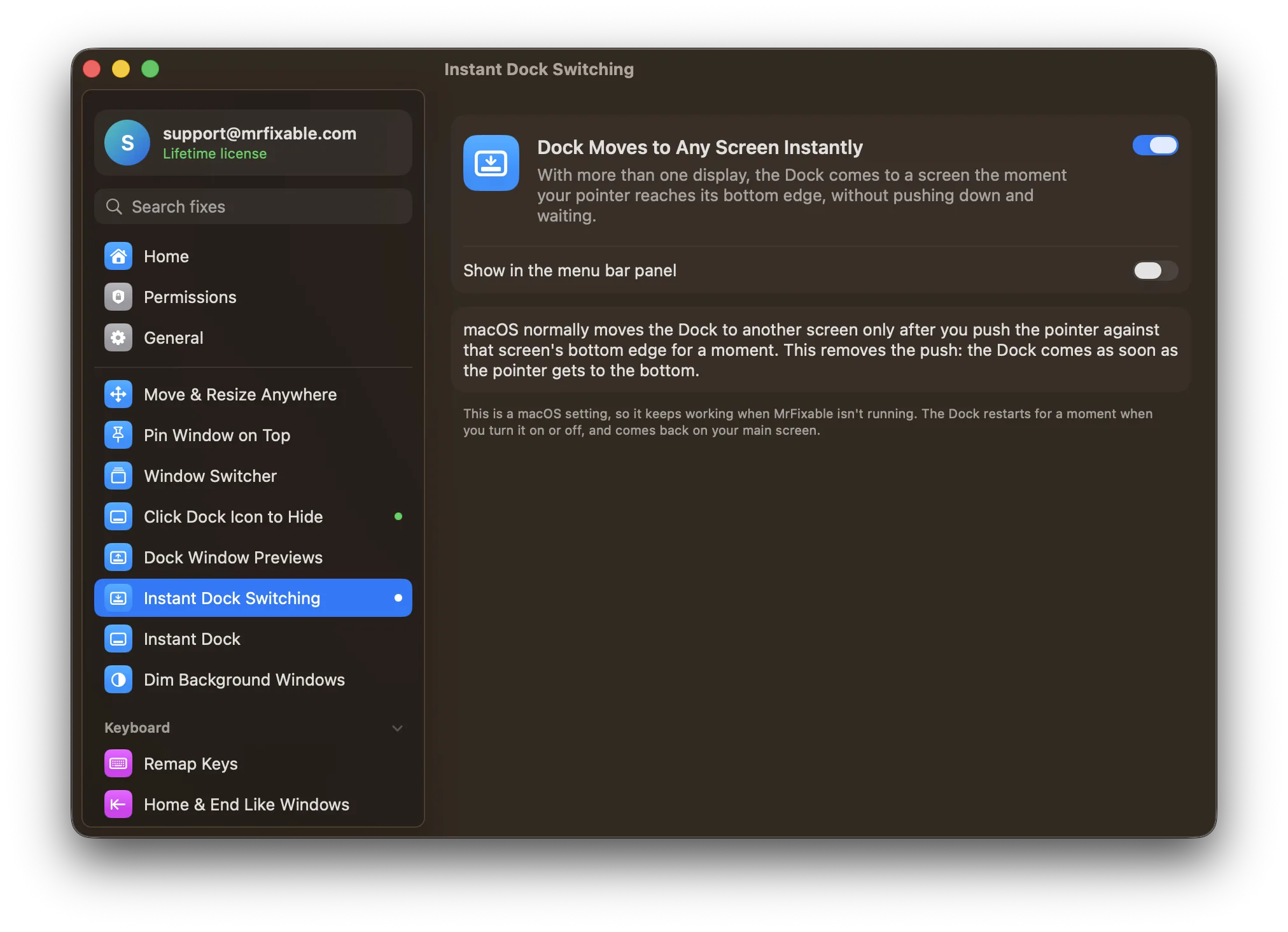
Dock Moves to Any Screen Instantly in MrFixable sets the same hidden Dock setting for you, with no Terminal: the Dock comes to a screen as soon as your pointer reaches its bottom edge. Switch it off and the normal push comes back.
Windows on the wrong screen?
Open Windows Where You Left Them opens each app's new windows on the screen where you last used it, and Restore Window Layout puts your windows back where they were when you reconnect a display. For more, see why Mac apps open on the wrong monitor.