
Windows & DockDock Moves to Any Screen Instantly
Move the Dock to the other monitor on Mac
To move the Dock to the other monitor on a Mac, move the pointer to the bottom edge of that screen and keep pushing down for a moment. Dock Moves to Any Screen Instantly removes the push: the Dock comes to a screen as soon as your pointer reaches its bottom edge.
Try free for 14 daysBuy for $19.99 Lifetime license
One of 68 fixes in MrFixable. Lifetime license, no subscription. Updated October 22, 2026. Works on macOS 14.2 Sonoma and later. Checked on macOS 26 Tahoe.
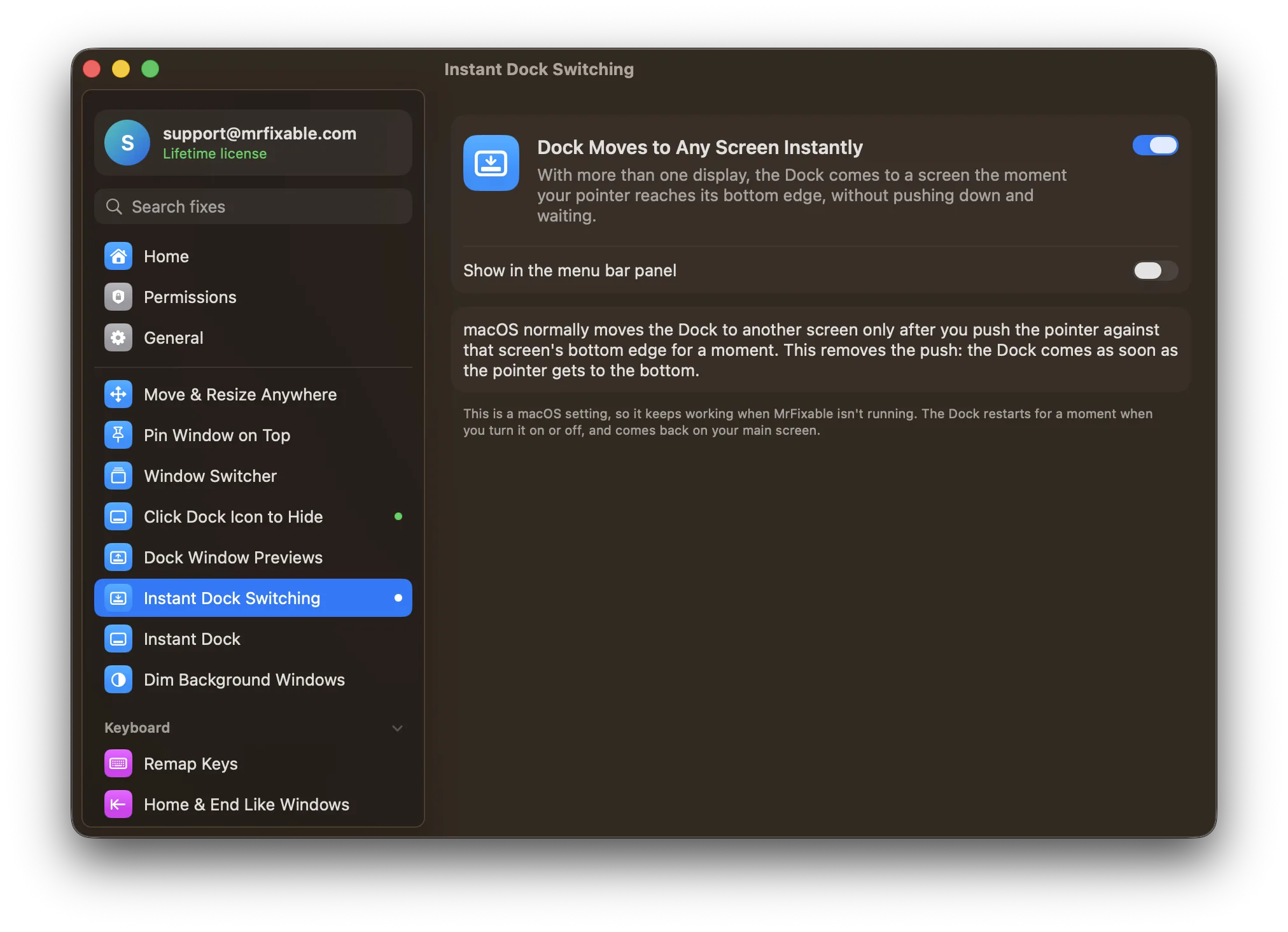
What Dock Moves to Any Screen Instantly does
The problem
The Dock lives on one screen at a time. To bring it to another, you push the pointer against that screen's bottom edge and wait, and if you don't push long enough, nothing happens. It's easy to miss, and it slows you down every time you switch screens.
With Dock Moves to Any Screen Instantly
The Dock moves to a screen the moment your pointer reaches its bottom edge. No pushing, no waiting.
- The same setting, made easymacOS has a hidden Dock setting for how long you have to push. This sets it to zero with one switch, no Terminal needed.
- Keeps working without the appIt's a macOS setting, so it keeps working when MrFixable isn't running.
- Undone with one switchSwitch it off and the normal push comes back. The Dock restarts for a moment when you turn it on or off, and comes back on your main screen.
Good to know
No permissions needed.
Needs Displays have separate Spaces turned on in System Settings › Desktop & Dock, which is the macOS default. With it off, the Dock stays on your main display.
It doesn't make the Dock follow you without going to the bottom edge. The Dock only moves when the pointer reaches a screen's bottom edge.
Questions
How do I move the Dock to another monitor on a Mac?
Move the pointer to the bottom edge of the screen where you want the Dock, then keep pushing down until it appears. This needs Displays have separate Spaces turned on in System Settings › Desktop & Dock, which is the default. With Dock Moves to Any Screen Instantly on, reaching the bottom edge is enough.Why won't the Dock move to my other monitor?
Usually one of two things. Displays have separate Spaces is off in System Settings › Desktop & Dock, so the Dock stays on your main display. Or the pointer didn't push against the bottom edge long enough. With Dock Moves to Any Screen Instantly on, simply reaching the bottom edge is enough to bring it over.How do I choose which screen the Dock starts on?
The Dock starts on your main display. To change it, open System Settings › Displays, click the screen you want, then click the Use as pop-up menu and choose Main display. The menu bar and the Dock move to that screen, and the Dock goes back there each time it restarts.Can I keep the Dock on one screen only?
Yes. Open System Settings › Desktop & Dock, scroll to Mission Control and turn off Displays have separate Spaces, then log out and back in. The Dock then stays on your main display. Keep in mind that Stage Manager and Split View on your other displays need this setting turned on.Can the Dock show on both monitors at once?
No. macOS shows one Dock at a time, on the screen where you last called it. It moves when you push the pointer against the bottom edge of another screen, as long as Displays have separate Spaces is on. With Dock Moves to Any Screen Instantly, that move happens without pushing down.Does it keep working when MrFixable is closed?
Yes. It changes a hidden macOS Dock setting for how long you have to push, so it keeps working when MrFixable isn't running. Switch the fix off and the normal push comes back. The Dock restarts for a moment either way, and comes back on your main screen.