
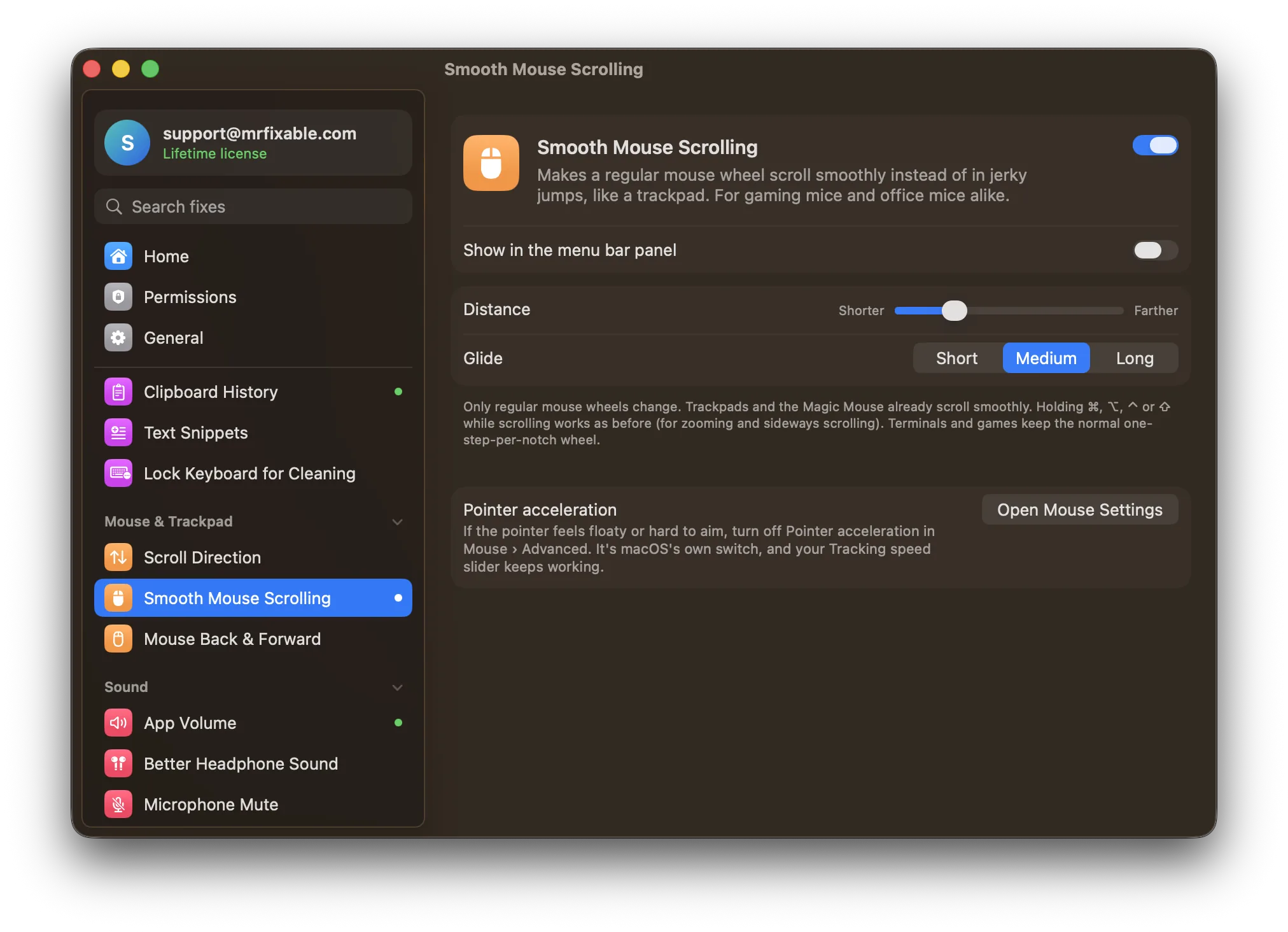
To scroll on a Mac, slide two fingers up or down on the trackpad, turn the wheel on a mouse, or slide one finger on a Magic Mouse. On the keyboard, press Space or Fn↓ to go down a page. A mouse wheel scrolls in jerky steps. For smooth scrolling on a Mac, use Smooth Mouse Scrolling.
If you're new to the Mac, scrolling is one of the first things that feels different: there are no arrows on the scroll bars, the scroll bars often hide themselves, and the page may move the "wrong" way. Here's every way to scroll, and how to set it up the way you like.
Scroll with a trackpad
- Put two fingers on the trackpad.
- Slide them up or down to scroll the page. Slide them left or right to scroll sideways.
- Lift your fingers while they're still moving to let the page glide.
By default the page follows your fingers, like on a phone. To flip that, open System Settings › Trackpad, click Scroll & Zoom, and turn off Natural scrolling.
Scroll with a mouse
- Mouse with a wheel: turn the wheel. Hold ⇧ (Shift) while you turn it to scroll sideways.
- Magic Mouse: it has no wheel. Slide one finger up or down on its top surface, or sideways to scroll left and right.
If the direction feels backwards, open System Settings › Mouse and turn Natural scrolling off. That one switch changes the trackpad too. To set each one its own way, see how to change scroll direction for a mouse only.
Scroll with the keyboard
Click in the page or document first, so it's the part of the window that takes your keys:
| Keys | What it does |
|---|---|
| Space / ⇧Space | Down or up one screen, in browsers and many document apps |
| Fn↓ / Fn↑ | Page Down and Page Up |
| Fn← / Fn→ | Home and End: to the top or bottom |
| ⌘↑ / ⌘↓ | To the top or bottom of a document, in many apps |
| ↑ / ↓ | A little at a time |
Fn is the key with the 🌐 globe on newer Mac keyboards. For more on these keys, see Home and End keys on a Mac.
Show scroll bars and change the scroll speed
macOS hides scroll bars until you scroll. To change that and the speed:
- Open System Settings › Appearance.
- Set Show scroll bars to Always, so they're always there to drag.
- Set Click in the scroll bar to to Jump to the spot that's clicked if you'd rather jump straight to a place than move one page.
- For the speed, open System Settings › Accessibility › Pointer Control, click Mouse Options or Trackpad Options, and drag the Scroll speed slider.
Why does a mouse wheel scroll in jumps on a Mac?
A mouse wheel moves in clicks, or notches, and macOS moves the page a fixed number of lines for each one. The page jumps, stops, and jumps again. Trackpads and the Magic Mouse send continuous movement instead, so they glide. macOS has no setting to make a regular wheel scroll smoothly, so it needs a separate app.
Smooth scrolling for a mouse wheel
Smooth Mouse Scrolling in MrFixable turns each notch of the wheel into a short, smooth glide, like a trackpad:
- Turn on Smooth Mouse Scrolling and allow Accessibility when MrFixable asks.
- Scroll with your mouse wheel. Pages now glide instead of jumping.
- If it goes too far or not far enough, move the Distance slider between Shorter and Farther.
- Pick how long the glide lasts with Glide: Short, Medium or Long.
Things to know:
- Only regular mouse wheels change. Trackpads and the Magic Mouse already scroll smoothly and are left alone. It works with gaming mice and office mice alike.
- Turning the wheel the other way stops the glide straight away, so you don't overshoot.
- Holding ⌘, ⌥, ⌃ or ⇧ while scrolling works as before, so zooming and sideways scrolling don't change.
- Terminals and games keep the normal one-step-per-notch wheel, where each notch should move exactly one line or pick the next item.
- It works together with Separate Scroll Direction, so the wheel can scroll the classic way while the trackpad stays natural.
If the pointer itself feels floaty with a mouse, that's a different setting: turn off Pointer acceleration in System Settings › Mouse › Advanced.
Questions
What is smooth scrolling?
Smooth scrolling moves a page in a quick, gradual glide instead of jumping a few lines at a time. Your eyes can follow the text while it moves, so you don't lose your place. On a Mac, trackpads and the Magic Mouse scroll smoothly already, while a regular mouse wheel scrolls in steps.
How do I get smooth scrolling on a Mac with a mouse?
Turn on Smooth Mouse Scrolling in MrFixable and allow Accessibility. Each notch of the wheel then becomes a short glide. Set the distance and the length of the glide in its settings. macOS itself has no smooth scrolling setting for wheel mice, only Scroll speed in Accessibility › Pointer Control › Mouse Options.
How do I change the mouse scroll direction on a Mac?
Open System Settings › Mouse and turn Natural scrolling off or on. With it off, turning the wheel down moves the page down, as on Windows. This also changes the trackpad, because macOS uses one setting for both. Separate Scroll Direction in MrFixable lets each device have its own.
How do I fix mouse scrolling on a Mac?
Start with the setting that matches the problem. Wrong direction: turn Natural scrolling off in System Settings › Mouse. Too slow or too fast: change Scroll speed in Accessibility › Pointer Control › Mouse Options. Jerky jumps: that's how macOS treats wheels, and Smooth Mouse Scrolling makes them glide.