
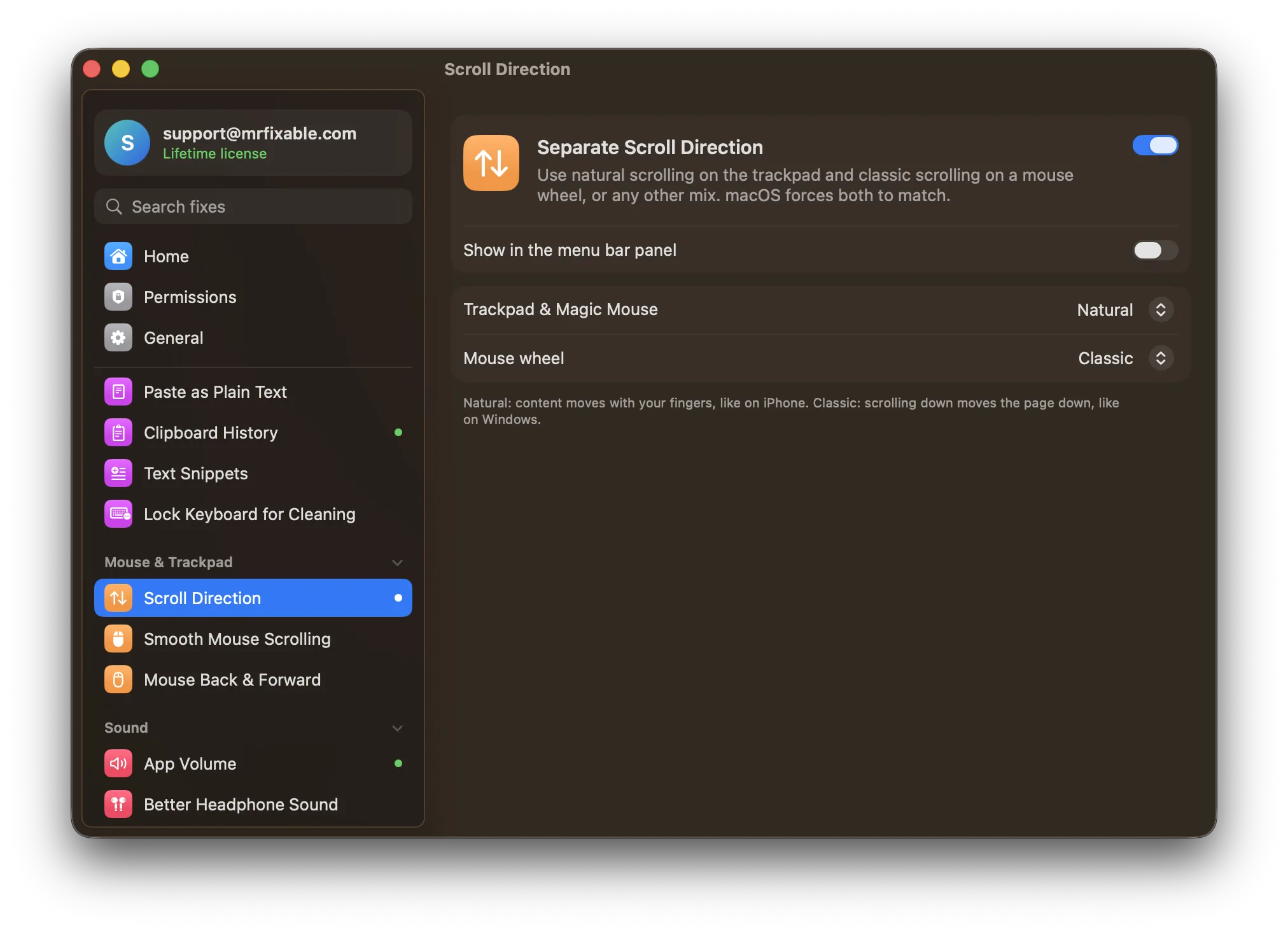
To change scroll direction on a Mac, open System Settings › Mouse and turn Natural scrolling off or on. macOS has only one setting for the mouse and the trackpad, so changing it for the mouse changes the trackpad too. To reverse the mouse only and keep natural scrolling on the trackpad, you need an app that sets each device separately.
On a trackpad, natural scrolling feels right: you push the page up, it moves up, like on a phone. On a mouse wheel, most people expect the opposite, the way every Windows PC works. If you use both, one of them always feels backwards.
How to change scroll direction in System Settings
- Mouse: open System Settings › Mouse and turn Natural scrolling on or off.
- Trackpad: open System Settings › Trackpad, click Scroll & Zoom, and turn Natural scrolling on or off.
Why does the trackpad change when I change the mouse?
The Natural scrolling switch in System Settings › Trackpad and the one in System Settings › Mouse look like two settings, but they're one: turn it off for the mouse and it turns off for the trackpad too.
Your only built-in choice is which device feels wrong.
Questions
How do I make my mouse scroll like Windows on a Mac?
Turn off Natural scrolling in System Settings › Mouse, so scrolling down moves the page down, as on Windows. If you also use a trackpad, that turns natural scrolling off there too, unless you set each device separately with an app.
Can you scroll on an Apple mouse?
Yes. The Magic Mouse has no wheel: slide one finger up or down on its top surface to scroll, or sideways to scroll left and right. It follows the same Natural scrolling setting as the trackpad.
Setting each device its own way
Separate Scroll Direction in MrFixable lets the trackpad and the mouse each have their own direction: natural on the trackpad and classic on the wheel is the usual pick, but any combination works. It tells the two apart automatically, so nothing changes when you switch hands.
Two more things a mouse is missing on a Mac
- Smooth Mouse Scrolling: a regular mouse wheel scrolls in jerky steps on macOS. This makes it glide like a trackpad, while games and terminals keep normal steps.
- Mouse Back & Forward: the side buttons on most mice do nothing in many Mac apps. This makes them go back and forward in Safari, Finder and other apps that have Back and Forward commands.