
KeyboardHold ⌘Q to Quit
Disable Cmd-Q on Mac
To disable Cmd-Q on a Mac, macOS only lets you change one app at a time: in System Settings › Keyboard › Keyboard Shortcuts › App Shortcuts, give that app's Quit command a different shortcut. Hold ⌘Q to Quit keeps ⌘Q in every app instead, and quits only when you hold it, 0.8 seconds by default.
Try free for 14 daysBuy for $19.99 Lifetime license
One of 68 fixes in MrFixable. Lifetime license, no subscription. Updated October 22, 2026. Works on macOS 14.2 Sonoma and later. Checked on macOS 26 Tahoe.
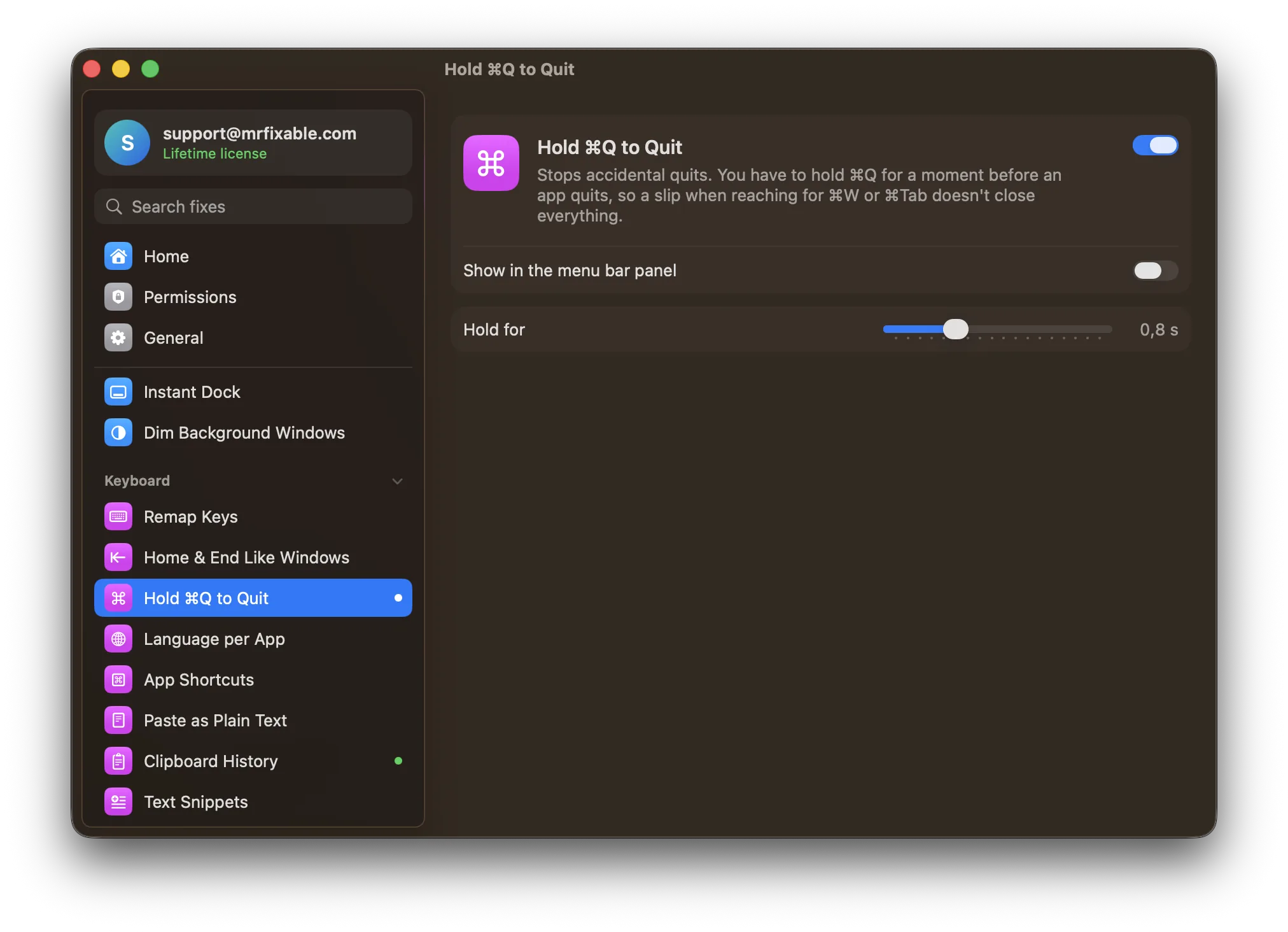
What Hold ⌘Q to Quit does
The problem
⌘Q sits right next to ⌘W and ⌘Tab, so one slip quits the whole app, with all its windows. A few apps have their own warning before quitting, but most quit straight away.
With Hold ⌘Q to Quit
You have to hold ⌘Q for a moment before an app quits, while a bar fills up to show it's coming. Let go early and nothing happens.
- Choose how long to hold0.8 seconds by default, anywhere from 0.3 to 2 seconds.
- See what's about to quitA card in the middle of the screen shows the app's icon and name, with a bar that fills while you hold.
- Works on every layoutIt looks for the Q you type, not the key's position, so it works on AZERTY and other keyboard layouts too.
Good to know
Needs Accessibility access, which macOS requires for an app that holds back a keystroke until it's sure you meant it.
Only plain ⌘Q is held back. Shortcuts that add ⌃, ⌥ or ⇧, like ⌃⌘Q to lock your screen, work as usual.
Quitting from an app's menu or from the Dock works as before.
Switch it off and ⌘Q quits instantly again.
Questions
What does Command-Q do on a Mac?
Command-Q (⌘Q) quits the app in front, closing all its windows at once. It differs from nearby shortcuts: ⌘W closes only the front window, ⌘H hides the app, and ⌘Tab switches apps. A slip between them is easy. With Hold ⌘Q to Quit on, a quick ⌘Q does nothing, and the app quits only when you hold the keys.How do I turn off hold Command-Q to quit on a Mac?
It depends where it comes from. In Chrome: 1. Click Chrome in the menu bar. 2. Choose Warn Before Quitting to remove its tick. In MrFixable: 1. Open MrFixable's settings. 2. Switch Hold ⌘Q to Quit off. ⌘Q then quits straight away again, or set a shorter hold time, down to 0.3 seconds.How do I disable Command-Q on a Mac?
Open System Settings › Keyboard, click Keyboard Shortcuts, then App Shortcuts. Click +, pick the app, type its Quit menu item exactly, such as Quit Safari, and record another shortcut. That only covers one app, and ⌘Q stops quitting it. Hold ⌘Q to Quit keeps ⌘Q in every app and just makes you hold it.How do I make Chrome warn before quitting?
Click Chrome in the menu bar and choose Warn Before Quitting, so it has a tick. Chrome then asks you to hold ⌘Q before it quits. That protects Chrome only. Hold ⌘Q to Quit gives every app the same kind of protection, with one hold time you choose, from 0.3 to 2 seconds.Does Hold ⌘Q to Quit work in every app?
Yes, in every app except Finder, where ⌘Q does nothing anyway. It holds back only plain ⌘Q, so shortcuts that add ⌃, ⌥ or ⇧, like ⌃⌘Q to lock the screen, work as usual. Quitting from an app's menu or from the Dock is not affected, and nothing is held back while the fix is off.