
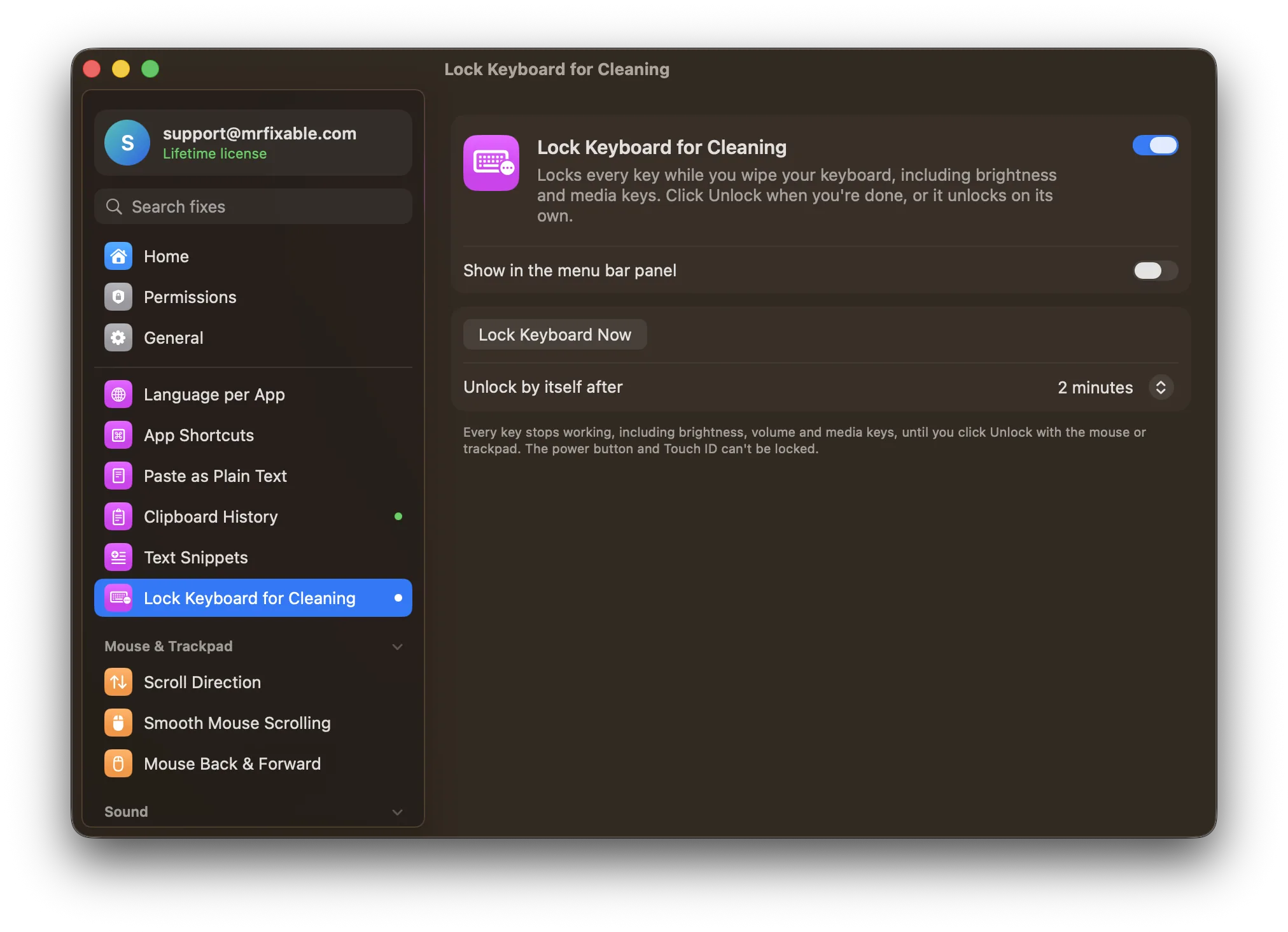
macOS has no built-in way to lock just the keyboard. Apple's advice is to shut down your Mac and unplug it before you clean it. Locking the screen with ⌃⌘Q doesn't help, because the keys still type into the password field. For a quick wipe with the Mac on, use an app that locks every key until you click Unlock.
Wipe a MacBook keyboard while the Mac is on and every key you touch does something: letters appear in whatever's open, the screen dims, the volume jumps, and an unlucky ⌘Q quits an app.
Apple's advice: turn it off
Apple recommends shutting down your Mac and unplugging it before cleaning. It's the safest way, especially if you use anything damp: a slightly damp, lint-free cloth, never sprays directly on the keyboard.
That's fine for a deep clean, but a nuisance for a quick wipe in the middle of your day.
Does locking the screen disable the keyboard?
No. Locking your Mac (⌃⌘Q) hides your work, but the keyboard still works: wiping types into the password field, the brightness and volume keys still respond, and several wrong passwords can make you wait before trying again.
Questions
How do I clean a MacBook keyboard without pressing keys?
Shut the Mac down first: with it off, pressing keys does nothing, so you can wipe freely. If it has to stay on, lock the keyboard with an app before you start. Either way, use a soft, slightly damp, lint-free cloth and never spray anything onto the keyboard.
Can I turn off the MacBook keyboard when an external keyboard is connected?
macOS has no setting for that. Lock Keyboard for Cleaning locks every connected keyboard for a few minutes at most, so it's made for cleaning, not for keeping the built-in keyboard off.
Lock just the keyboard
Lock Keyboard for Cleaning in MrFixable turns off every key while you wipe:
- Click Lock Keyboard in MrFixable's menu.
- Clean away. Every key is ignored, including the brightness, volume and media keys.
- Click Unlock with your mouse or trackpad when you're done. If you forget, it unlocks by itself after 1, 2 or 5 minutes, as you choose.
The trackpad keeps working, so you can always click Unlock. The power button and Touch ID can't be locked, so avoid pressing them, and pressing and holding the power button still turns the Mac off.
Stepping away instead
For locking your Mac when you leave your desk, Lock, Sleep & Display Off Shortcuts lock your Mac, put it to sleep or turn off the display with one shortcut.