
System & FinderLock, Sleep & Display Off Shortcuts
Mac lock screen shortcut
The Mac lock screen shortcut is ⌃⌘Q (Control-Command-Q), the same as choosing Apple menu › Lock Screen. On keyboards with Touch ID, pressing the Touch ID button locks too. Lock, Sleep & Display Off Shortcuts adds ⌃⌥⌘L to lock, ⌃⌥⌘D to turn the display off without sleeping, and a Sleep shortcut you choose yourself.
Try free for 14 daysBuy for $19.99 Lifetime license
One of 68 fixes in MrFixable. Lifetime license, no subscription. Updated October 22, 2026. Works on macOS 14.2 Sonoma and later. Checked on macOS 26 Tahoe.
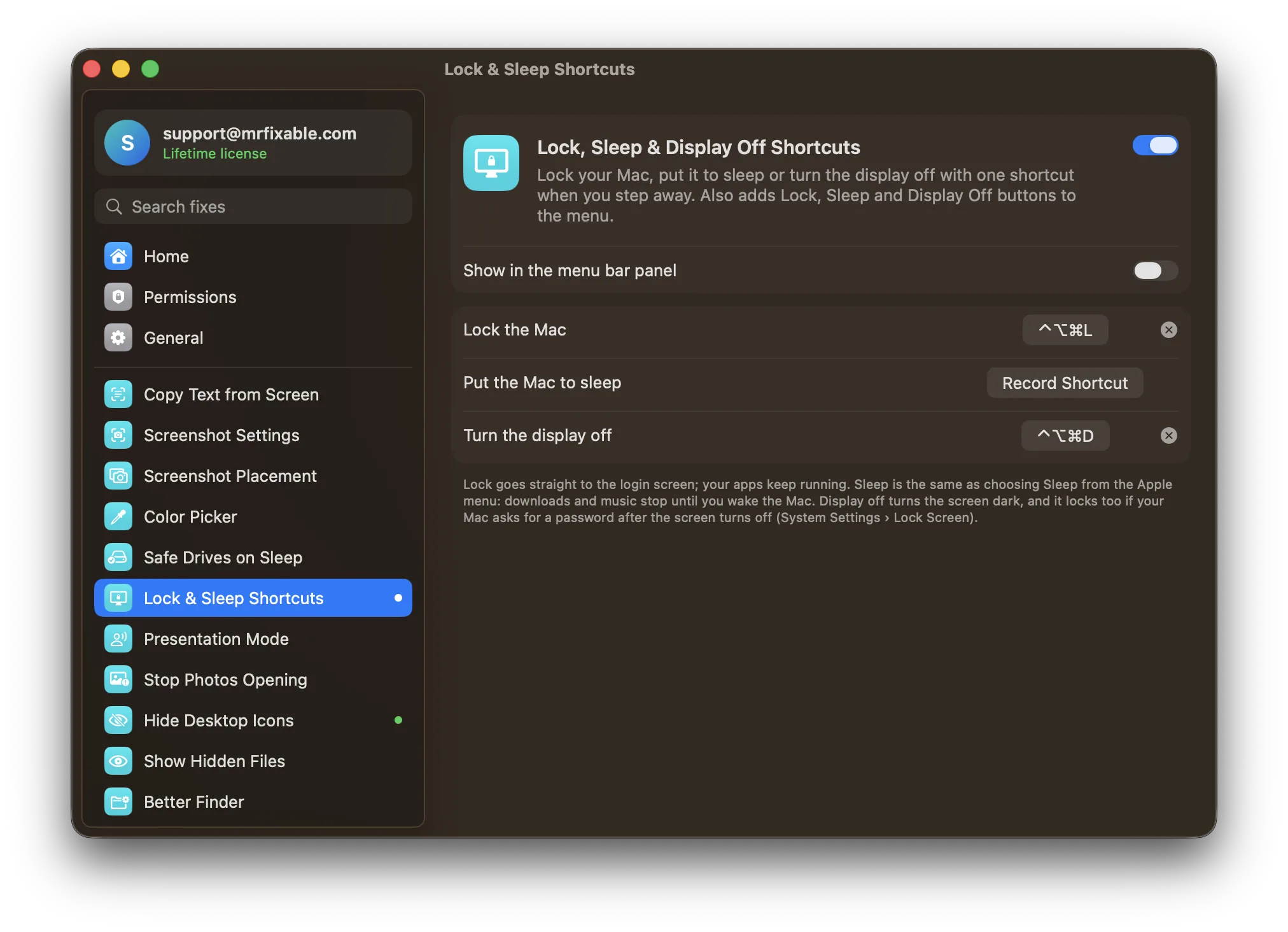
What Lock, Sleep & Display Off Shortcuts does
The problem
macOS locks the screen with ⌃⌘Q, but on keyboards with Touch ID there’s no shortcut to turn the display off, and Sleep is tucked away in the Apple menu. When you walk away in a hurry, the screen often stays on.
With Lock, Sleep & Display Off Shortcuts
Press ⌃⌥⌘L to lock, ⌃⌥⌘D to turn the display off, or keys of your own to sleep. Lock Now, Sleep and Display Off buttons also sit in MrFixable’s menu.
- Lock in one press⌃⌥⌘L goes straight to the login screen, like Lock Screen in the Apple menu. Your apps keep running.
- Display off, not sleep⌃⌥⌘D turns the screen dark and leaves downloads, music and everything else running.
- Sleep on your own keysSleep has no shortcut until you choose one, so it can’t clash with another app’s. It’s the same as choosing Sleep in the Apple menu.
- Buttons in the menuLock Now, Sleep and Display Off buttons sit in MrFixable’s menu, for when you’d rather click.
- Your keysSet any keys you like for each one, or clear one you don’t need. If another app already uses a shortcut, MrFixable marks it.
Good to know
Display Off also locks your Mac if it asks for a password after the display turns off, in System Settings › Lock Screen.
Sleep stops downloads and music until you wake the Mac. Use Display Off if you want them to keep going.
Needs no special permissions. Switch it off and the shortcuts are free for other apps again.
Questions
How do I lock my Mac screen with a shortcut?
Press ⌃⌘Q (Control-Command-Q). 1. Hold down Control and Command. 2. Press Q. Your Mac shows the login screen right away and your apps keep running. You can also choose Apple menu › Lock Screen. With Lock, Sleep & Display Off Shortcuts on, ⌃⌥⌘L locks it too, and you can change those keys.How do I lock my MacBook screen with a shortcut?
Press ⌃⌘Q, or press the Touch ID button at the top right of the keyboard. To make sure closing the lid or a dark screen also locks it: 1. Open System Settings › Lock Screen. 2. Set Require password after screen saver begins or display is turned off to Immediately. The MacBook then asks for your password.How do I turn off my Mac display without putting it to sleep?
Press ⌃⇧ and the power button on keyboards without Touch ID, or press ⌃⌥⌘D with Lock, Sleep & Display Off Shortcuts on. For a hot corner: 1. Open System Settings › Desktop & Dock. 2. Click Hot Corners. 3. Choose Put Display to Sleep for a corner. Downloads and music keep running.How do I turn off my Mac display when mirroring?
Close the lid and use closed-display mode. 1. Connect your MacBook to power and the external display. 2. Connect an external keyboard and a mouse or trackpad. 3. Close the lid. The external display keeps working. The Display Off shortcut in MrFixable turns every display off, so it doesn’t help here.Is there a shortcut to put a Mac to sleep?
Yes. Apple lists ⌥⌘ with the power button, and you can always choose Apple menu › Sleep. With Lock, Sleep & Display Off Shortcuts, you can set your own keys under Put the Mac to sleep. It has no default shortcut, so it can’t clash with a shortcut another app already uses.How do I lock my Mac with a Windows keyboard?
Press Ctrl+Windows+Q. On a Mac, the Windows key works as ⌘ (Command), so this is the same as ⌃⌘Q. Windows+L does nothing on a Mac, but you can set the Lock shortcut in Lock, Sleep & Display Off Shortcuts to any keys that feel natural to you, as long as no other app uses them.
Sources
Guides
- Mac lock screen shortcut: how to lock your Mac screenThe Mac lock screen shortcut is ⌃⌘Q. Every built-in way to lock your Mac screen, from the Touch ID key to Hot Corners, and how to set your own shortcut.
- Mac lock screen settings: ask for a password right awayMake your Mac lock screen ask for a password the moment the display turns off or the Mac sleeps. The exact Lock Screen settings in macOS Tahoe.
- How to turn off a Mac display without sleeping the MacTurn off your Mac display without sleep, while downloads and music keep running. The built-in shortcut, Hot Corners, Terminal and a Display Off shortcut.
- How to lock your Mac keyboard for cleaningHow to lock your Mac keyboard for cleaning: Apple's advice, why locking the screen with ⌃⌘Q doesn't stop the keys, and a lock that keeps the trackpad on.