
The Mac lock screen shortcut is ⌃⌘Q (Control-Command-Q): press it and your Mac goes straight to the lock screen, with your apps still open. You can also choose Lock Screen from the Apple menu or press the Touch ID key. MrFixable's Lock, Sleep & Display Off Shortcuts fix lets you pick your own lock shortcut instead.
Locking is what you do when you step away from your desk. Anyone who sits down sees the lock screen and needs your password or your fingerprint to get in. Everything you had open stays exactly where it was, so you carry on when you come back. It's the Mac version of ⊞L (Windows-L) on a Windows PC.
How to lock your Mac screen with a shortcut
- Hold ⌃ (Control) and ⌘ (Command).
- Press Q.
- The lock screen appears right away. Your apps keep running behind it.
- To get back in, type your password, or use Touch ID if your Mac has it.
One thing to watch: ⌃⌘Q is one key away from ⌘Q, which quits the app in front. Miss the Control key and you quit the app instead of locking the Mac.
Other built-in ways to lock a Mac
- Apple menu: click the Apple menu at the top left of the screen and choose Lock Screen.
- Touch ID key: on a Mac keyboard with Touch ID, press the Touch ID key once (top right of the keyboard) to lock the screen.
- Hot Corner: lock the Mac by moving the pointer into a corner of the screen. To set it up:
- Open System Settings › Desktop & Dock.
- Scroll down and click Hot Corners.
- Open the pop-up menu for the corner you want and choose Lock Screen.
- Click Done.
Pick a corner you don't hit by accident, or hold a key such as ⌘ while you choose the action, so the corner only works while you hold that key.
Make sure your Mac asks for a password
Locking with ⌃⌘Q, the Apple menu or the Touch ID key always asks for your password. When the screen turns off or the Mac sleeps on its own, it only asks if Require password after screen saver begins or display is turned off is set in System Settings › Lock Screen. Set it to Immediately if you want no gap at all. There's more on that in how to make your Mac ask for a password right away.
A lock shortcut you choose
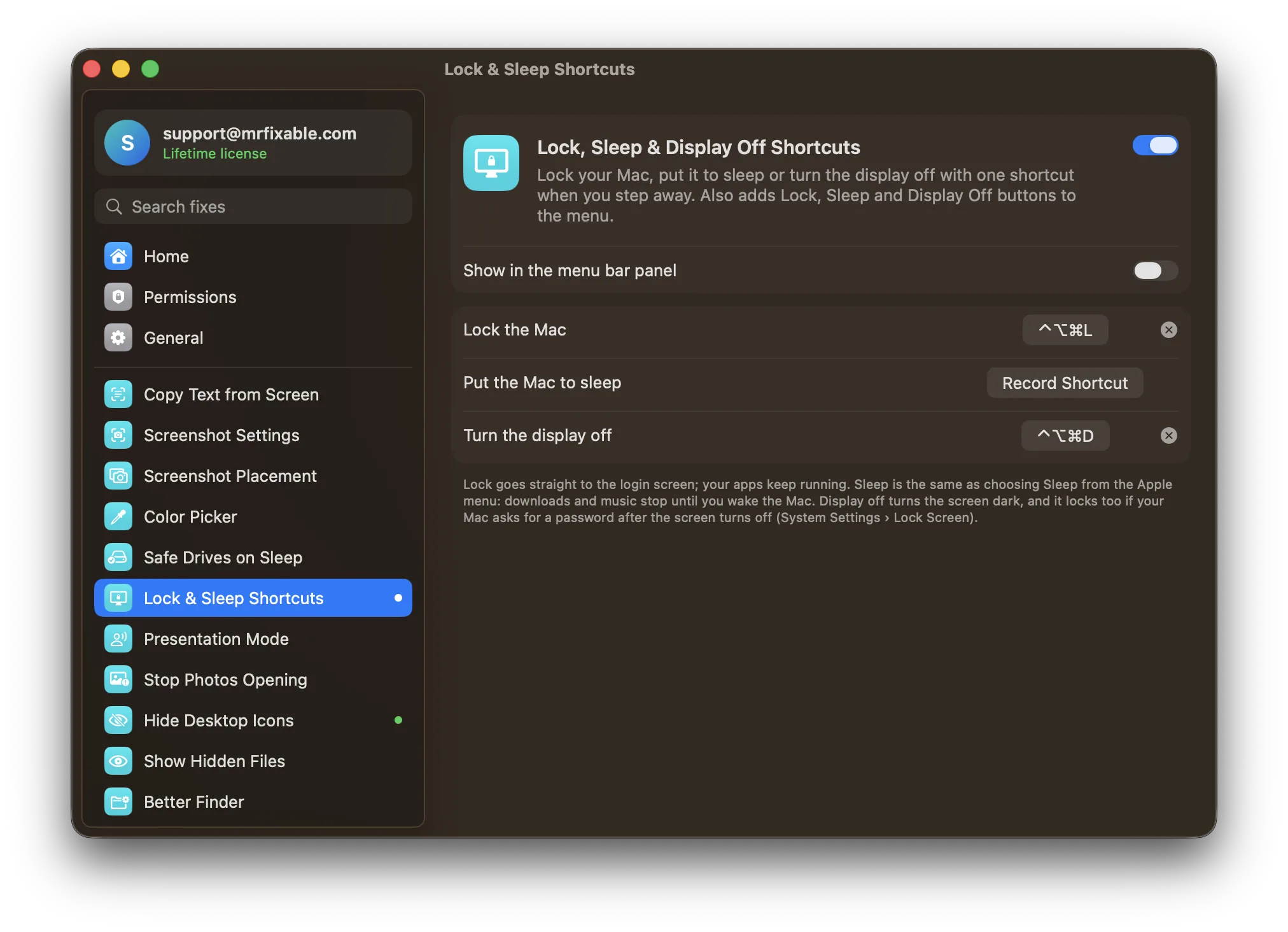
Lock, Sleep & Display Off Shortcuts in MrFixable adds three shortcuts for when you walk away:
- Lock the Mac: ⌃⌥⌘L to start with. It goes straight to the login screen, and your apps keep running.
- Turn the display off: ⌃⌥⌘D to start with. The screen goes dark, and the Mac locks too if it asks for a password after the display turns off.
- Put the Mac to sleep: no shortcut until you pick one, so it can't clash with another app. Sleep is the same as choosing Sleep from the Apple menu: downloads and music stop until you wake the Mac.
You can change any of the three in the fix's settings. If another app already uses the keys you pick, MrFixable tells you and asks you to pick different ones. ⌃⌘Q keeps working as well.
The fix also adds Lock Now, Sleep and Display Off buttons to the MrFixable menu, so you can lock with a click when your hands are on the mouse.
MrFixable is a menu bar app with 68 fixes like this one. It costs $19.99 once (lifetime license), runs on macOS 14.2 Sonoma or later, and has a 14-day free trial.
Questions
How do I lock my MacBook screen with a shortcut?
Press ⌃⌘Q (Control-Command-Q), the same shortcut as on any Mac. On a MacBook with Touch ID, pressing the Touch ID key once at the top right of the keyboard also locks the screen. Closing the lid puts the MacBook to sleep, which locks it when a password is required after sleep.
How do I turn off my Mac display without sleep?
Press ⌃⇧ and the power button on a Mac keyboard without Touch ID, or set a Hot Corner to Put Display to Sleep in System Settings › Desktop & Dock › Hot Corners. The screen goes dark while apps, downloads and music keep running. See how to turn off a Mac display without sleeping the Mac.
How do I turn off my Mac display when mirroring?
macOS has no switch that turns off only the built-in screen while mirroring, and the display-off shortcuts darken every screen. Close the lid with the power adapter, an external keyboard and a mouse connected, and the Mac keeps using the TV or monitor alone. Or turn the built-in screen's brightness all the way down.