
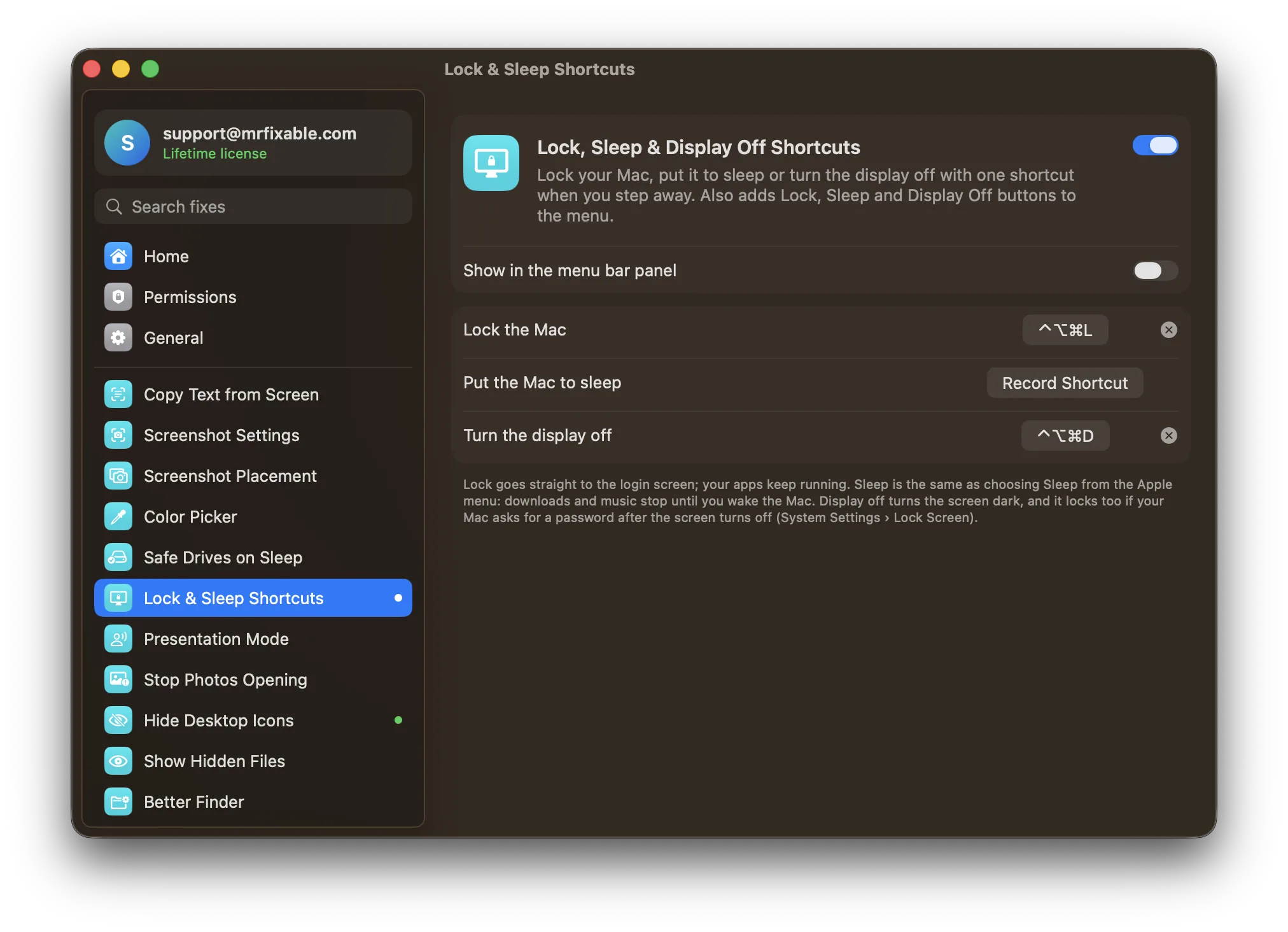
To turn off your Mac display without sleep, press ⌃⇧ and the power button on a Mac keyboard without Touch ID, or set a Hot Corner to Put Display to Sleep. The screen goes dark, but downloads, music and apps keep running. MrFixable adds a Display Off shortcut, ⌃⌥⌘D, that you can use on any Mac keyboard.
Display off and sleep are not the same
- Display off (macOS calls it display sleep): only the screen goes dark. The Mac keeps working, so a download carries on, music keeps playing and a long export finishes. Move the mouse or press a key and the screen comes back.
- Sleep: the whole Mac pauses. Downloads and music stop until you wake it.
If you want to save the screen, or just stop it glowing at night, display off is what you want.
How to turn off the display with the keyboard
On a Mac keyboard without Touch ID:
- Hold ⌃ (Control) and ⇧ (Shift).
- Press the power button.
- Every connected display goes dark. Press any key to wake them.
Keyboards with Touch ID don't have a display-off shortcut: pressing the Touch ID key locks the screen instead. Use a Hot Corner or MrFixable's shortcut below.
How to turn off the display with a Hot Corner
- Open System Settings › Desktop & Dock.
- Scroll down and click Hot Corners.
- Open the pop-up menu for a corner and choose Put Display to Sleep.
- Click Done.
Now move the pointer into that corner and the screen turns off.
How to turn off the display with Terminal
Open Terminal (press ⌘Space, type Terminal, press Return) and run:
pmset displaysleepnow
The displays go dark straight away. This is handy in a script, less so every day.
Choose when the display turns off by itself
macOS also turns the screen off when you haven't touched the Mac for a while. Set how long in System Settings › Lock Screen: Turn display off on battery when inactive and Turn display off on power adapter when inactive.
Keep the Mac awake while the display is off
Once the display is off, the Mac can still go to sleep on its own a little later, and then downloads stop. To keep it running:
- MacBook: open System Settings › Battery, click Options, and turn on Prevent automatic sleeping on power adapter when the display is off. This only works while it's plugged in.
- Desktop Mac: open System Settings › Energy and turn on Prevent automatic sleeping when the display is off.
- With MrFixable: turn on Keep Awake and switch off Keep the display on too in its settings. The Mac stays awake, and the display can still turn off.
Will turning the display off lock the Mac?
Only if you ask it to. When Require password after screen saver begins or display is turned off is set to Immediately in System Settings › Lock Screen, the Mac locks as soon as the display turns off and asks for your password or Touch ID. See how to make your Mac ask for a password right away.
A Display Off shortcut on any keyboard
Lock, Sleep & Display Off Shortcuts in MrFixable turns the display off with ⌃⌥⌘D, on a Touch ID keyboard, an external keyboard or a Windows keyboard. You can change the keys in the fix's settings.
It also adds a Display Off button to the MrFixable menu, next to Lock Now and Sleep, plus a lock shortcut (⌃⌥⌘L) and a sleep shortcut you choose yourself.
Display Off darkens every connected screen at once, the same as the built-in ways. It can't turn off just one of them.
Questions
How do I turn off my Mac display without sleep?
Press ⌃⇧ and the power button on a keyboard without Touch ID. On any keyboard, set a Hot Corner to Put Display to Sleep in System Settings › Desktop & Dock › Hot Corners, or run pmset displaysleepnow in Terminal. The screen goes dark while apps, downloads and music keep running.
How do I turn off my Mac display when mirroring?
macOS has no switch that turns off only the built-in screen while mirroring, and the display-off shortcuts darken every screen. Close the lid with the power adapter, an external keyboard and a mouse connected, and the Mac keeps using the TV or monitor alone. Or turn the built-in screen's brightness all the way down.
How do I lock my Mac screen with a shortcut?
Press ⌃⌘Q (Control-Command-Q), or choose Lock Screen from the Apple menu. On a keyboard with Touch ID, press the Touch ID key once. Your apps stay open behind the lock screen. See the Mac lock screen shortcut for Hot Corners and choosing your own keys.