
System & FinderKeep Awake
Caffeinate your Mac from the menu bar
To caffeinate a Mac, open Terminal, type caffeinate -d and press Return: the Mac and its display stay awake until you press ⌃C (Control-C). Keep Awake does the same from the menu bar, without Terminal. Turn it on, choose 1 hour, 3 hours or Never, and your sleep settings in System Settings stay as they are.
Try free for 14 daysBuy for $19.99 Lifetime license
One of 68 fixes in MrFixable. Lifetime license, no subscription. Updated October 22, 2026. Works on macOS 14.2 Sonoma and later. Checked on macOS 26 Tahoe.
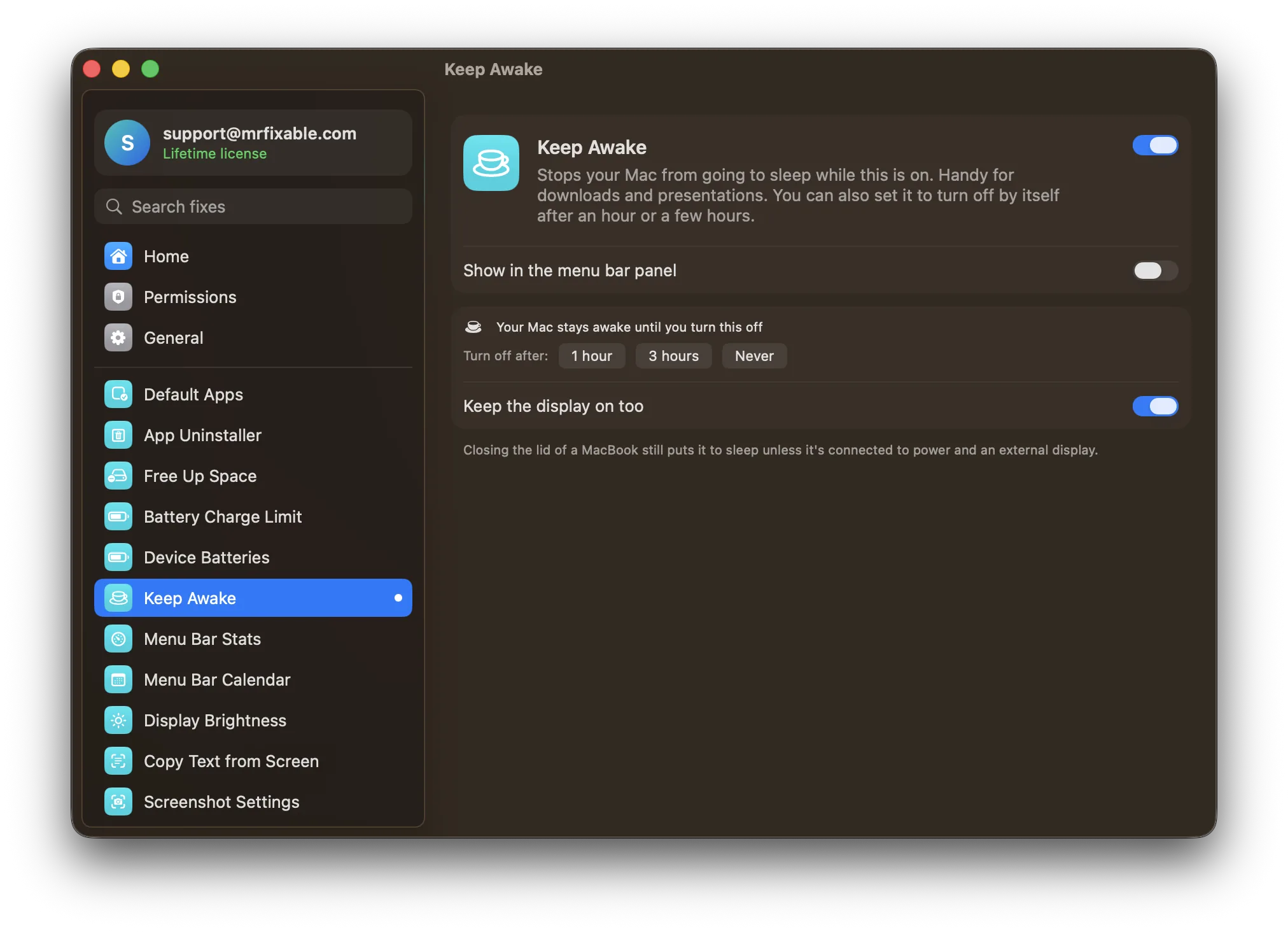
What Keep Awake does
The problem
Your Mac goes to sleep in the middle of a download, a render or a presentation. You can change when it sleeps in System Settings › Lock Screen and Battery, but then you have to remember to change it back, and the built-in caffeinate command needs Terminal.
With Keep Awake
Turn on Keep Awake and your Mac stays awake until you turn it off, or for 1 or 3 hours. While it's on, MrFixable's menu bar icon turns into a cup, so you can see it at a glance.
- Turns itself offChoose 1 hour or 3 hours and Keep Awake switches off by itself, so you can't forget it. Choose Never to stay awake until you turn it off.
- Display on or offThe display stays on too, to begin with. Turn off Keep the display on too and the screen can sleep while the Mac keeps working, for a long download.
- Nothing to change backYour sleep settings stay as they are. Keep Awake prevents sleep the same way a playing video does, and lets go when it's off.
Good to know
Closing the lid of a MacBook still puts it to sleep, unless it's connected to power and an external display.
When you quit MrFixable, your Mac can sleep again. A timer you set is remembered for next time.
Switch it off and your Mac sleeps as usual.
Questions
How do I keep my Mac awake?
Open System Settings › Lock Screen and set Turn display off on power adapter when inactive to Never. On a MacBook, also open System Settings › Battery, click Options and turn on Prevent automatic sleeping on power adapter when the display is off. Or turn on Keep Awake, which changes none of these settings.How do I stop my Mac from sleeping?
For a while, open Terminal, type caffeinate -d and press Return. Your Mac and its display stay awake until you press ⌃C or close the window. Keep Awake does the same with one click in MrFixable's menu: choose 1 hour, 3 hours or Never, and it turns itself off when the time is up.How do I disable sleep mode on a Mac?
On a desktop Mac, open System Settings › Energy and turn on Prevent automatic sleeping when the display is off. Then open System Settings › Lock Screen and set Turn display off on power adapter when inactive to Never. To undo it, change both back. Keep Awake gives the same result without touching either setting.How do I keep my Mac awake when the lid is closed?
Connect the MacBook to power and an external display, plus an external keyboard and mouse or trackpad, then close the lid. It keeps running on the external display. Without those, closing the lid always puts a MacBook to sleep, even with Keep Awake or the caffeinate command on.How do I keep my Mac awake when it's plugged in?
Open System Settings › Battery, click Options and turn on Prevent automatic sleeping on power adapter when the display is off. For the screen, open System Settings › Lock Screen and set Turn display off on power adapter when inactive to Never. Keep Awake works the same on battery and on power.How do I keep my Mac awake while downloading?
Turn on Keep Awake in MrFixable's menu and choose 3 hours or Never. In its settings, turn off Keep the display on too, so the screen can sleep while the Mac keeps downloading. When the time is up, Keep Awake switches itself off and your Mac sleeps as usual again.How do I keep my Mac awake always?
Turn on Keep Awake and choose Never next to Turn off after. Your Mac stays awake until you switch it off, and MrFixable's menu bar icon turns into a cup as a reminder. Quitting MrFixable lets the Mac sleep again. For a lasting change, use the Lock Screen and Battery or Energy settings instead.
Sources
Guides
- How to use caffeinate on a Mac to stop it sleepingHow to caffeinate a Mac from Terminal: keep it awake for an hour, until a copy or an app finishes, or until you stop it. Every option, with examples.
- How to turn off sleep mode on a Mac in System SettingsHow to turn off sleep mode on a Mac in System Settings: for a MacBook on power, a desktop Mac, the display, and a MacBook with its lid closed.
- How to keep your Mac awake without changing its settingsKeep your Mac awake with the built-in caffeinate command or your settings, with the lid closed or during a download, and a switch that turns itself off.
- How to turn off a Mac display without sleeping the MacTurn off your Mac display without sleep, while downloads and music keep running. The built-in shortcut, Hot Corners, Terminal and a Display Off shortcut.
- How to schedule a shutdown or sleep on a MacSystem Settings lost its sleep and shutdown schedule in macOS Ventura. How to schedule a shutdown or sleep with pmset in Terminal, and a way with a warning.