
System & FinderPresentation Mode
Mac presentation mode
macOS has no single Mac presentation mode: you hide desktop icons, hide the Dock and stop the screen sleeping one setting at a time. Presentation Mode does all of it when you press ⌃⌥⌘P, and highlights the pointer too. Press ⌃⌥⌘P again and everything goes back. For notifications, turn on Do Not Disturb in Control Center.
Try free for 14 daysBuy for $19.99 Lifetime license
One of 68 fixes in MrFixable. Lifetime license, no subscription. Updated October 22, 2026. Works on macOS 14.2 Sonoma and later. Checked on macOS 26 Tahoe.
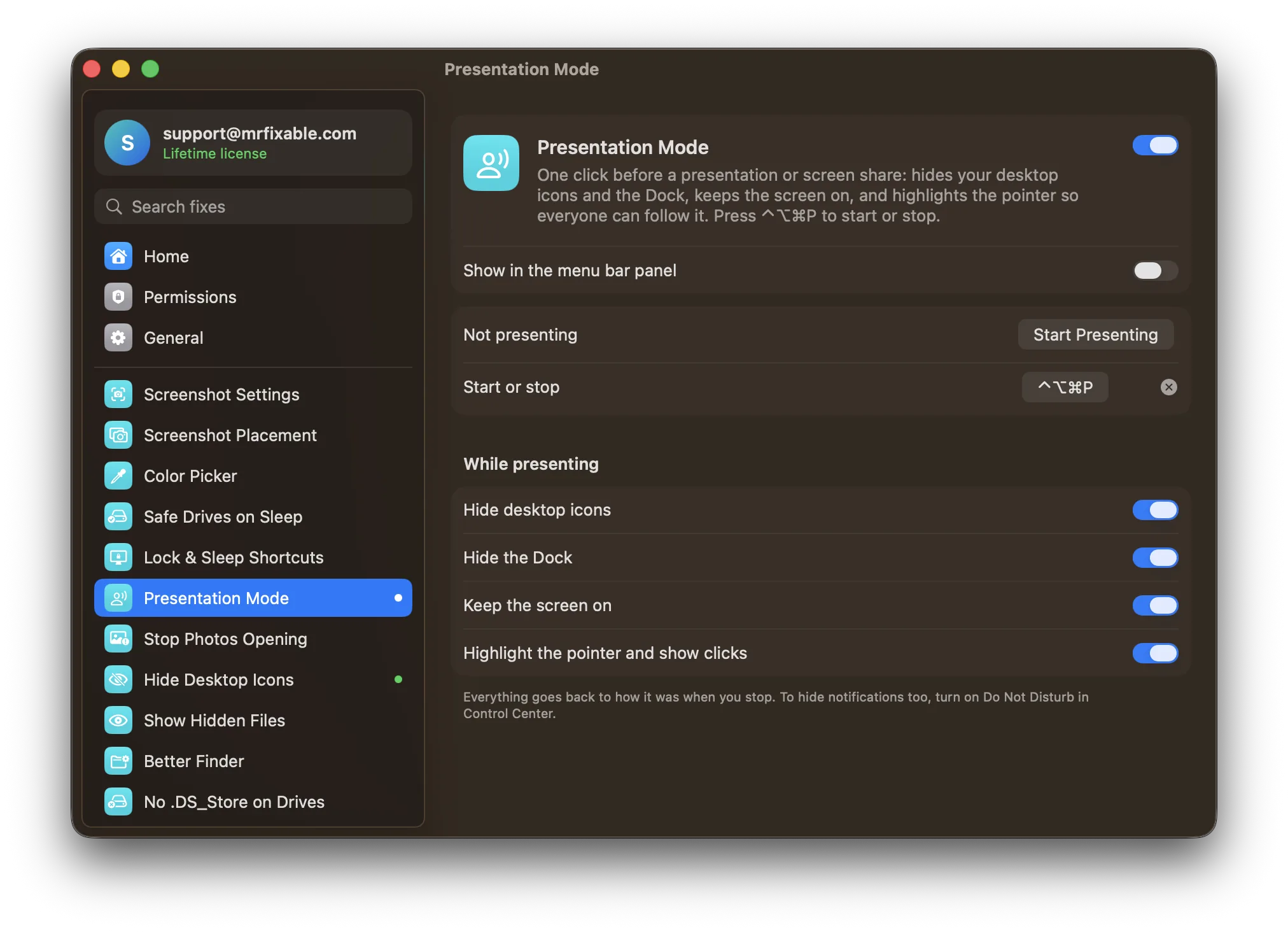
What Presentation Mode does
The problem
Before a talk or a screen share, you hide your desktop files, tuck the Dock away and make sure the display won’t go dark mid-sentence, then put it all back afterwards. On a shared screen, people also struggle to follow a small pointer.
With Presentation Mode
Press ⌃⌥⌘P and your desktop icons and the Dock are hidden, the screen stays on, and the pointer is highlighted. Press it again and everything goes back to how it was.
- One switch, four changesHide desktop icons, hide the Dock, keep the screen on, and highlight the pointer. All four are on to start with. Turn off any you don’t need.
- Follow the pointerA soft yellow circle follows your pointer, and a red ring shows each click, so everyone watching can see what you do.
- Start it your wayPress ⌃⌥⌘P, choose your own keys, or click Start Presenting in MrFixable’s menu. A small notice shows when it turns on or off.
- Everything goes backWhen you stop, your desktop icons, Dock and sleep behavior return to how they were. Your sleep settings are never changed.
Good to know
The Dock is set to hide automatically while you present, so it still slides in when you move the pointer to the edge of the screen.
Notifications aren’t silenced. Turn on Do Not Disturb, or pause them for screen sharing in System Settings › Notifications.
Choose which of the four changes to use before you start. The options are locked while you present.
If MrFixable quits mid-presentation, your desktop icons and Dock are put back the next time it starts.
Questions
How do I exit presentation mode on a Mac?
Press ⌃⌥⌘P again. Or: 1. Click MrFixable in the menu bar. 2. Click Stop Presenting. Your desktop icons, Dock and screen settings go back to how they were, and a small notice confirms it. If you mean a Keynote or PowerPoint slideshow instead, press Esc to leave it and return to the editing view.How do I hide notifications on a Mac?
Turn on Do Not Disturb. 1. Click Control Center in the menu bar. 2. Click Focus. 3. Choose Do Not Disturb. To pause them only while you share your screen, open System Settings › Notifications and turn off When mirroring or sharing the display under Show Notifications. Presentation Mode doesn’t silence notifications itself.How do I hide the screen sharing icon on a Mac?
Open System Settings › Menu Bar and turn off Screen Mirroring, and its icon leaves the menu bar. 1. Choose Apple menu › System Settings. 2. Click Menu Bar. 3. Turn off Screen Mirroring. The privacy indicator macOS shows while an app shares your screen is separate, and Presentation Mode doesn’t hide it.Is there a Mac presentation mode shortcut?
Yes. With Presentation Mode on in MrFixable, press ⌃⌥⌘P (Control-Option-Command-P) to start presenting, and press it again to stop. You can change the keys in the fix’s settings. If another app already uses the shortcut, MrFixable marks it so you can pick different keys. macOS itself has no presentation shortcut.Does a Mac have a demo mode?
No. macOS has no demo mode switch for clearing your screen before a demo. Presentation Mode is the closest thing: one shortcut hides your desktop icons and the Dock, keeps the screen on and highlights the pointer, so viewers see your app and not your files. Press the shortcut again to undo it.How do I stop my Mac screen turning off during a presentation?
Start Presentation Mode with Keep the screen on selected. The screen stays on while you present, without changing your settings. Without it: 1. Open System Settings › Lock Screen. 2. Set Turn display off on power adapter when inactive to Never. Remember to change it back afterwards, or the screen stays on all day.How do I highlight the pointer on a Mac?
Start Presentation Mode with Highlight the pointer and show clicks selected. A soft yellow circle follows your pointer and every click shows a red ring, so people watching a shared screen can follow you. It disappears when you stop presenting. Turn the option off if you only want the other changes.
Sources
Guides
- How to clean up your Mac desktop and hide desktop iconsHow to clean your Mac desktop with its built-in desktop organizer, Stacks, tidy or move the files, and hide every desktop icon for a call or a clean look.
- How to keep your Mac awake without changing its settingsKeep your Mac awake with the built-in caffeinate command or your settings, with the lid closed or during a download, and a switch that turns itself off.