
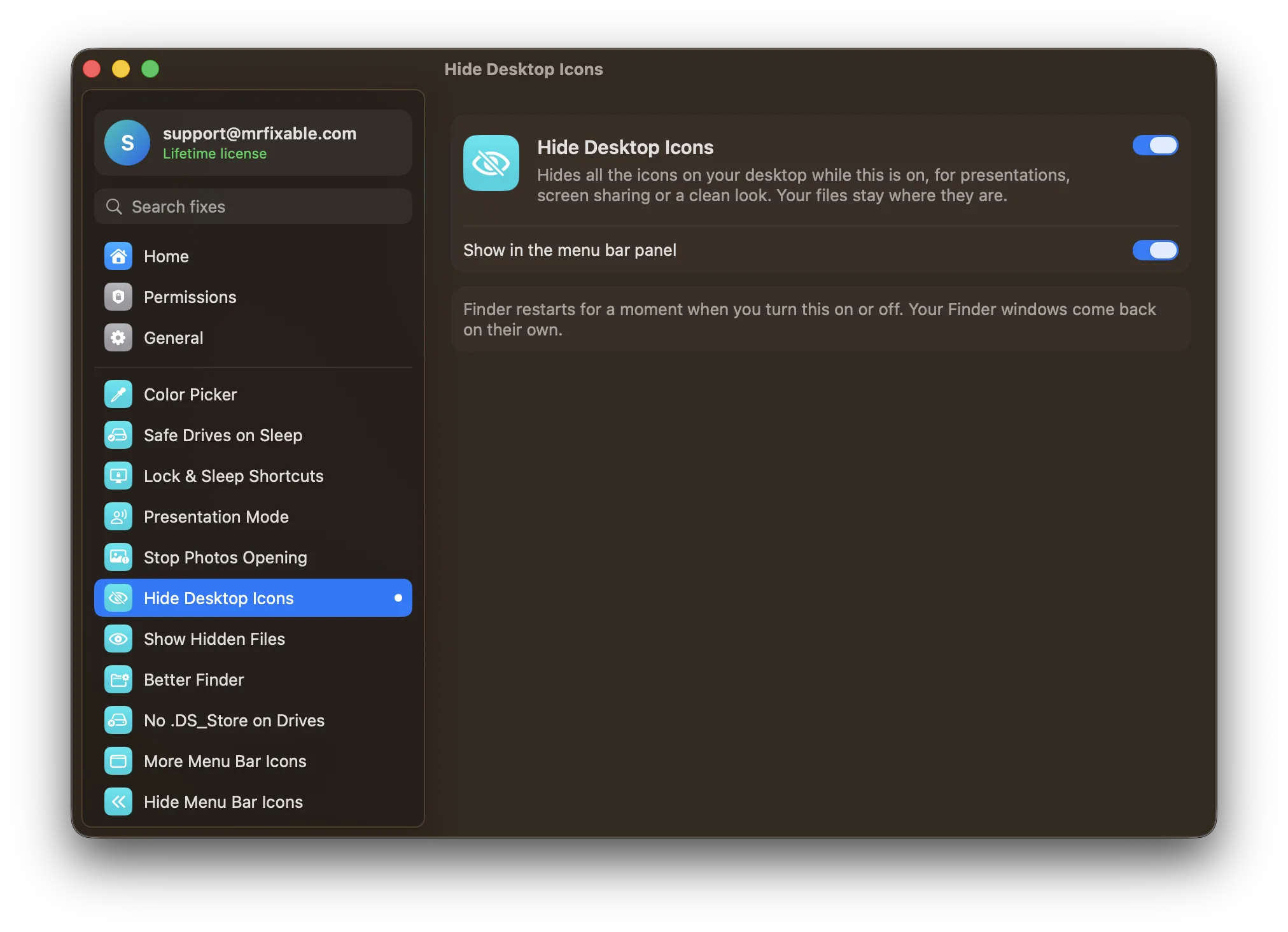
To clean your Mac desktop fast, use the Mac's built-in desktop organizer: click the desktop and choose View › Use Stacks (⌃⌘0), which piles your files into neat stacks by kind. To hide every icon, turn off On Desktop next to Show Items in System Settings › Desktop & Dock. MrFixable's Hide Desktop Icons does that in one click.
A messy desktop happens to everyone: screenshots, downloads and "just for now" files all land there. Here's how to tidy it, how to move things off it, and how to hide it all when you share your screen.
How to clean your Mac desktop with Stacks
Stacks gathers the files on your desktop into piles, one per kind of file: images, PDFs, documents, screenshots and so on. New files go into the right stack by themselves.
- Click an empty part of the desktop.
- Choose View › Use Stacks in the menu bar, or press ⌃⌘0 (Control-Command-Zero). You can also right-click the desktop and choose Use Stacks.
- To sort the piles differently, choose View › Group Stacks By and pick kind, a date, or Finder tags.
- Click a stack to open it, and click it again to close it.
Your files don't move: they're still in your Desktop folder. Turn Stacks off the same way to get the old layout back.
Tidy the icons that are left
If you'd rather keep loose icons, line them up:
- Right-click the desktop and choose Clean Up to snap icons into a neat grid.
- Choose Clean Up By or Sort By to order them by name, kind or date.
- Right-click the desktop and choose Show View Options to make icons smaller or change the grid spacing.
Move files off the desktop
The real cleanup is putting files somewhere else:
- Select the files you want to move (drag a box around them, or ⌘-click each one).
- Right-click one of them and choose New Folder with Selection.
- Give the folder a name, then drag it to Documents or another folder in Finder.
To find what used to be on the desktop, open Finder and click Desktop in the sidebar, or press ⇧⌘D in Finder.
Disk icons can clutter the desktop too. To remove them, open Finder › Settings (⌘,), click General, and turn off the items under Show these items on the desktop, such as hard disks and external disks.
How to hide all desktop icons in macOS
macOS can hide everything on the desktop without moving a single file:
- Open System Settings › Desktop & Dock.
- Under Desktop & Stage Manager, find Show Items.
- Turn off On Desktop.
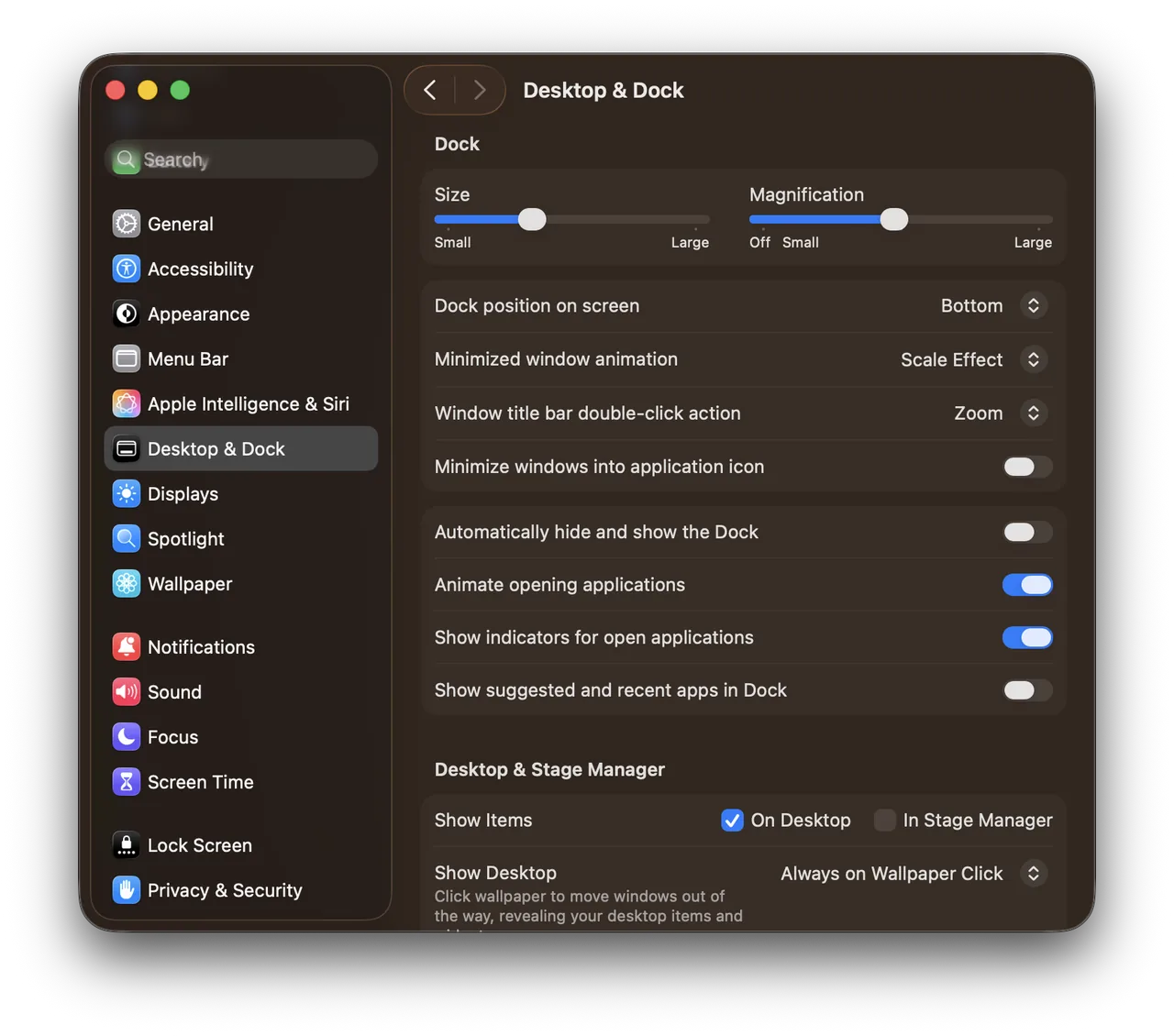
Real screenshot from a MacBook Pro (13-inch, M1, 2020) running macOS 26.1, taken October 22, 2026.
The desktop shows only your wallpaper. Your files are still in the Desktop folder in Finder. Turn On Desktop back on to see them again.
Hide desktop icons in one click
Hide Desktop Icons in MrFixable hides every icon on your desktop while it's on. Your files stay where they are. Click its button in the MrFixable menu to hide the icons before a call or a presentation, and click again to bring them back, without opening System Settings. Finder restarts for a moment each time, and your Finder windows come back on their own.
It does the same job as the On Desktop setting above. What it adds is the switch in the menu bar, right where you need it before you share your screen.
If you present often, Presentation Mode goes further: one click (or ⌃⌥⌘P) hides the desktop icons and the Dock, keeps the screen on, and highlights the pointer so everyone can follow it.
MrFixable costs $19.99 once (lifetime license), runs on macOS 14.2 Sonoma or later, and has a 14-day free trial.
Questions
How do I clean the desktop on my Mac?
Click the desktop and press ⌃⌘0, or choose View › Use Stacks. Your files gather into stacks by kind, and new files join them by themselves. To line up loose icons instead, right-click the desktop and choose Clean Up. To clear it properly, move files into a folder in Documents.
How do I clear the icons off my Mac desktop?
Select the files, right-click one and choose New Folder with Selection, then drag that folder into Documents. The icons leave the desktop and your files are safe. To remove disk icons, open Finder › Settings › General and turn off the items under Show these items on the desktop.
How do I hide desktop icons on a Mac?
Open System Settings › Desktop & Dock, find Show Items under Desktop & Stage Manager, and turn off On Desktop. Every icon disappears and your files stay in the Desktop folder. MrFixable's Hide Desktop Icons does the same from a button in the menu bar, so you can switch it before a call.