
System & FinderHide Desktop Icons
Mac desktop organizer for a clean desktop
The built-in Mac desktop organizer is Stacks: click the desktop and choose View › Use Stacks to group files by kind. To hide every icon, open System Settings › Desktop & Dock and turn off On Desktop under Show Items. Hide Desktop Icons does that job with one switch in MrFixable’s menu, and your files stay in the Desktop folder.
Try free for 14 daysBuy for $19.99 Lifetime license
One of 68 fixes in MrFixable. Lifetime license, no subscription. Updated October 22, 2026. Works on macOS 14.2 Sonoma and later. Checked on macOS 26 Tahoe.
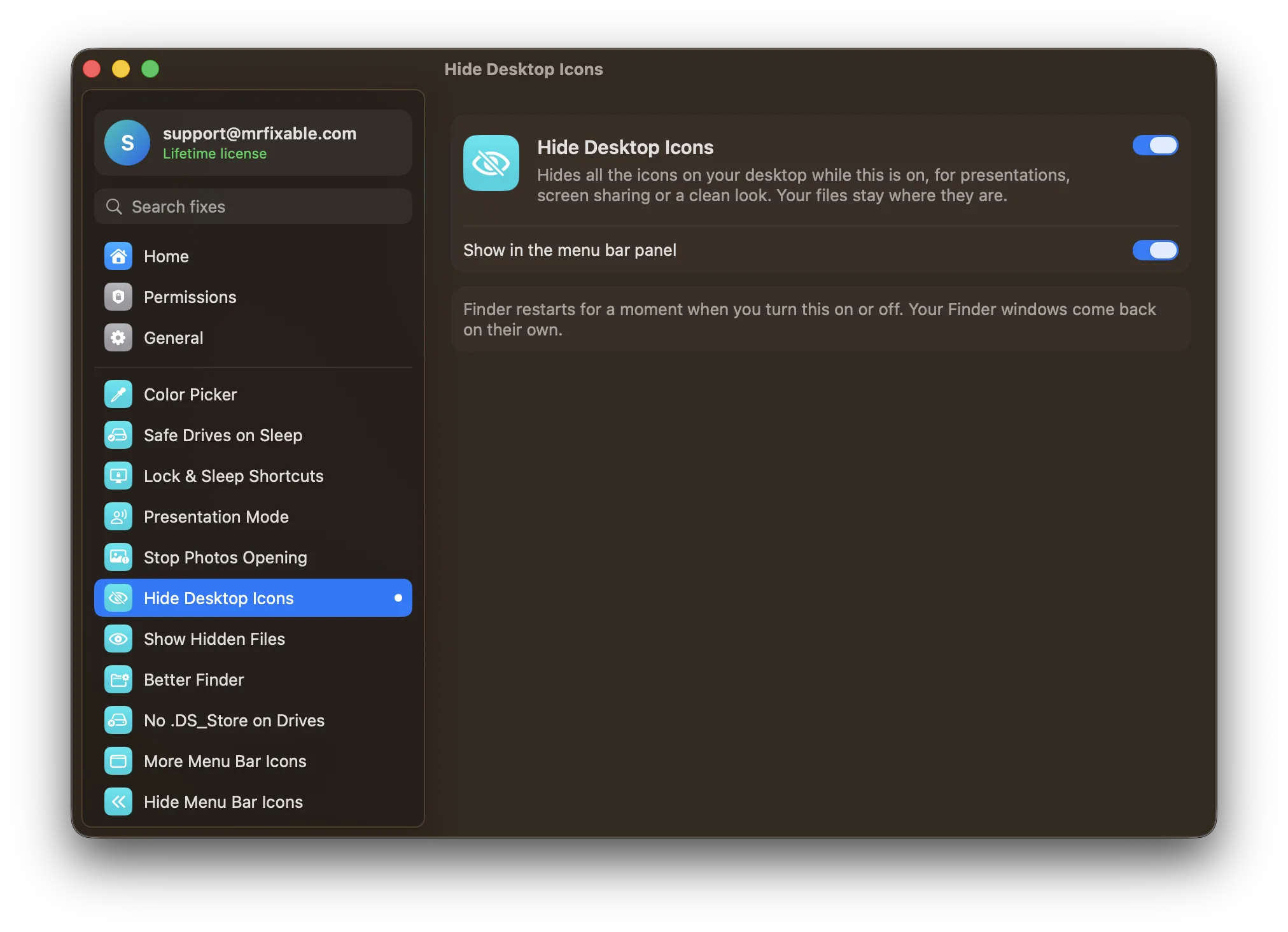
What Hide Desktop Icons does
The problem
A desktop full of files looks messy, distracts you, and is on show when you share your screen. Stacks tidy files into piles, and System Settings can hide them, but that’s a trip into Desktop & Dock settings each time.
With Hide Desktop Icons
Every desktop icon disappears while this is on, and comes back when you turn it off. Your files stay right where they are, in the Desktop folder in Finder.
- One switchTurn it on or off from MrFixable’s menu in the menu bar, whenever you need a clean desktop.
- Files stay putNothing is moved or deleted. Open the Desktop folder in Finder to reach your files while the icons are hidden.
- Stays as you set itmacOS keeps the setting, so the desktop stays clean even when MrFixable isn’t running.
Good to know
Finder restarts for a moment when you turn it on or off, and your Finder windows come back on their own.
To reach your desktop files while the icons are hidden, choose Go › Desktop in Finder (⇧⌘D).
Only need it while you present? Presentation Mode hides desktop icons and puts them back when you stop.
Questions
How do I clean my Mac desktop?
Group or hide what’s there. 1. Click the desktop. 2. Choose View › Use Stacks to pile files by kind. 3. Drag files you no longer need to the Trash, or into a folder in Documents. To hide everything instead, turn off On Desktop in System Settings › Desktop & Dock, or turn on Hide Desktop Icons.How do I clean up the desktop on a Mac?
Right-click an empty spot on the desktop and choose Clean Up to line icons up in a neat grid. 1. Right-click the desktop. 2. Choose Clean Up By. 3. Pick Name, Kind or Date Modified to sort them. Choose Use Stacks from the same menu to pile files by kind instead.How do I clear Mac desktop icons?
Move the files into a folder. 1. Click the desktop and press ⌘A to select every item. 2. Right-click one and choose New Folder with Selection. 3. Drag that folder into Documents. The desktop is now clear. To keep the files where they are but out of sight, turn on Hide Desktop Icons.How do I hide Mac desktop icons?
Open System Settings › Desktop & Dock and turn off On Desktop. 1. Choose Apple menu › System Settings. 2. Click Desktop & Dock. 3. Under Show Items, turn off On Desktop. Or turn on Hide Desktop Icons in MrFixable, which hides every icon with one switch in the menu bar and brings them back just as fast.Does hiding desktop icons delete my files?
No. Nothing is moved or deleted. Your files stay in the Desktop folder, which you can open any time in Finder with Go › Desktop or ⇧⌘D. Turn Hide Desktop Icons off and every icon comes back on the desktop in the same place, ready to use as before.How do I hide desktop icons only while screen sharing?
Use Presentation Mode. 1. Turn on Presentation Mode in MrFixable. 2. Press ⌃⌥⌘P before you share your screen. 3. Press ⌃⌥⌘P again when you’re done. Your desktop icons disappear while you present and come back by themselves afterwards. It can also hide the Dock and keep the screen on.