
System & FinderCut & Paste Files
Mac cut and paste for files in Finder
To cut and paste files on a Mac, select them in Finder and press ⌘C (Command-C), open the folder you want and press ⌥⌘V (Option-Command-V) to move them there. Finder has no Cut for files. Cut & Paste Files lets you press ⌘X, then ⌘V, as on Windows.
Try free for 14 daysBuy for $19.99 Lifetime license
One of 68 fixes in MrFixable. Lifetime license, no subscription. Updated October 22, 2026. Works on macOS 14.2 Sonoma and later. Checked on macOS 26 Tahoe.
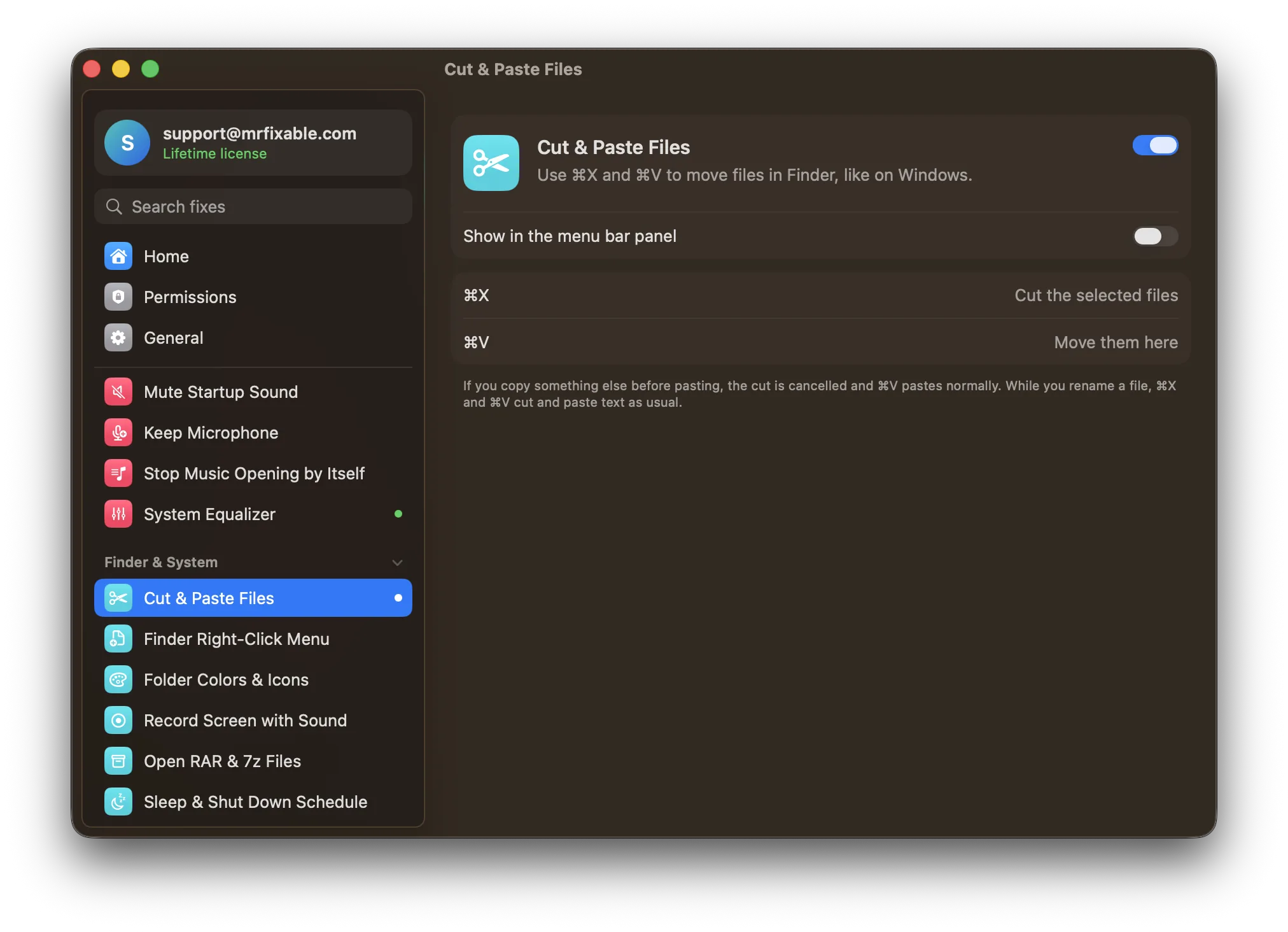
What Cut & Paste Files does
The problem
Select files in Finder and press ⌘X, and nothing happens: Cut stays grayed out for files. macOS can move files, but only if you copy them with ⌘C and then press ⌥⌘V, a command the Edit menu shows only while you hold Option.
With Cut & Paste Files
Press ⌘X on files in Finder, go to another folder and press ⌘V, and they move there. A short notice confirms the cut, so you know it worked.
- Works like Windows⌘X cuts the selected files and folders, and ⌘V moves them into the folder you're in. It uses Finder's own Move Item Here (⌥⌘V), so Finder does the move as usual.
- Text works as beforeWhile you rename a file, ⌘X and ⌘V cut and paste text as usual. Other apps aren't affected at all.
- Change your mind safelyCopy something else before you paste, and the cut is cancelled. ⌘V then pastes normally, so nothing moves by surprise.
Good to know
Needs Accessibility access, which macOS requires for an app that reads and changes the keys you press in another app, here ⌘X and ⌘V in Finder.
Only works in Finder. ⌘X and ⌘V in every other app are left alone.
Switch it off and Finder goes back to its own way: ⌘C, then ⌥⌘V to move.
Questions
How do you cut and paste?
Select the text or item, press the Cut shortcut, click where you want it and press Paste. On a Mac that's ⌘X (Command-X), then ⌘V (Command-V). On Windows it's Ctrl-X, then Ctrl-V. In Finder, files work differently: copy them with ⌘C and move them with ⌥⌘V.How do I cut and paste on a Mac?
Press ⌘X to cut and ⌘V to paste. For text: 1. Select the words. 2. Press ⌘X, or choose Edit › Cut. 3. Click where they should go. 4. Press ⌘V, or choose Edit › Paste. The ⌘ (Command) key sits on both sides of the space bar on every Mac keyboard.How do I cut and paste files on a Mac?
Copy them, then move them. 1. Select the files in Finder. 2. Press ⌘C. 3. Open the folder where they should go. 4. Press ⌥⌘V, or open the Edit menu, hold Option and choose Move Item Here. The files leave the old folder. With Cut & Paste Files on, ⌘X and ⌘V do the same.How do I cut and paste files on a MacBook Air?
Use the same keys as any Mac. 1. Click the files in Finder. 2. Press ⌘C. 3. Open the other folder. 4. Press ⌥⌘V to move them there. The Option (⌥) key is next to ⌘ on the built-in keyboard. Prefer ⌘X? Turn on Cut & Paste Files in MrFixable and allow Accessibility once.How do I cut and paste files on a MacBook Pro?
Press ⌘C, then ⌥⌘V in the other folder, or drag. 1. Open two Finder windows. 2. Drag the files from one folder to the other. On the same disk, dragging moves them. 3. To move them to another disk instead of copying, hold ⌘ while you drag. This works with the trackpad too.How do I cut and paste files in macOS?
Turn on Cut & Paste Files to get Windows-style ⌘X. 1. Open MrFixable and switch on Cut & Paste Files. 2. Allow Accessibility when macOS asks. 3. Select files in Finder and press ⌘X. 4. Open another folder and press ⌘V. Without it, macOS moves files with ⌘C and then ⌥⌘V.
Sources
Guides
- How to cut and paste files on a MacBook Air or MacBook ProCut and paste files on a MacBook Air or Pro with ⌘C and ⌥⌘V, a two-finger click or a trackpad drag. Where the keys are, and how to make ⌘X move files.
- How to cut and paste on a Mac: text, files and picturesHow to cut and paste on a Mac with ⌘X and ⌘V, the Edit menu or a right-click, why files need ⌥⌘V instead, and how to make ⌘X move files in Finder.
- How to cut and paste files on a Mac (Finder's hidden shortcut)To move files on a Mac, copy them with ⌘C and press ⌥⌘V in the new folder. Why ⌘X is grayed out in Finder, other ways to move files, and how to make ⌘X work.