
To cut and paste on a Mac, select what you want to move and press ⌘X (Command-X) to cut it, then click where it should go and press ⌘V to paste. This works for text and pictures in almost every app. Finder is the exception: for files, copy with ⌘C and move them with ⌥⌘V.
The ⌘ (Command) key sits on both sides of the space bar. On a Mac it does the job Ctrl does on Windows, so Ctrl-X and Ctrl-V become ⌘X and ⌘V. The ⌥ (Option) key is right next to it.
The shortcuts
| Shortcut | What it does |
|---|---|
| ⌘X | Cut: removes the selection and keeps it on the clipboard |
| ⌘C | Copy: keeps the selection where it is and puts a copy on the clipboard |
| ⌘V | Paste: puts what's on the clipboard where you clicked |
| ⌥⇧⌘V | Paste and Match Style: pastes text without its fonts and colors, in apps that offer it |
| ⌘Z | Undo: takes back the last cut or paste |
How to cut and paste text
- Select the text. Drag across it, double-click a word, or hold ⇧ (Shift) and press the arrow keys.
- Press ⌘X. The text disappears from the page and waits on the clipboard.
- Click where you want it to go.
- Press ⌘V.
Pictures in documents, emails and notes work the same way: click the picture to select it, then cut and paste.
The clipboard holds one thing at a time. If you cut something else before pasting, the first cut is replaced. Text you cut and never paste is gone once you copy something new, so paste it first or press ⌘Z to bring it back.
Without the keyboard
- The Edit menu: choose Edit › Cut, then click where it should go and choose Edit › Paste.
- A right-click: Control-click the selection, or click with two fingers on a trackpad, and choose Cut. Then right-click where it should go and choose Paste.
How do I cut and paste files on a Mac?
Select the files in Finder and press ⌘C, then open the folder where they belong and press ⌥⌘V. Finder moves them instead of making copies. ⌘X does nothing on files: Finder grays out Cut unless you're typing a file name. To make ⌘X and ⌘V move files the Windows way, see the fix below.
Step by step:
- Select the files or folders in Finder and press ⌘C.
- Open the folder you want them in.
- Press ⌥⌘V (Option-Command-V). Finder calls this Move Item Here: you can also find it in the Edit menu while you hold ⌥.
If you press ⌘V by mistake, Finder makes copies and leaves the originals behind. Press ⌘Z to undo, then press ⌥⌘V. There's more on this, including dragging, in how to cut and paste files on a Mac.
Make ⌘X work on files
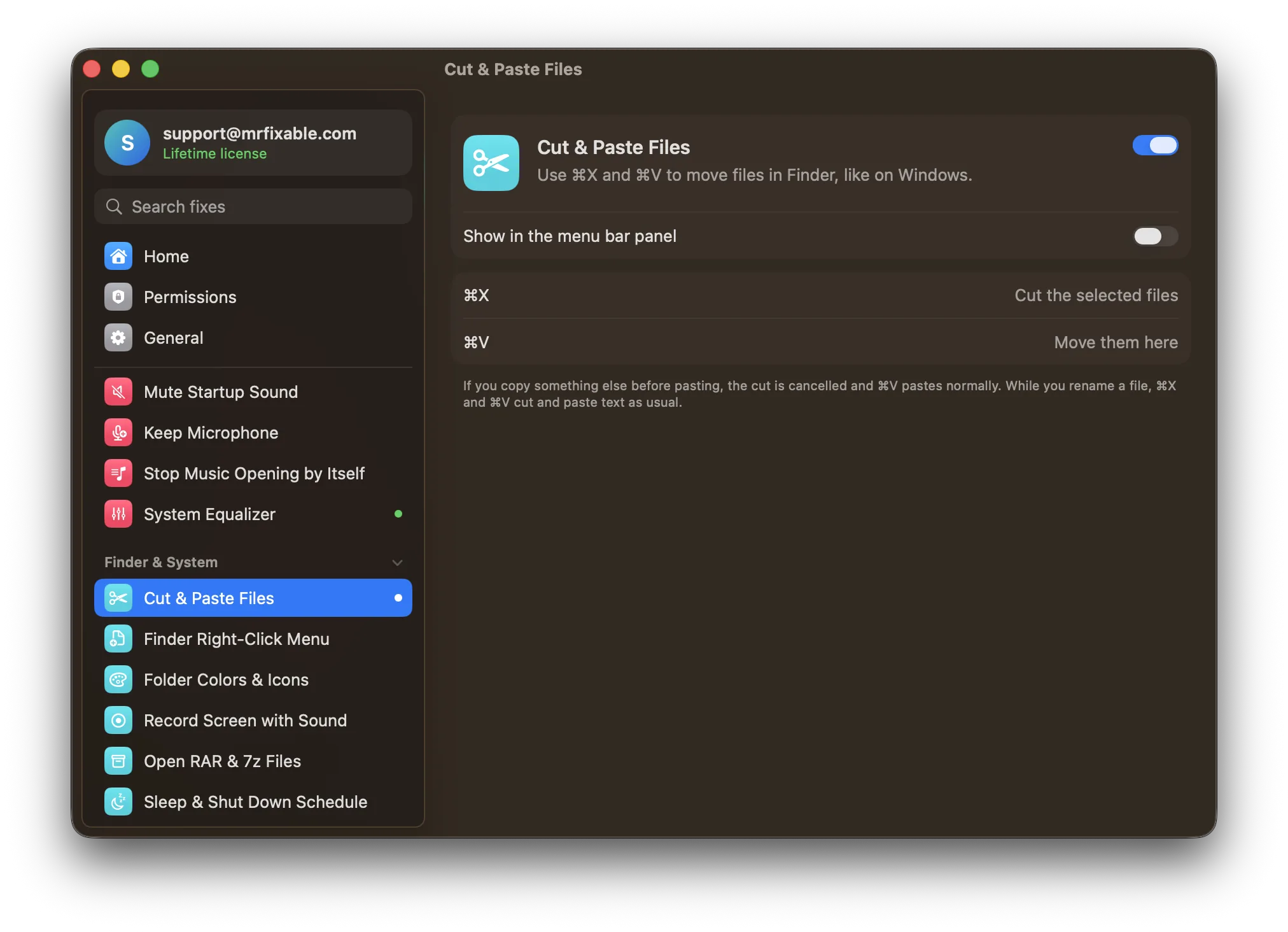
Cut & Paste Files in MrFixable makes Finder behave the way your hands expect:
- Select files in Finder and press ⌘X. A short message confirms the cut.
- Open another folder and press ⌘V. The files move there.
- If you copy something else before pasting, the cut is cancelled and ⌘V pastes normally.
- While you rename a file, ⌘X and ⌘V cut and paste the text of the name as usual.
MrFixable asks for Accessibility permission for this fix, so it can see ⌘X and ⌘V while Finder is in front.
Related
- Paste something you cut earlier: Clipboard History keeps what you cut and copy, so the last cut isn't lost when you copy something new. See how to see your clipboard history on a Mac.
- Paste text without its formatting: Paste as Plain Text, or see how to paste without formatting on a Mac.
Questions
How do you cut and paste with the Mac keyboard?
Press ⌘X to cut and ⌘V to paste. ⌘ is the Command key, next to the space bar on both sides. Select what you want first, cut it, click where it should go, then paste. To keep the original where it is and paste a copy, press ⌘C instead of ⌘X.
How do I cut and paste on a MacBook Air or MacBook Pro?
The same way as on any Mac: ⌘X to cut and ⌘V to paste. On the trackpad, click with two fingers to right-click and choose Cut or Paste. If two-finger clicking does nothing, turn it on in System Settings › Trackpad › Point & Click › Secondary click.
Why can't I cut a file on a Mac?
Because Finder only offers Cut for text. For files, Cut stays grayed out and ⌘X does nothing. Copy the file with ⌘C instead, then press ⌥⌘V in the new folder to move it there. The original disappears from where it was, exactly like a cut and paste.