
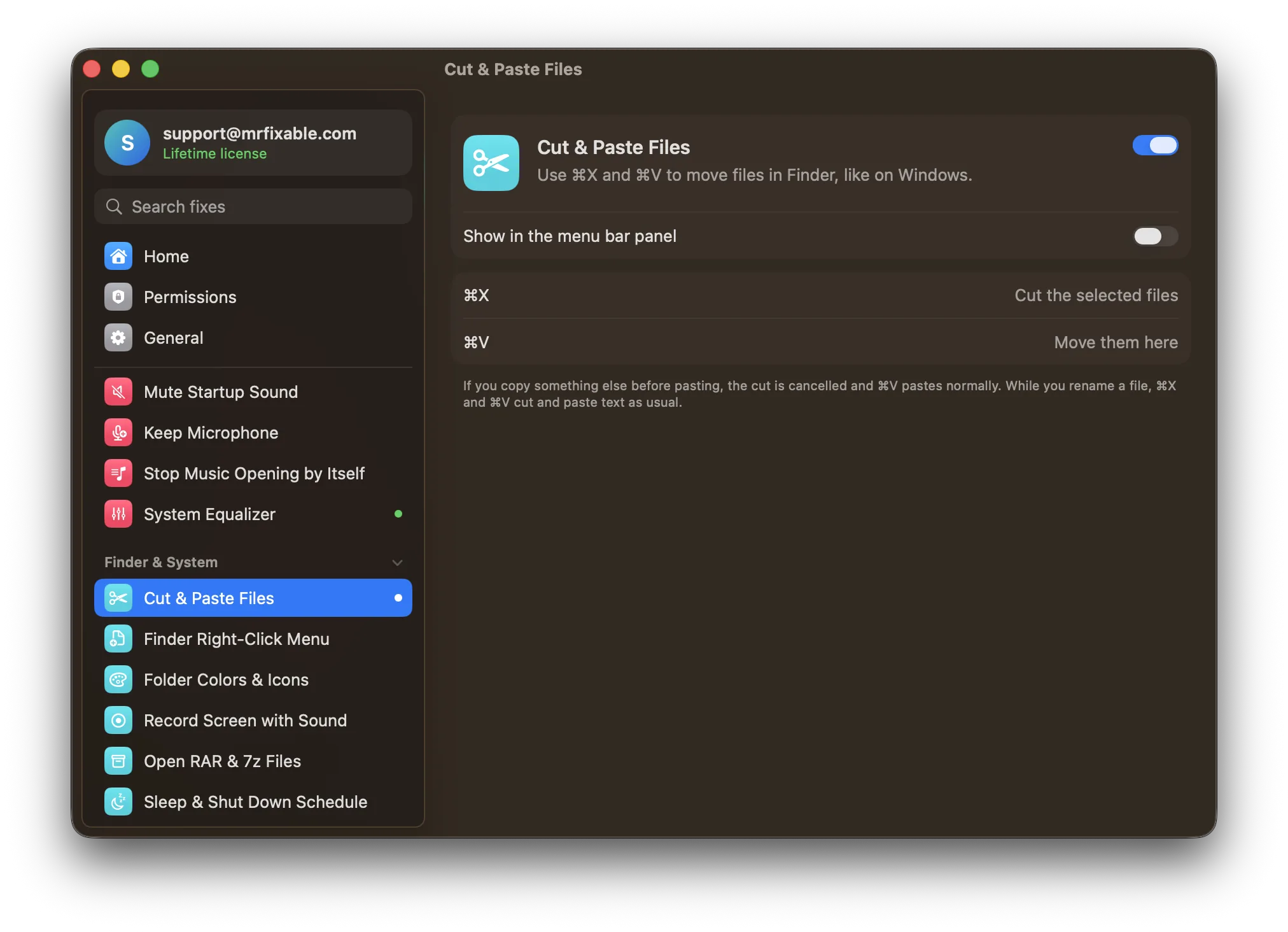
To cut and paste files on a MacBook Air or MacBook Pro, select them in Finder, press ⌘C, open the folder you want them in and press ⌥⌘V. Finder moves them. On the trackpad, click with two fingers for the same commands, or drag the files. ⌘X doesn't work on files unless you add a fix.
Every MacBook uses the same keys and the same Finder, so these steps are identical on an Air and a Pro, old or new. What's different from a desktop Mac is the trackpad: there's no right mouse button, and dragging takes a little practice.
Where the keys are on a MacBook
The bottom-left corner of a MacBook keyboard has four keys, from left to right: fn (with a globe 🌐 on newer models), control ⌃, option ⌥ and command ⌘. ⌘ and ⌥ are also on the right side of the space bar.
- ⌘C is Command and C together.
- ⌥⌘V is Option, Command and V together. Hold ⌥ and ⌘ with your left thumb and finger, then press V.
Move files with the keyboard
- Open Finder: click the blue face at the left end of the Dock.
- Select the files. Click one, then ⌘-click to add more, or ⇧-click to select a whole run in a list. ⌘A selects everything in the folder.
- Press ⌘C.
- Open the folder you want them in, from the sidebar or by double-clicking folders.
- Press ⌥⌘V. The files move, and the originals are gone from the first folder.
Pressed ⌘V instead? Finder made copies. Press ⌘Z to undo, then press ⌥⌘V.
How do I right-click a file on a MacBook?
Click the trackpad with two fingers at once, or hold control ⌃ and click with one. A menu opens with Copy, Rename, Get Info and more. If two-finger clicking does nothing, open System Settings › Trackpad › Point & Click and set Secondary click to Click or Tap with Two Fingers.
To move files without the keyboard:
- Two-finger click the selected files and choose Copy.
- Open the folder you want them in.
- Open the Edit menu in the menu bar and hold ⌥ (Option). Paste Item changes to Move Item Here. Choose it.
Drag files with the trackpad
Dragging is the other way to move files, and on a MacBook it's often the quickest:
- Put the pointer on the file and press the trackpad down. Keep pressing.
- Slide to the folder you want, in the same window, another window or the Finder sidebar.
- Let go.
Dragging to another folder on the same Mac moves the file. Dragging to a different drive, like a USB stick or external SSD, copies it. To move it to the other drive instead, hold ⌘ before you let go.
If keeping the trackpad pressed while you slide is awkward, turn on three-finger drag. Then you drag by sliding three fingers, with no pressing:
- Open System Settings › Accessibility › Pointer Control.
- Click Trackpad Options….
- Turn on Use trackpad for dragging and choose Three Finger Drag.
- Click OK.
With three-finger drag on, three-finger swipes for Mission Control and switching desktops move to four fingers.
Make ⌘X and ⌘V move files
If you came from a Windows laptop, your fingers will keep reaching for cut and paste. Cut & Paste Files in MrFixable makes that work in Finder:
- Select files and press ⌘X. A short message confirms the cut.
- Open another folder and press ⌘V. The files move there.
- Copy something else before pasting, and the cut is cancelled: ⌘V pastes normally.
- While you rename a file, ⌘X and ⌘V work on the text of the name, as usual.
MrFixable needs Accessibility permission for this fix, to see ⌘X and ⌘V while Finder is in front. The trackpad and the ⌥⌘V shortcut keep working as before. For the general version of this, including text, see how to cut and paste on a Mac.
Questions
How do I cut and paste files on a MacBook Pro?
Exactly as on a MacBook Air: select the files in Finder and press ⌘C, then open the new folder and press ⌥⌘V to move them. Command ⌘ and Option ⌥ are next to the space bar. On the trackpad, two-finger click a file for Copy, then hold ⌥ in the Edit menu for Move Item Here.
How do you cut and paste files in macOS?
Copy them, then move them. Select the files in Finder and choose Edit › Copy (⌘C). Open the folder you want them in, open the Edit menu, hold ⌥ (Option) and choose Move Item Here (⌥⌘V). Finder has no Cut for files, so this is the built-in way to move them.
How do I move files to a USB drive on a MacBook?
Drag the files onto the drive in the Finder sidebar and hold ⌘ before you let go: they move instead of being copied. Without ⌘, dragging to another drive makes a copy. You can also press ⌘C on the files, open the drive, and press ⌥⌘V.