
System & FinderFinder Right-Click Menu
Copy a file path on Mac from the right-click menu
To copy a file path on a Mac, select the file in Finder and press ⌥⌘C (Option-Command-C), or right-click it, hold Option and choose Copy “name” as Pathname. Finder Right-Click Menu adds Copy Path without holding Option, plus New Text File, New Markdown File, Open in Terminal and, with VS Code installed, Open in VS Code.
Try free for 14 daysBuy for $19.99 Lifetime license
One of 68 fixes in MrFixable. Lifetime license, no subscription. Updated October 22, 2026. Works on macOS 14.2 Sonoma and later. Checked on macOS 26 Tahoe.
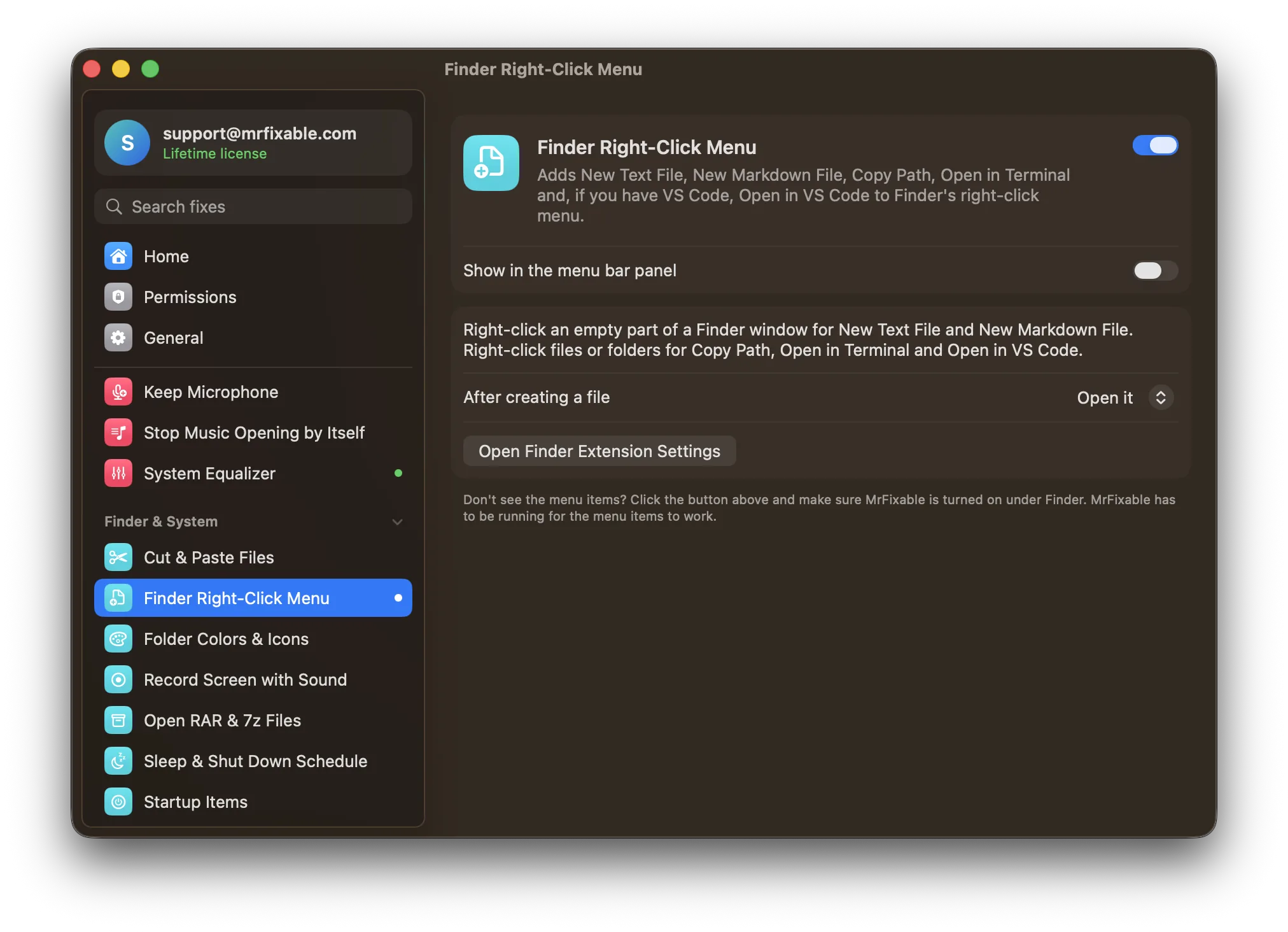
What Finder Right-Click Menu does
The problem
Right-click in a Finder window and you get New Folder, but no way to make a file, and Copy as Pathname hides until you hold Option. Making a .txt file means opening TextEdit, switching it to plain text and saving, or typing a command in Terminal.
With Finder Right-Click Menu
Right-click an empty part of any Finder window and choose New Text File or New Markdown File. Right-click files or folders to copy their path or open them in Terminal or VS Code.
- Copy PathCopies the full path of the selected files and folders, one per line, or of the folder you're in if nothing is selected. Paste it into Terminal, a chat or a document.
- Open in Terminal and VS CodeOpen in Terminal opens a Terminal window in the right-clicked folder, or in the folder that holds the right-clicked file. Open in VS Code appears when VS Code is installed.
- New files in one clickNew Text File and New Markdown File create untitled.txt or untitled.md in that folder, or untitled 2 and so on if the name is taken. Existing files are never overwritten.
- Open it or just select itThe new file opens in the app you use for that kind of file, or in TextEdit if nothing else opens it. Prefer to name it first? Choose Just select it in Finder.
Good to know
Works through MrFixable's Finder extension. If the items don't appear, click Open Finder Extension Settings and make sure MrFixable is turned on under Finder.
MrFixable has to be running for New Text File, New Markdown File and the Open in items to work.
Switch it off and the items leave the right-click menu. Files you made stay where they are.
Questions
How do I copy a path on a Mac?
Select the item and press ⌥⌘C. 1. Open Finder and click the file or folder. 2. Press ⌥⌘C (Option-Command-C). 3. Paste the path anywhere with ⌘V. You get the full path, such as /Users/you/Documents/report.pdf. With Finder Right-Click Menu on, you can also right-click and choose Copy Path.How do I copy a path on a MacBook?
Use the right-click menu with the trackpad. 1. Click the file in Finder with two fingers to open its menu. 2. Hold the Option (⌥) key. 3. Choose Copy “name” as Pathname. 4. Paste with ⌘V. Finder Right-Click Menu shows Copy Path in that menu without holding Option.How do I copy a Mac file path?
Right-click the file and choose Copy Path, with Finder Right-Click Menu on. 1. Select one or more files in Finder. 2. Right-click them. 3. Choose Copy Path. 4. Paste with ⌘V. Several files give one path per line. Built in, select them and press ⌥⌘C instead.How do I copy a Mac folder path?
Select the folder and press ⌥⌘C. 1. Click the folder in Finder. 2. Press ⌥⌘C. 3. Paste with ⌘V. Already inside the folder? With Finder Right-Click Menu on, right-click an empty part of the window and choose Copy Path, which copies the path of the folder you're in.How do I copy a path in Mac Terminal?
Drag the file into the Terminal window, and its full path is typed for you. 1. Open Terminal. 2. Drag a file or folder from Finder into the window. 3. Press Return when the command is ready. To copy the folder Terminal is in, type pwd | pbcopy and press Return.
Sources
Guides
- How to create a new text file on a Mac (right-click New File)Finder has no New › Text Document in its right-click menu. Three built-in ways to make a .txt file on a Mac, and how to add New Text File to the right-click menu.
- How to open RAR and 7z files on a MacArchive Utility can't open RAR files. How to extract RAR and 7z on a Mac with the tar command that's already built in, with free apps, or with a double-click.