
Folder icons on Mac: colors, emoji and pictures
One of 68 fixes in MrFixable. Lifetime license, no subscription. Updated October 22, 2026. Works on macOS 14.2 Sonoma and later. Checked on macOS 26 Tahoe.
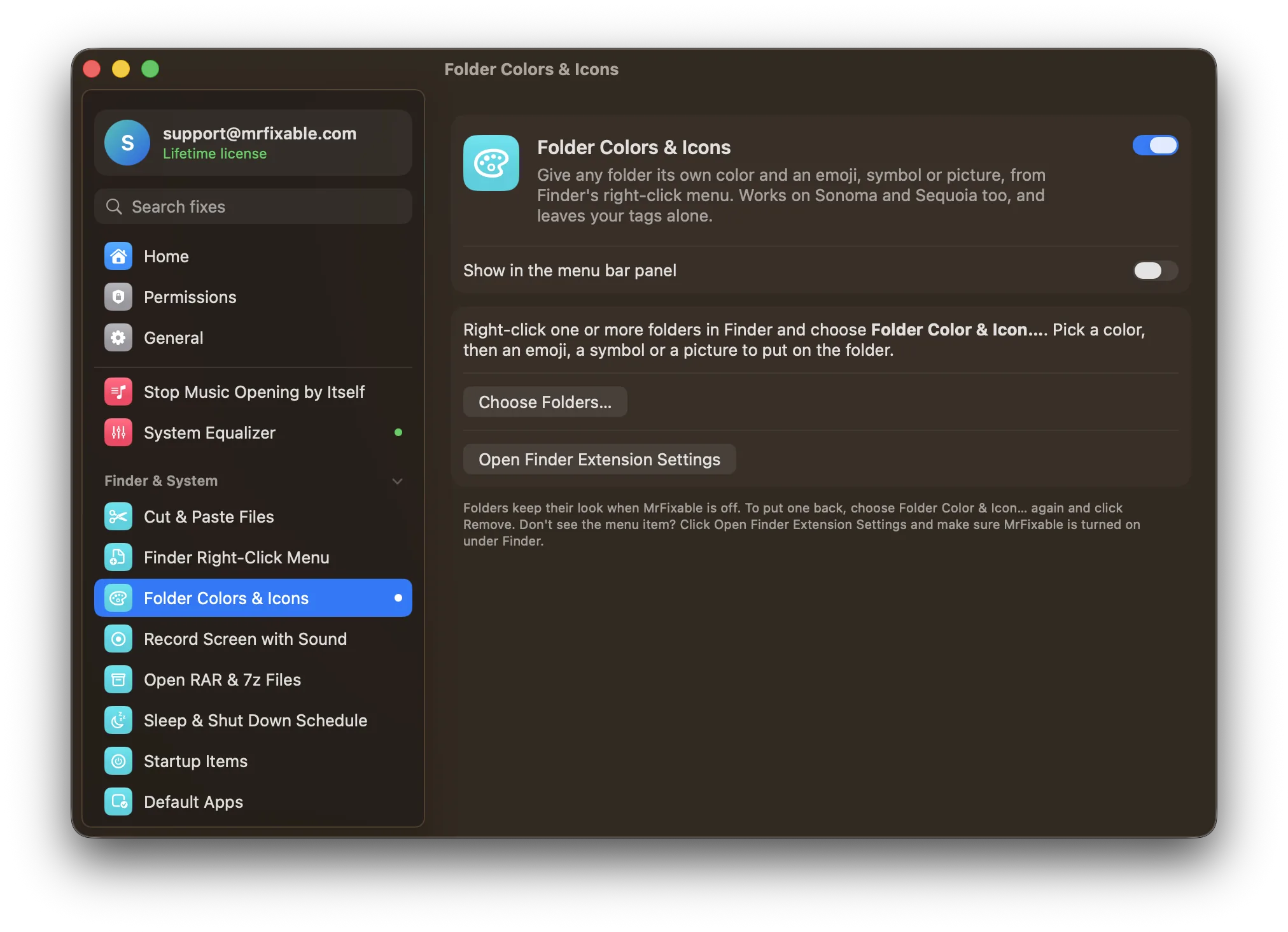
What Folder Colors & Icons does
- Any colorPick one of fourteen colors, or any color from the color picker. The folder keeps the light and shade of macOS's own folder icon.
- Emoji, symbol or picturePut an emoji, one of 50 symbols or a picture of your own on the folder. Symbols are drawn in a darker shade of the folder's color, so they're easy to read even in a list view.
- Many folders at onceSelect several folders, right-click, and see the result live before you click Apply. Remove puts the usual folder icon back.
Good to know
macOS Tahoe has its own folder colors, symbols and emoji under Customize Folder. Folder Colors & Icons adds any color, your own pictures, and the same look on Sonoma and Sequoia.
Works through MrFixable's Finder extension. If you don't see the menu item, click Open Finder Extension Settings and make sure MrFixable is turned on under Finder. Choose Folders… in MrFixable's settings works too.
Folders keep their look when you switch it off or quit MrFixable. To put one back, choose Folder Color & Icon… again and click Remove. Your tags aren't touched.
macOS keeps any custom folder icon in a small hidden file named Icon inside the folder. Macs never show it, but a Windows PC may if you copy the folder there.
Questions
How do I change folder icons on a Mac?
Paste a picture onto the folder in Get Info. 1. Open the image in Preview and choose Edit › Copy. 2. Select the folder in Finder and press ⌘I. 3. Click the small icon at the top of the Info window. 4. Choose Edit › Paste. To undo it, click the small icon and choose Edit › Cut.How do I change a Mac folder's color?
On macOS Tahoe, use Customize Folder. 1. Select the folder in Finder. 2. Click the Action button in the toolbar. 3. Choose Customize Folder. 4. Click a colored circle. Sonoma and Sequoia don't have this. Folder Colors & Icons adds folder colors to all three, from the right-click menu.Can I change the color of a folder on a Mac?
Yes, on macOS Tahoe, with Customize Folder and its set of colors. On Sonoma and Sequoia there's no folder color setting, only pasting a recolored folder picture in Get Info. Folder Colors & Icons lets you pick any color on Sonoma, Sequoia and Tahoe, and it doesn't add tags to your folders.How do I change a Mac folder icon's color?
Right-click the folder and choose Folder Color & Icon…, with Folder Colors & Icons on. 1. Select one or more folders. 2. Right-click and choose Folder Color & Icon…. 3. Click one of 14 colors, or the rainbow circle for any color. 4. Check the preview. 5. Click Apply.How do I customize folder icons on a Mac?
Add a symbol or an emoji to the folder. 1. Right-click the folder and choose Folder Color & Icon…. 2. Pick a color. 3. Under On the folder, click Emoji, Symbol or Picture. 4. For an emoji, click Choose Emoji… or press Fn-E. 5. Click Apply. On Tahoe, Customize Folder also offers symbols and emoji.How do I make custom folder icons on a Mac?
Put your own picture on a colored folder. 1. Right-click the folder and choose Folder Color & Icon…. 2. Pick a color. 3. Under On the folder, click Picture, then Choose Picture…, or drop an image in. 4. Check the preview and click Apply. To replace the whole icon instead, paste the image in Get Info.
Sources
Guides
- Free folder icons for Mac: where to find and use themFree folder icons for Mac are already on your Mac: Apple's own icons, plus Tahoe's emoji and symbols. Where to find them and how to customize any folder.
- How to make custom folder icons on a Mac from any pictureMake custom folder icons on a Mac from a photo, logo or emoji: crop it in Preview, remove the background and paste it in Get Info. Tahoe and earlier.
- How to change folder icons and colors on a MacChange a folder's icon or color on a Mac. Tahoe's built-in colors and Customize Folder, the Get Info and Preview trick for Sequoia and Sonoma, and a one-step way.