
System & FinderBetter Finder
Show file extensions on Mac
To show file extensions on a Mac, open Finder, choose Finder › Settings › Advanced and turn on Show all filename extensions. For the folder path, choose View › Show Path Bar (⌥⌘P). Better Finder turns on both with one switch, plus folders on top, the status bar, the full path in the window title and searching the current folder.
Try free for 14 daysBuy for $19.99 Lifetime license
One of 68 fixes in MrFixable. Lifetime license, no subscription. Updated October 22, 2026. Works on macOS 14.2 Sonoma and later. Checked on macOS 26 Tahoe.
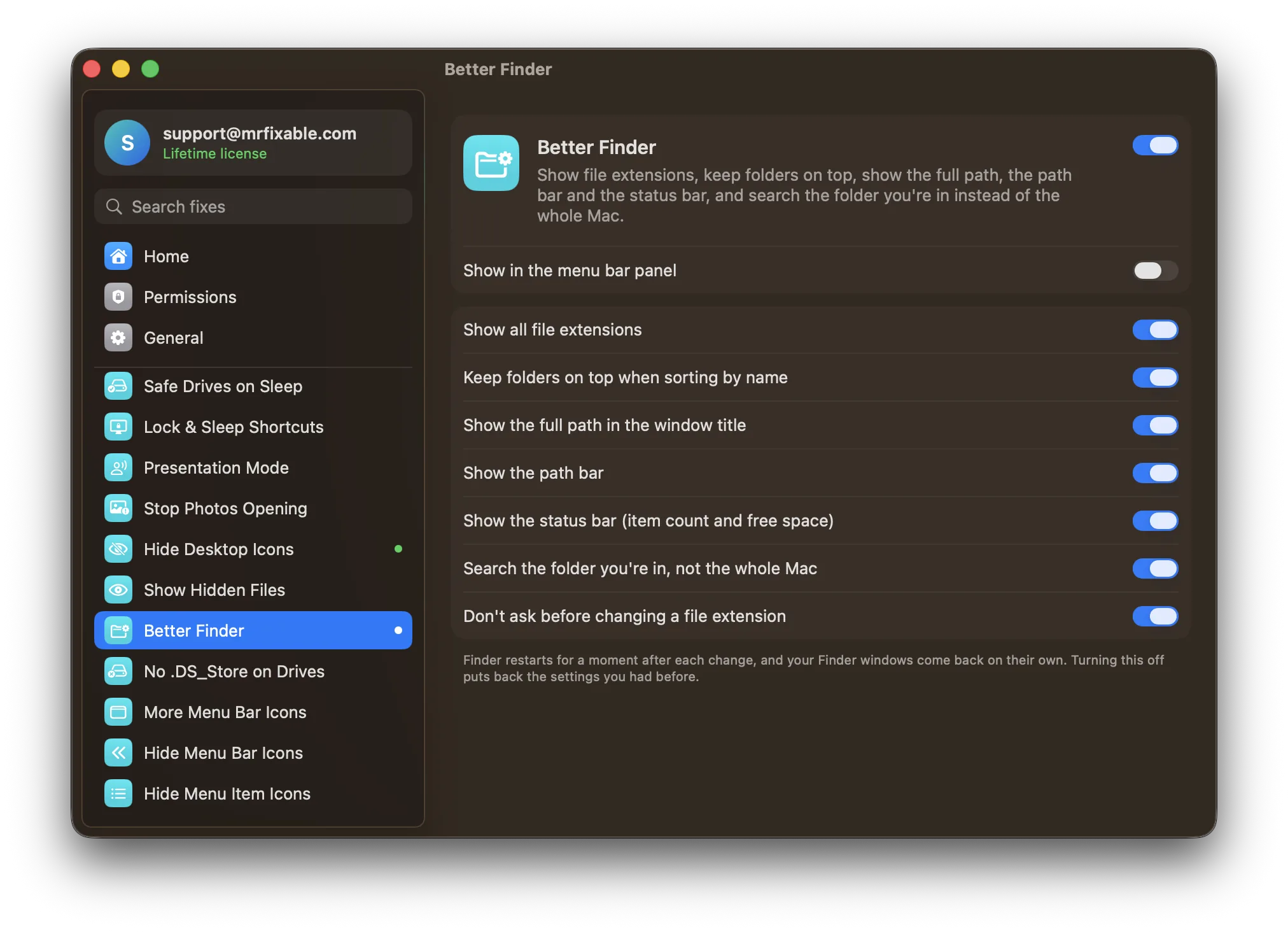
What Better Finder does
The problem
Out of the box, Finder hides many file extensions, mixes folders in with files, and searches your whole Mac when you search inside a folder. Most of this can be changed in Finder › Settings › Advanced and the View menu, but showing the full path in the window title needs a Terminal command.
With Better Finder
Finder shows every file extension, keeps folders on top, and always tells you where you are. Searching in a folder searches that folder, not the whole Mac.
- See what files really areShow all file extensions, and change one without Finder asking if you’re sure each time.
- Always know where you areThe full path, like /Users/you/Documents, appears in the window title and the path bar shows at the bottom of each window.
- Status barThe status bar shows how many items a folder holds and how much free space is left.
- Folders first, search hereFolders stay on top when sorting by name, in windows and on the desktop. Searches look in the folder you’re in.
Good to know
All seven options are on to start with. Turn off any you don’t want.
Finder restarts for a moment after a change, and your Finder windows come back on their own.
macOS keeps these settings while MrFixable isn’t running. Switch it off and the settings you had before come back.
Questions
How do I show the path in Finder?
Turn on the path bar. 1. Open a Finder window. 2. Choose View › Show Path Bar, or press ⌥⌘P. 3. The folders leading to where you are appear at the bottom of the window. Double-click any of them to jump there. You can also ⌘-click the window’s title to see the folders above it.How do I show the path bar in Finder?
Press ⌥⌘P in a Finder window, or choose View › Show Path Bar. The path bar appears along the bottom of every Finder window and stays until you hide it with View › Hide Path Bar. Better Finder turns it on for you, together with the status bar and the full path in the title.How do I show the full path in Finder on a Mac?
Turn on Better Finder, and the full path, like /Users/you/Documents, shows in every Finder window’s title. Without it: 1. Open Terminal. 2. Run defaults write com.apple.finder _FXShowPosixPathInTitle -bool true. 3. Run killall Finder. To see it once, ⌘-click the window’s title for a list of folders above it.How do I show file extensions on a Mac?
Open Finder › Settings › Advanced. 1. Click Finder in the menu bar and choose Settings. 2. Click Advanced. 3. Turn on Show all filename extensions. Every file now shows its extension, like .pdf or .docx. Better Finder turns this on for you, and can also stop Finder asking before you change an extension.Do I need a Finder alternative on Mac?
Often not. Many complaints about Finder come from its default settings: hidden extensions, folders mixed with files, and searches that cover the whole Mac. Better Finder fixes seven of them but keeps Finder itself. If you need features Finder lacks, like two side-by-side panes, a separate file manager is the better choice.How do I copy a file’s full path on a Mac?
Select the file in Finder and press ⌥⌘C. Or: 1. Right-click the file. 2. Hold ⌥ (Option). 3. Choose Copy as Pathname. The full path, like /Users/you/Documents/report.pdf, is now on your clipboard, ready to paste into Terminal, an email or an Open dialog’s Go to Folder box.How do I make Finder search the current folder?
Change one Finder setting. 1. Choose Finder › Settings. 2. Click Advanced. 3. Set When performing a search to Search the Current Folder. From now on, typing in the search field of a Finder window searches that folder, not the whole Mac. Better Finder sets this for you along with its other options.
Sources
Guides
- How to show the path in Finder: path bar and full pathHow to show the path in Finder on a Mac: turn on the path bar with ⌥⌘P, copy any file's full path, see it in the title bar, and show file extensions too.
- How to change folder icons and colors on a MacChange a folder's icon or color on a Mac. Tahoe's built-in colors and Customize Folder, the Get Info and Preview trick for Sequoia and Sonoma, and a one-step way.
- How to create a new text file on a Mac (right-click New File)Finder has no New › Text Document in its right-click menu. Three built-in ways to make a .txt file on a Mac, and how to add New Text File to the right-click menu.
- How to show hidden files on a Mac (Finder shortcut and Terminal)Press ⇧⌘. in Finder to show hidden files on a Mac. How to keep them visible with Terminal, find your Library folder, and stop hidden files on USB drives.
Compare
- Better Finder vs OnyXThe best OnyX alternative for Mac depends on what you use OnyX for. OnyX is a free utility that checks your disk, rebuilds indexes, clears caches and changes many hidden settings. MrFixable covers the everyday parts as simple switches, such as Free Up Space, App Uninstaller, Show Hidden Files and Screenshot Settings, for $19.99 once.
- Better Finder vs TinkerToolTinkerTool is a free Mac app that switches on hidden macOS settings, such as showing hidden files or changing the screenshot format. Several MrFixable fixes change the same settings with one switch each. TinkerTool covers far more settings. MrFixable’s 68 fixes also include features that run, like Window Snapping, which no hidden setting can add.