
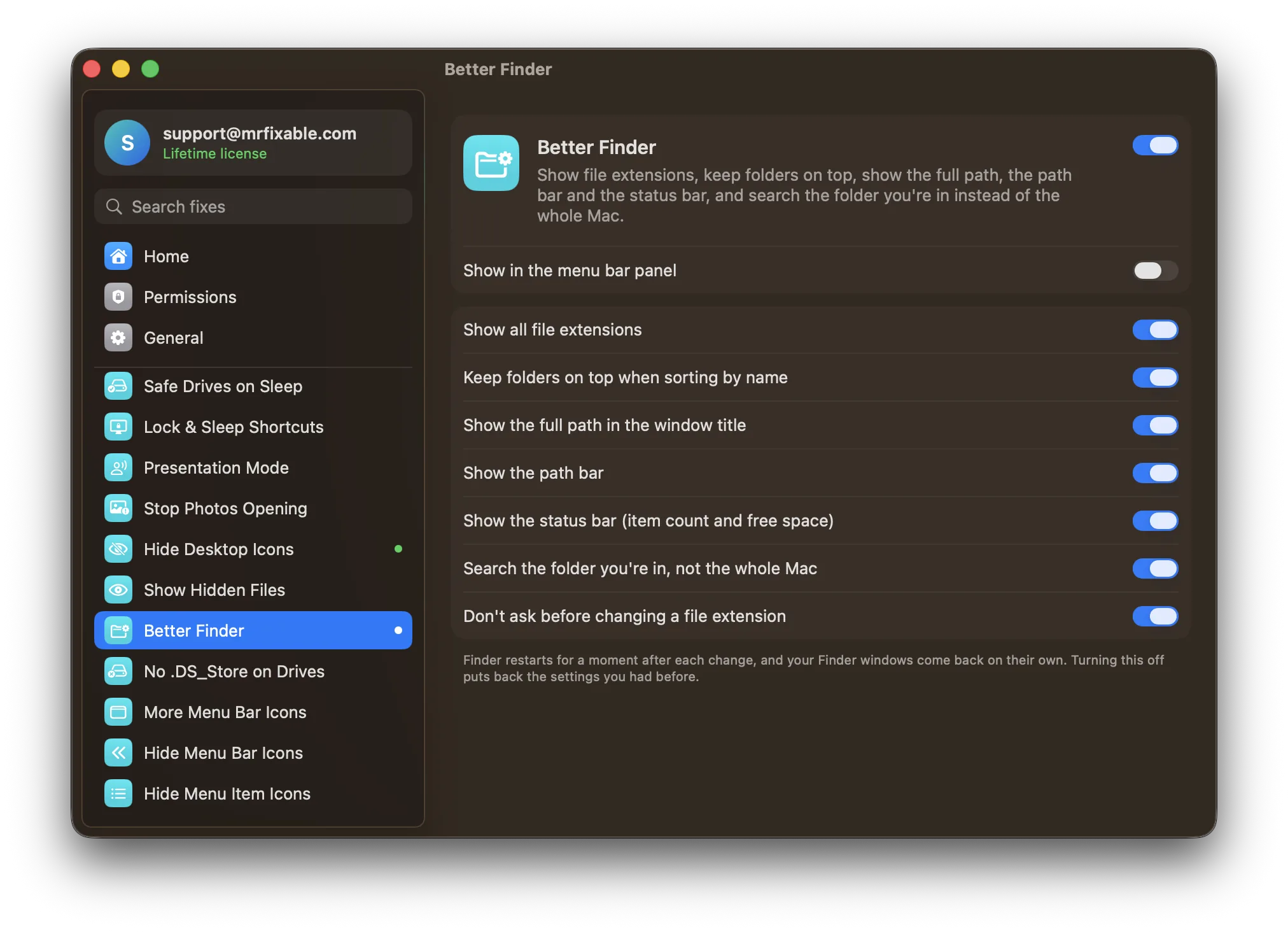
To show the path in Finder, open a Finder window and choose View › Show Path Bar, or press ⌥⌘P (Option-Command-P). The path bar appears at the bottom of the window and shows every folder above the one you're in. MrFixable's Better Finder can also put the full path in the window title.
On Windows, File Explorer shows the folder path at the top of every window. Finder hides it by default, so it's easy to lose track of where a file actually lives. macOS has several ways to show it.
How to show the path bar in Finder
- Open a Finder window.
- Choose View › Show Path Bar in the menu bar, or press ⌥⌘P.
- The path bar appears at the bottom of the window, for example Macintosh HD › Users › you › Documents › Invoices.
Finder remembers the setting, so the path bar stays in every window until you turn it off with View › Hide Path Bar or ⌥⌘P again.
The path bar is more than a label:
- Double-click any folder in it to jump there.
- Drag a file onto a folder in the path bar to move it there.
- Select a file and the path bar shows the path to that file.
See the path from the window title
Hold ⌘ and click the folder name at the top of a Finder window. A menu drops down with every folder above it, up to your Mac's disk. Choose one to go there.
Copy a file's full path
To paste a file's path into Terminal, an email or an upload box:
- Select the file or folder in Finder.
- Hold ⌥ (Option) and open the Edit menu, or right-click the file and hold ⌥.
- Choose Copy "file name" as Pathname. The shortcut is ⌥⌘C.
- Paste it anywhere with ⌘V. You get the full path, such as /Users/you/Documents/Invoices/march.pdf.
To go the other way, choose Go › Go to Folder (⇧⌘G) in Finder, paste a path and press Return.
Show the full path in the title bar
Finder can show the whole path, not just the folder name, at the top of every window. There's no checkbox for it in Finder's settings. In Terminal, run:
defaults write com.apple.finder _FXShowPosixPathInTitle -bool true
killall Finder
Finder restarts and the title shows the full path, such as /Users/you/Documents. Run it again with false to go back.
Show file extensions and the status bar too
Two more settings help you see what's in a folder:
- File extensions: choose Finder › Settings (⌘,), click Advanced, and turn on Show all filename extensions. Files then show their full names, like report.pdf instead of report.
- Status bar: choose View › Show Status Bar (⌘/) to see how many items are in the folder and how much free space is left.
All of it with one switch
Better Finder in MrFixable turns on the Finder settings most people change on a new Mac, including the ones that otherwise need Terminal:
- Show all file extensions
- Keep folders on top when sorting by name
- Show the full path in the window title
- Show the path bar
- Show the status bar (item count and free space)
- Search the folder you're in, not the whole Mac
- Don't ask before changing a file extension
All seven are on to begin with, and you can switch each one off in the fix's settings. Finder restarts for a moment after a change, and your windows come back on their own. Turning Better Finder off puts back the settings you had before. macOS keeps the settings, so Finder stays the way you chose even when MrFixable isn't running.
MrFixable costs $19.99 once (lifetime license), runs on macOS 14.2 Sonoma or later, and has a 14-day free trial.
Questions
How do I show the path bar in Finder?
Open a Finder window and choose View › Show Path Bar, or press ⌥⌘P (Option-Command-P). The path bar appears along the bottom of the window and stays in every Finder window until you hide it. Double-click a folder in the path bar to open it, or drag a file onto one to move it.
How do I show the full path in Finder on a Mac?
Turn on the path bar with ⌥⌘P, or ⌘-click the folder name at the top of the window. For the full path in the title, run defaults write com.apple.finder _FXShowPosixPathInTitle -bool true then killall Finder in Terminal. To copy a path, select the file and press ⌥⌘C.
How do I show file extensions on a Mac?
Open Finder › Settings (⌘,), click Advanced, and turn on Show all filename extensions. Every file then shows its full name, such as photo.jpg, in Finder and on the desktop. MrFixable's Better Finder turns this on along with the path bar, the status bar and folders on top.