
To change a folder's icon on a Mac, copy an image, select the folder, press ⌘I, click the small icon at the top left and press ⌘V. On macOS Tahoe you can also choose Customize Folder… to pick a color, a symbol or an emoji. Sequoia and Sonoma have no built-in folder colors.
Every folder on a Mac is the same blue. Once you have a few dozen of them, finding "Invoices" among "Inbox", "Ideas" and "Images" means reading every name. A color or a small picture on the important ones fixes that at a glance.
How you do it depends on your macOS version.
macOS Tahoe: built in, with catches
macOS Tahoe 26 added folder customization to Finder:
- Color: select a folder, click the Action button in the Finder toolbar, choose Customize Folder and click a colored circle.
- Emoji or symbol: right-click the folder, choose Customize Folder…, and pick a symbol or click the emoji button.
- Undo it: open Customize Folder… again and click Clear.
The catches:
- Symbols are faint. They're pressed into the folder in nearly the same color, so they're hard to make out unless the icon is big. Emoji are clearer.
- Only Apple's colors: you pick one of the colored circles, not any color you like.
- No pictures of your own in Customize Folder (the Get Info trick below still works for those), and none of this on older macOS versions.
How to change a folder's color on Sequoia, Sonoma and earlier
Older versions have no folder colors, but any folder can have a custom icon, and Preview can recolor the standard one:
- Select the folder and press ⌘I to open Get Info.
- Click the small folder icon at the top left of the window, so it's highlighted, and press ⌘C.
- Open Preview and choose File › New from Clipboard.
- Choose Tools › Adjust Color… and drag the Tint, Temperature and Saturation sliders until the folder is the color you want.
- Press ⌘A, then ⌘C to copy the result.
- Back in the Get Info window, click the folder icon again and press ⌘V.
To use your own picture instead, copy any image and paste it the same way in step 6. To undo it, select the small icon in Get Info and choose Edit › Cut.
It works, but it's six steps per folder, Preview's sliders make exact colors hard to hit, and there's no way to put an emoji or symbol on the folder.
Questions
Where can I get folder icons for a Mac?
You don't need an icon pack. Any image works: open it in Preview, press ⌘A and ⌘C, then paste it onto the folder's icon in Get Info. A square PNG with a transparent background looks most like a real icon.
Why isn't my folder's color or icon changing?
On Tahoe, open Customize Folder again to check the color you picked. For a pasted icon, the small icon in Get Info must be highlighted before you press ⌘V. If Finder still shows the old icon, relaunch it: hold Option, right-click Finder in the Dock and choose Relaunch.
Any color, emoji or picture, in one step
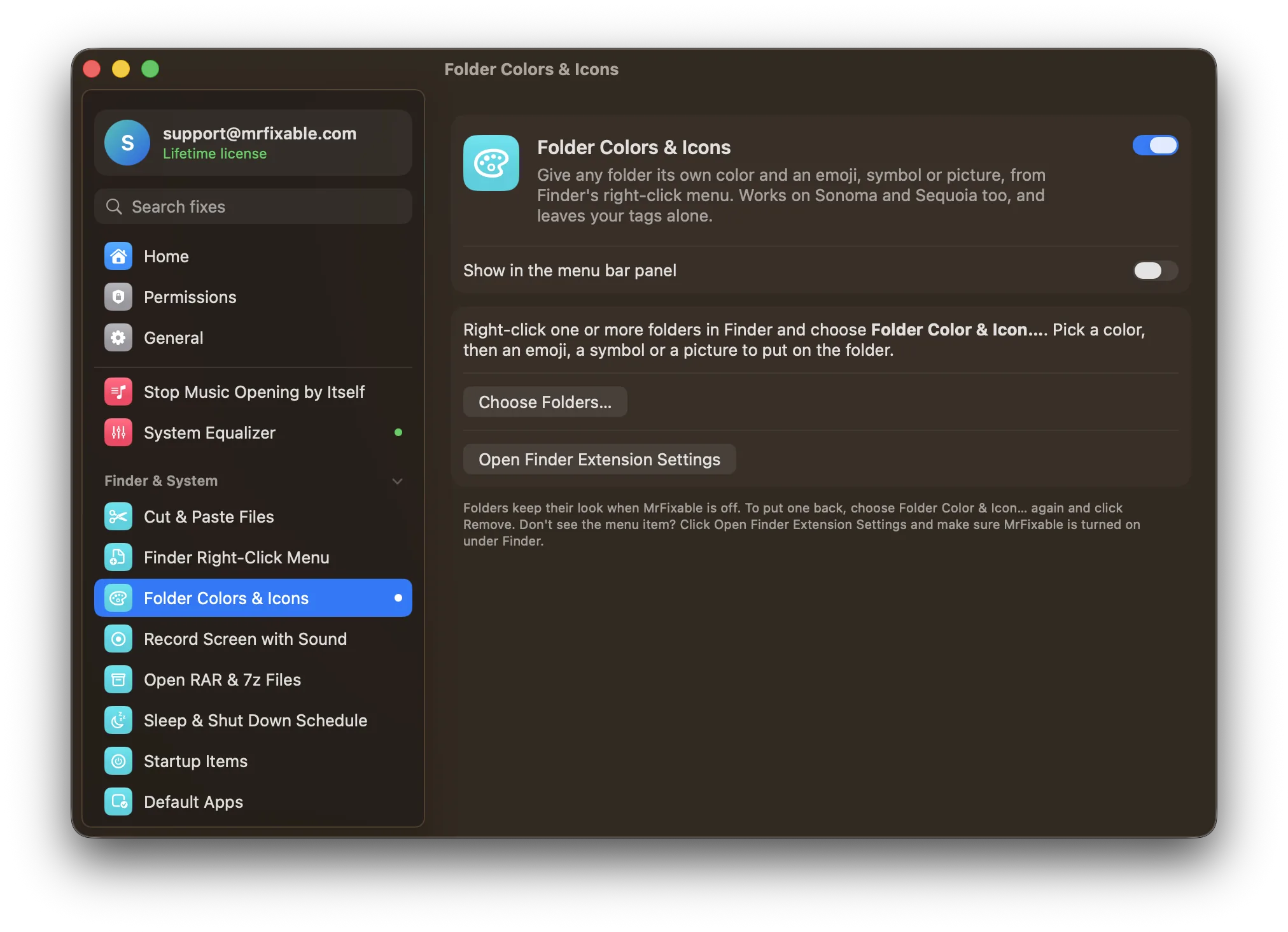
Folder Colors & Icons in MrFixable adds Folder Color & Icon… to Finder's right-click menu:
- Pick a color: one of fourteen, or any color from the color picker.
- Put something on it: an emoji, one of 50 symbols (drawn in a darker shade so they're easy to read, even in a list view), or a picture of your own.
- See it live before you apply it.
- Do many at once: select several folders, right-click, and they all change together.
- Remove puts the usual folder back.
It works the same on Sonoma, Sequoia and Tahoe, and doesn't touch your tags. The folder keeps its look when MrFixable is off.
One thing to know for any custom folder icon, built in or not: macOS keeps it in a small hidden file inside the folder, named "Icon". Macs never show it, but if you copy the folder to a Windows PC, the PC may.
Find folders faster in Finder
Better Finder keeps folders on top when sorting, shows the full path of the folder you're in, and searches the current folder instead of the whole Mac, so the folders you colored are always quick to reach.