
To show hidden files on a Mac, open a Finder window and press ⇧⌘. (Shift-Command-Period). Hidden files and folders appear, slightly faded, and pressing it again hides them. To keep them visible all the time, use the Terminal command below. Finder has no View › Hidden items checkbox like Windows File Explorer.
macOS hides some files from Finder: anything whose name starts with a dot, like .env, .gitignore or .zshrc, plus system folders such as your Library. Usually that's a good thing, until you need one of them.
The quick way: ⇧⌘. in Finder
In any Finder window, press ⇧⌘. (Shift-Command-Period). Hidden files appear, slightly faded. Press it again to hide them.
The same shortcut works in Open and Save dialogs, which helps when an app asks you to pick a file that's hidden.
How to always show hidden files (Terminal)
To always show hidden files, open Terminal and run:
defaults write com.apple.finder AppleShowAllFiles -bool true
killall Finder
Finder restarts and shows hidden files from then on. To hide them again, run the same commands with false instead of true.
In Terminal itself, ls -a lists hidden files in a folder.
Just need the Library folder?
In Finder, open the Go menu and hold Option: Library appears in the list. To keep it visible, open your home folder, press ⌘J and turn on Show Library Folder.
Questions
How do I hide hidden files again on a Mac?
Press ⇧⌘. in Finder again. If you used the Terminal command, run it with false instead of true, then killall Finder.
How do I unhide a hidden file for good?
Showing hidden files only makes them visible. To make one file visible on its own, rename it so its name doesn't start with a dot, or, if it's hidden by a flag rather than its name, run chflags nohidden followed by the file's path in Terminal. Only do this with your own files: apps expect their dot files to keep their names.
A switch instead of commands
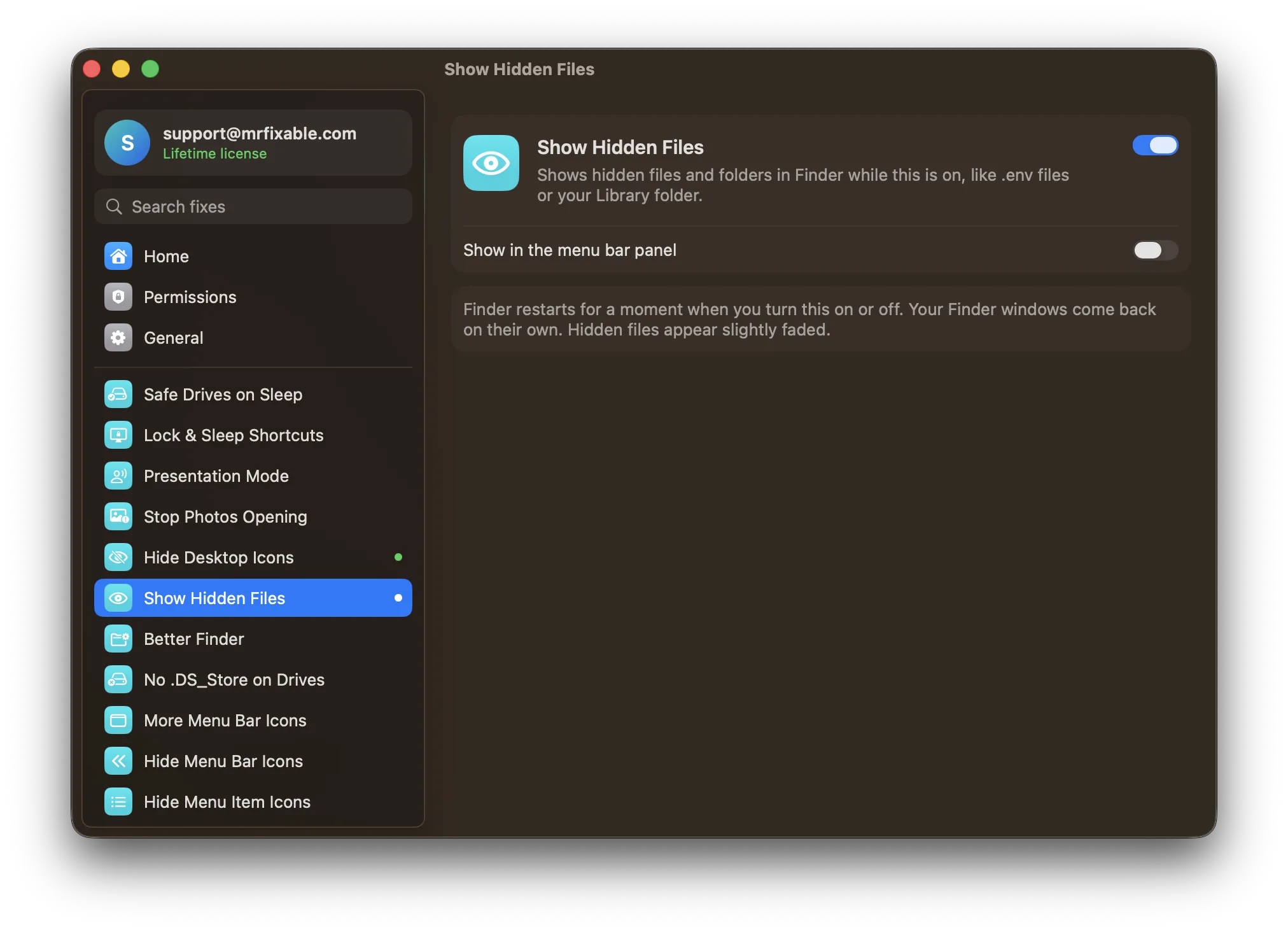
Show Hidden Files in MrFixable shows hidden files and folders in Finder while it's on, and hides them again when you turn it off. No Terminal needed.
Two related Finder fixes
- File extensions and paths: Better Finder shows file extensions, keeps folders on top, shows the full path and the status bar, and searches the folder you're in instead of the whole Mac.
- Junk files on USB drives: Macs leave hidden .DS_Store files on every drive they touch, and Windows PCs, TVs and cameras show them as clutter. No .DS_Store on Drives stops them being made on USB drives and network shares.
Coming from Windows? See everything that works differently on a Mac.