
System & FinderNo .DS_Store on Drives
Stop Mac .DS_Store files on USB drives
Your Mac’s Finder writes hidden .DS_Store files into folders you open, including on USB drives and network shares. System Settings has no option for it, but two Terminal settings stop them. No .DS_Store on Drives turns both on with one switch and puts back what you had when you switch it off. Files already there stay.
Try free for 14 daysBuy for $19.99 Lifetime license
One of 68 fixes in MrFixable. Lifetime license, no subscription. Updated October 22, 2026. Works on macOS 14.2 Sonoma and later. Checked on macOS 26 Tahoe.
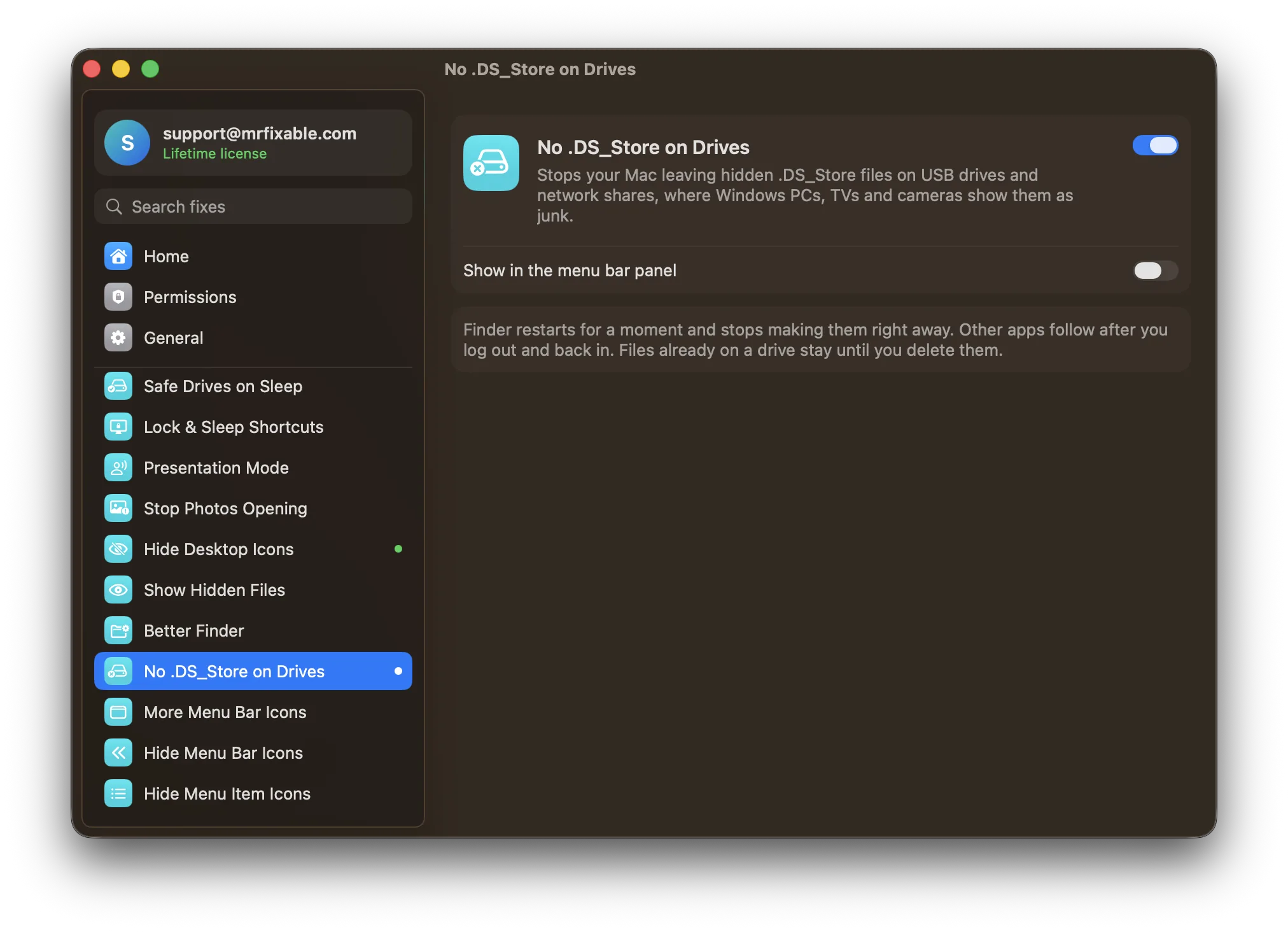
What No .DS_Store on Drives does
The problem
Finder saves a hidden .DS_Store file in folders you browse, to remember how they look. You never see them on your Mac, but Windows PCs, TVs, cameras and other devices show them as junk files on your USB drives and network shares. There’s no setting for it in System Settings, only Terminal commands.
With No .DS_Store on Drives
Your Mac stops leaving .DS_Store files on USB drives and network shares. Your Mac’s own disk works exactly as before.
- Drives and sharesCovers USB drives and shared folders on a NAS or another computer, the places other devices see them.
- Takes effect right awayFinder restarts for a moment and stops making them straight away. Other apps follow after you log out and back in.
- Stays as you set itmacOS keeps the setting, so it works even when MrFixable isn’t running.
Good to know
Files already on a drive stay until you delete them.
Finder won’t remember view options, like icon positions, for folders on those drives.
Switch it off and the settings you had before come back.
Questions
How do I delete .DS_Store files on a Mac?
Use Terminal. 1. Open Terminal from Applications › Utilities. 2. Type find /Volumes/NAME -name .DS_Store -delete, with your drive’s name in place of NAME. 3. Press Return. Every .DS_Store file on that drive is gone. No .DS_Store on Drives then stops new ones; it doesn’t delete the ones already there.How do I stop .DS_Store files with Terminal?
Run two commands in Terminal. 1. defaults write com.apple.desktopservices DSDontWriteNetworkStores -bool true, for network shares. 2. defaults write com.apple.desktopservices DSDontWriteUSBStores -bool true, for USB drives. 3. Log out and back in. No .DS_Store on Drives sets the same two settings with one switch and undoes them when you turn it off.What is a .DS_Store file?
A .DS_Store file is a hidden file Finder creates in a folder to remember how it looks, such as icon positions and the view you chose. It’s harmless, and your Mac never shows it, but Windows PCs, TVs, cameras and other devices show it as a stray file on shared drives.Is it safe to delete .DS_Store files?
Yes. Deleting a .DS_Store file only makes Finder forget that folder’s view settings, like icon positions, sort order or the view you chose. Your own files aren’t touched. On your Mac’s own disk, Finder simply makes a new one the next time you open and arrange the folder.Why does my Mac say a disk wasn’t ejected properly?
Because the drive was unplugged or lost power before macOS ejected it, often while the Mac was asleep. .DS_Store files don’t cause it. Eject first: click the eject button next to the drive in Finder’s sidebar. If it happens during sleep, Safe Drives on Sleep unmounts drives before sleep and mounts them on wake.Does it stop .DS_Store files on my Mac’s own disk?
No. No .DS_Store on Drives only stops them on USB drives and network shares, where other devices see them. On your Mac’s own disk they stay hidden, do no harm, and help Finder remember how each folder looks. macOS has no setting to stop them there.
Sources
Guides
- How to show hidden files on a Mac (Finder shortcut and Terminal)Press ⇧⌘. in Finder to show hidden files on a Mac. How to keep them visible with Terminal, find your Library folder, and stop hidden files on USB drives.
- How to stop "Disk Not Ejected Properly" on a MacWaking your Mac to "Disk Not Ejected Properly" for a drive you never touched? Why it happens during sleep, when it can damage files, and how to stop it.
Compare
- No .DS_Store on Drives vs OnyXThe best OnyX alternative for Mac depends on what you use OnyX for. OnyX is a free utility that checks your disk, rebuilds indexes, clears caches and changes many hidden settings. MrFixable covers the everyday parts as simple switches, such as Free Up Space, App Uninstaller, Show Hidden Files and Screenshot Settings, for $19.99 once.
- No .DS_Store on Drives vs TinkerToolTinkerTool is a free Mac app that switches on hidden macOS settings, such as showing hidden files or changing the screenshot format. Several MrFixable fixes change the same settings with one switch each. TinkerTool covers far more settings. MrFixable’s 68 fixes also include features that run, like Window Snapping, which no hidden setting can add.