
To stop "Disk Not Ejected Properly" on a Mac, eject your external drives before the Mac sleeps, with the eject button next to the drive in Finder's sidebar. The warning appears because the drive lost power while the Mac slept. If that's easy to forget, a different hub may help, or something that ejects them for you.
You come back to your Mac, wake it up, and there they are: "Disk Not Ejected Properly" warnings for an external drive you never unplugged. Sometimes several at once.
Why does my Mac say "Disk Not Ejected Properly"?
While a Mac sleeps, it can cut power to its USB and Thunderbolt ports, and many hubs, docks and drive enclosures power down or reset. To macOS, the drive simply disappeared without being ejected: the same as yanking the cable. When it wakes, the drive comes back and macOS warns you.
Besides being annoying, it's a real risk: if the drive was being written to when it vanished, files can be damaged.
What you can do built in
- Eject drives before you walk away, with the eject button in Finder or by dragging the drive to the Trash.
- Try a different port, hub or cable. Some hubs keep drives powered during sleep, others don't.
- On a MacBook on power, check System Settings › Battery › Options: settings that keep the Mac from sleeping fully can help, at the cost of more power use.
None of these remove the problem: you still have to remember to eject.
Questions
How do I clear the "Disk Not Ejected Properly" notifications?
Click Close on each one, or open Notification Center by clicking the date and time in the menu bar and clear them there. They come back after the next sleep until the drive is ejected first or stops losing power.
How do I stop an external hard drive from sleeping on a Mac?
macOS spins hard disks down after a while without use. In Terminal, sudo pmset -a disksleep 0 turns that off. Many drives also sleep by themselves, from their own firmware, which no Mac setting changes. A drive that spins down stays mounted, so this isn't what causes the warning: the Mac's own sleep is.
Ejecting for you
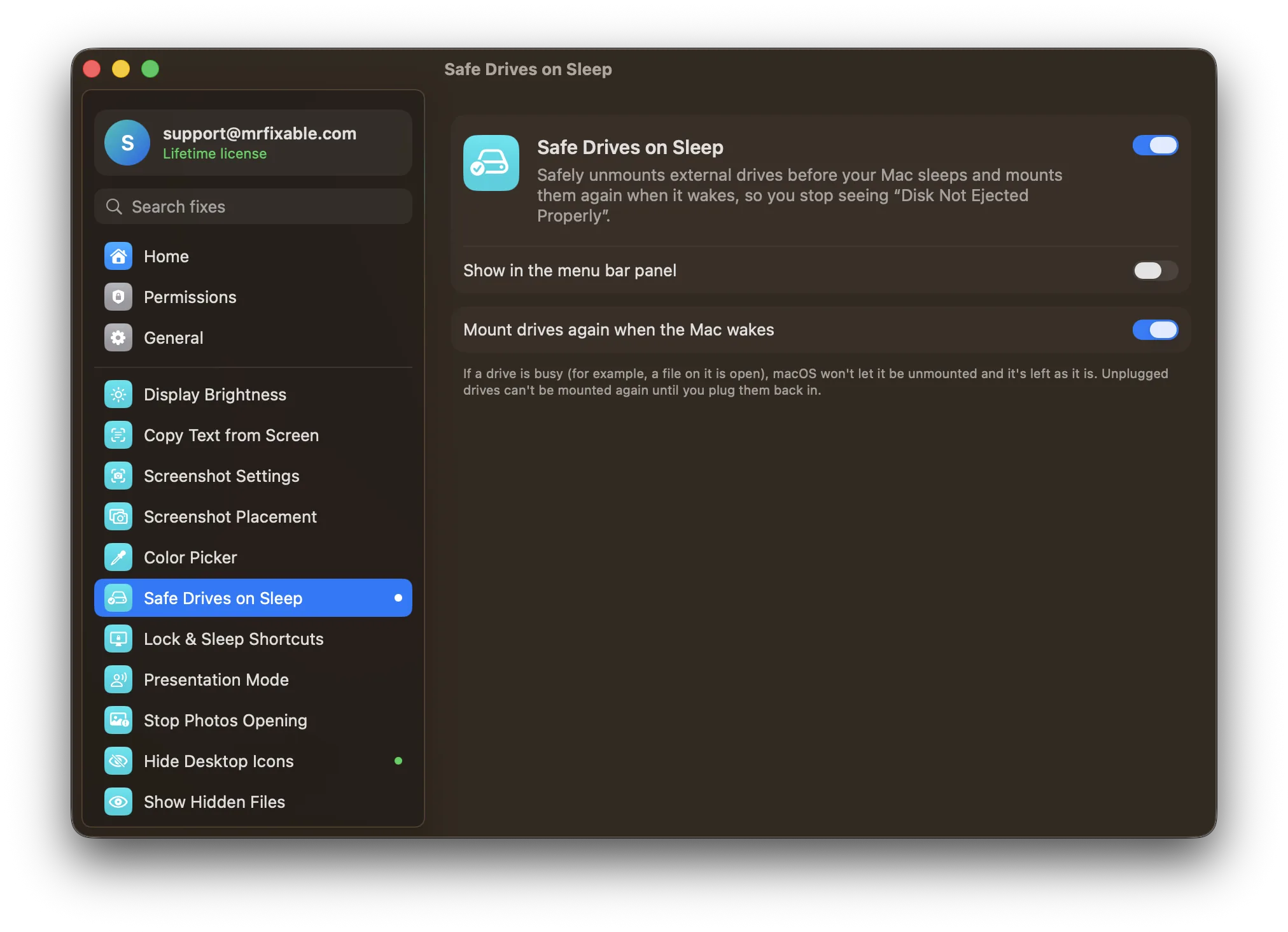
Safe Drives on Sleep in MrFixable safely unmounts your external drives just before the Mac sleeps, and mounts them again when it wakes. Your drives are unmounted safely before the Mac sleeps, so the warnings stop. A drive with a file still open is left alone, so save and close your work on it first.
Sharing drives with Windows or other devices? No .DS_Store on Drives stops your Mac from leaving hidden .DS_Store files all over them.