
System & FinderShow Hidden Files
Show hidden files on Mac
To show hidden files on a Mac, open a Finder window and press ⇧⌘. (Shift-Command-Period). Press it again to hide them. Show Hidden Files puts this setting on a switch in MrFixable’s menu instead: hidden files and folders, like .env files or your Library folder, stay visible in every Finder window until you turn it off.
Try free for 14 daysBuy for $19.99 Lifetime license
One of 68 fixes in MrFixable. Lifetime license, no subscription. Updated October 22, 2026. Works on macOS 14.2 Sonoma and later. Checked on macOS 26 Tahoe.
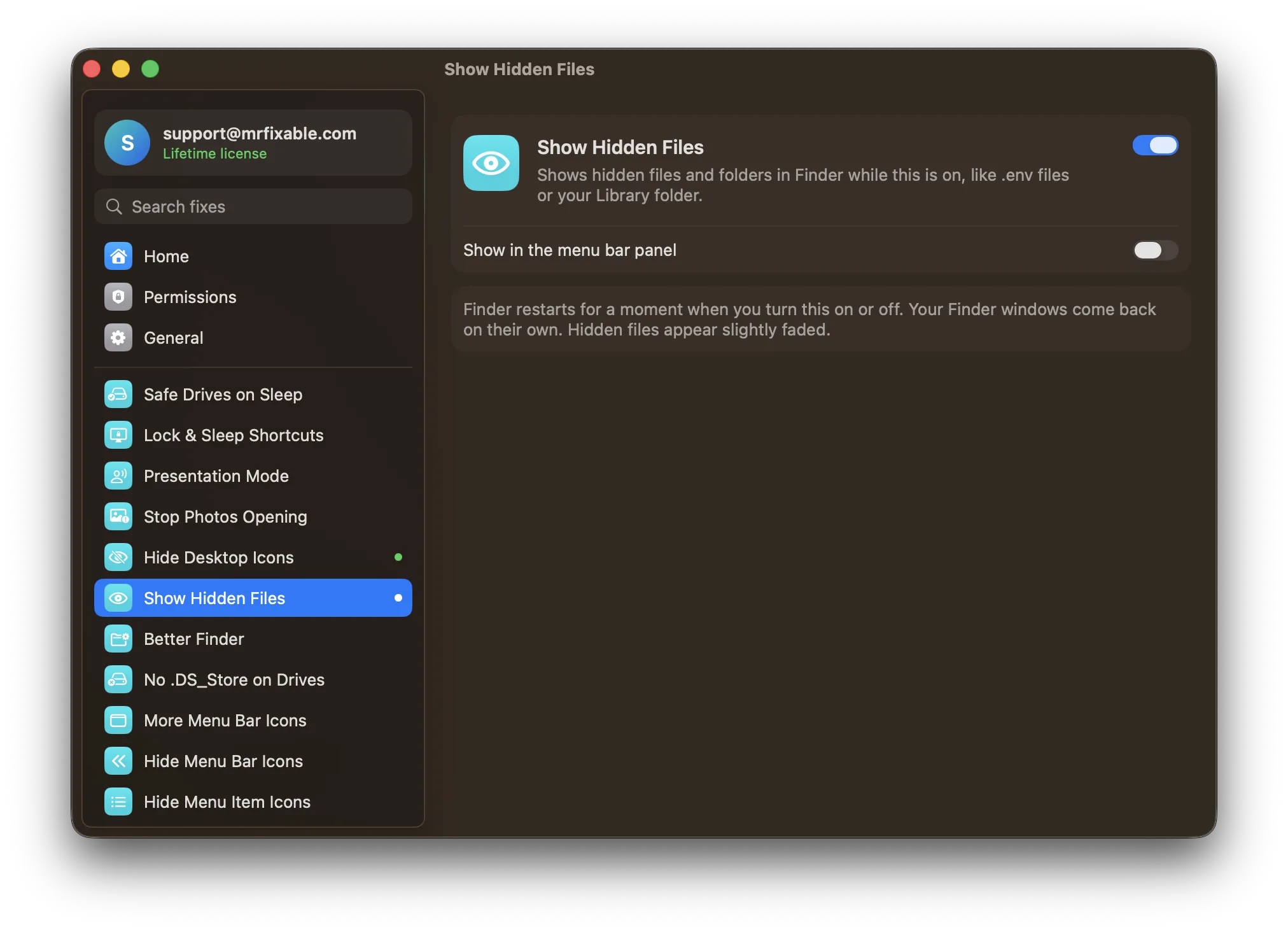
What Show Hidden Files does
The problem
Finder hides files whose names start with a dot, like .env, .gitignore or .zshrc, and folders such as your Library. Pressing ⇧⌘. in Finder shows them, and a Terminal command does the same, but Finder’s settings have no checkbox for it.
With Show Hidden Files
Hidden files and folders appear in Finder while this is on, slightly faded so you can tell them apart. Turn it off and they’re hidden again.
- No Terminal neededOne switch in MrFixable’s menu shows hidden files, and another click hides them again.
- Easy to tell apartHidden files appear slightly faded, so you don’t mistake them for your everyday files.
- Stays as you set itmacOS keeps the setting, so hidden files stay visible even when MrFixable isn’t running.
Good to know
Finder restarts for a moment when you turn it on or off, and your Finder windows come back on their own.
Many hidden files are used by macOS and your apps. Take care before moving or deleting one.
Switch it off and hidden files are hidden again.
Questions
How do I show hidden files on a Mac?
Press ⇧⌘. in Finder. 1. Open a Finder window. 2. Go to the folder you want, like your home folder. 3. Press Shift, Command and Period together. Hidden files and folders appear slightly faded. Press the same keys to hide them again, or turn on Show Hidden Files to switch them from the menu bar.How do I hide hidden files on a Mac again?
Press ⇧⌘. in a Finder window again, and the hidden files disappear. If you turned on Show Hidden Files, turn it off in MrFixable’s menu instead: Finder restarts for a moment and hides them. If you used Terminal, run defaults write com.apple.finder AppleShowAllFiles -bool false, then killall Finder.How do I always show hidden files on a Mac?
Turn on Show Hidden Files in MrFixable, and hidden files stay visible in every Finder window until you turn it off, even when MrFixable isn’t running. 1. Click MrFixable in the menu bar. 2. Turn on Show Hidden Files. 3. Wait a moment while Finder restarts. Your Finder windows come back by themselves.How do I show hidden files on a Mac with Terminal?
Run two commands. 1. Open Terminal from Applications › Utilities. 2. Type defaults write com.apple.finder AppleShowAllFiles -bool true and press Return. 3. Type killall Finder and press Return. Finder restarts and shows hidden files. To hide them again, run the same commands with false in place of true.What is the keyboard shortcut to show hidden files on a Mac?
Press ⇧⌘. (Shift-Command-Period). It works in Finder windows and in the Open and Save dialogs of most apps, which helps when you need to pick a file like .env. Press the same shortcut again to hide the files. Show Hidden Files does the same from the menu bar, no keys needed.How do I unhide hidden files on a Mac?
Press ⇧⌘. in Finder to see them all. To make one file always visible: 1. If its name starts with a dot, rename it without the dot. 2. If not, open Terminal and run chflags nohidden followed by a space, then drag the file into the window and press Return. The file now shows normally.How do I find my Library folder on a Mac?
Open Finder, click the Go menu and hold ⌥ (Option): Library appears in the list. Click it to open your user Library folder. With Show Hidden Files on, the Library folder also shows in your home folder all the time, slightly faded. Take care: apps keep their settings there.
Sources
Guides
- How to hide hidden files on a Mac, and hide your own filesHow to hide hidden files on a Mac again after showing them: ⇧⌘. in Finder or one Terminal command. Plus how to hide your own files and folders from Finder.
- How to show hidden files on a Mac with Terminal commandsHow to show hidden files on a Mac with Terminal: list them with ls -a, make Finder always show them, open hidden folders and unhide a file, step by step.
- How to show hidden files on a Mac (Finder shortcut and Terminal)Press ⇧⌘. in Finder to show hidden files on a Mac. How to keep them visible with Terminal, find your Library folder, and stop hidden files on USB drives.
Compare
- Coming from Windows?On Windows: Show hidden files. Show Hidden Files brings it to your Mac. See every Windows habit and its Mac fix.
- Show Hidden Files vs OnyXThe best OnyX alternative for Mac depends on what you use OnyX for. OnyX is a free utility that checks your disk, rebuilds indexes, clears caches and changes many hidden settings. MrFixable covers the everyday parts as simple switches, such as Free Up Space, App Uninstaller, Show Hidden Files and Screenshot Settings, for $19.99 once.
- Show Hidden Files vs TinkerToolTinkerTool is a free Mac app that switches on hidden macOS settings, such as showing hidden files or changing the screenshot format. Several MrFixable fixes change the same settings with one switch each. TinkerTool covers far more settings. MrFixable’s 68 fixes also include features that run, like Window Snapping, which no hidden setting can add.