
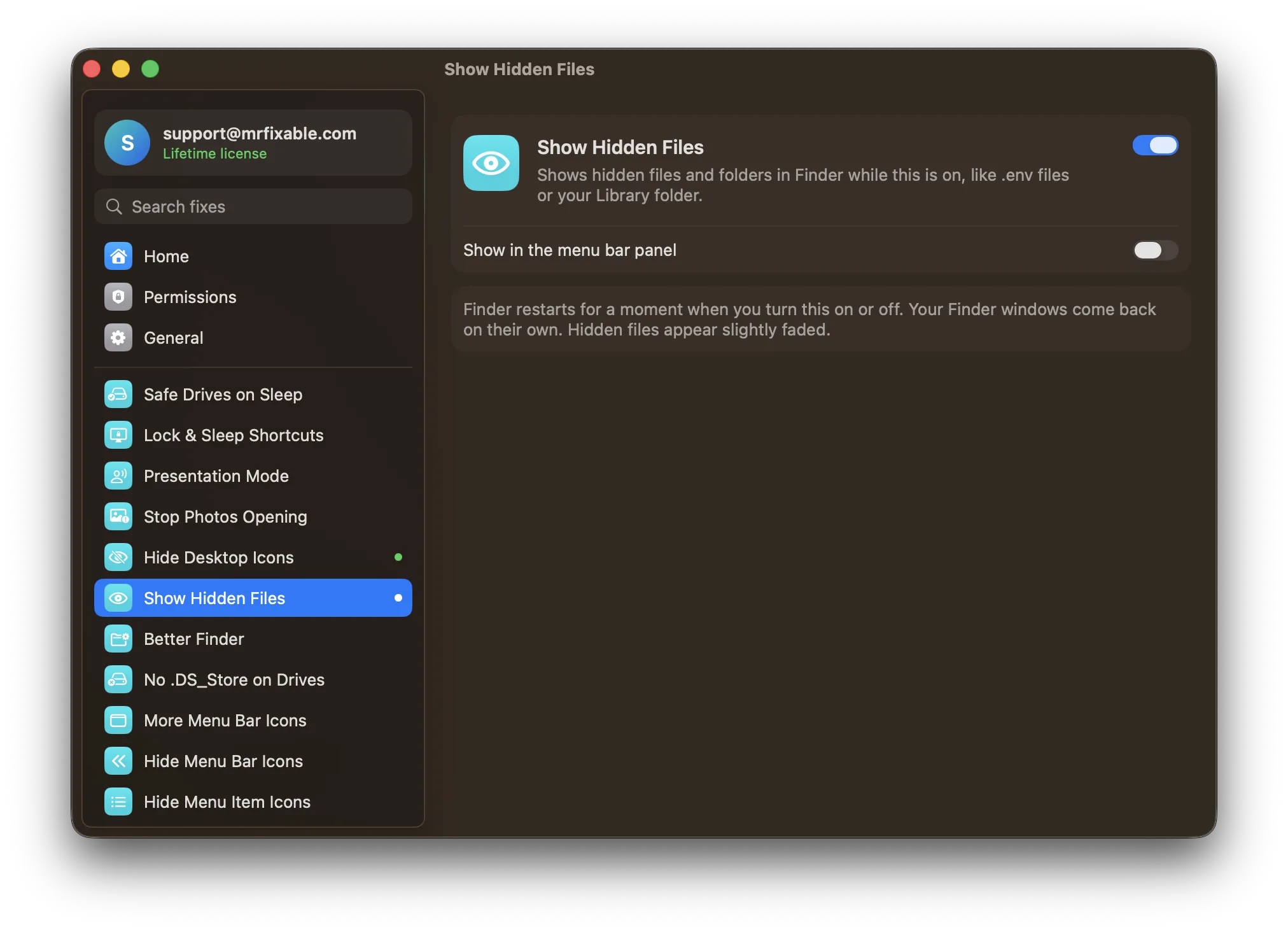
To show hidden files on a Mac with Terminal, run ls -a to list every file in a folder, hidden ones included. To make Finder show them too, run defaults write com.apple.finder AppleShowAllFiles -bool true, then killall Finder. MrFixable's Show Hidden Files does the same with a switch, with no commands to type.
Hidden files on a Mac are mostly files whose names start with a dot, like .zshrc, .gitignore or .env, plus folders macOS hides on purpose, such as your Library. Terminal shows them all if you ask the right way. Here are the commands, and what each one does.
Open Terminal
Press ⌘Space, type Terminal, and press Return. You can also find it in Finder under Applications › Utilities › Terminal.
Terminal starts in your home folder, the one with your name.
List hidden files in a folder
- Type
ls -aand press Return. You see every file in the folder you're in, including the ones that start with a dot. - For more detail, such as size and date, use
ls -lainstead. - To look in another folder, add its path:
ls -a ~/Documentslists your Documents folder. The~stands for your home folder.
The first two entries, . and .., aren't files: they mean "this folder" and "the folder above it".
Make Finder always show hidden files
- Run:
defaults write com.apple.finder AppleShowAllFiles -bool true
- Then run:
killall Finder
The first command changes Finder's setting. The second quits Finder so it starts again and reads the new setting. Your Finder windows come back on their own, and hidden files now appear in them, slightly faded.
To hide them again, run the first command with false instead of true, then killall Finder again. There's more on that in how to hide hidden files on a Mac.
If you only need hidden files now and then, you don't need Terminal at all: press ⇧⌘. in any Finder window to show or hide them.
Open a hidden folder or file
You don't have to show everything to reach one hidden item:
open ~/Libraryopens your Library folder in a Finder window.open .opens the folder Terminal is in.open -a TextEdit ~/.zshrcopens a dot file in TextEdit so you can read or edit it.
In Finder itself, Go › Go to Folder (⇧⌘G) does the same: type a path such as ~/Library and press Return.
Unhide a hidden file
A file can be hidden in two ways, and each has its own fix:
- A name that starts with a dot. It stays hidden as long as the name starts with a dot. Leave these alone unless the file is yours: apps expect their dot files to keep their names.
- A hidden flag. Run
ls -lOto see flags; hidden items showhiddenin the list. To remove the flag, typechflags nohiddenand a space, drag the file from Finder into the Terminal window, and press Return.
The same thing without Terminal
Show Hidden Files in MrFixable changes the same Finder setting as the defaults write command above. Switch it on and hidden files and folders appear in Finder. Switch it off and they're hidden again, the way macOS has them by default. MrFixable restarts Finder for you, and your windows come back on their own.
It's handy if you need hidden files often but don't want to keep a Terminal command around. MrFixable costs $19.99 once (lifetime license) and has a 14-day free trial.
Questions
How do I show hidden files on a Mac with a keyboard shortcut?
Press ⇧⌘. (Shift-Command-Period) in any Finder window. Hidden files and folders appear slightly faded, and pressing the same keys again hides them. The shortcut also works in Open and Save dialogs, so you can pick a hidden file in any app without changing settings or opening Terminal first.
How do I hide hidden files on a Mac?
Press ⇧⌘. in Finder again. If you used Terminal to show them, run defaults write com.apple.finder AppleShowAllFiles -bool false, then killall Finder. Finder restarts and the hidden files disappear. With MrFixable, switch off Show Hidden Files and Finder goes back to hiding them.
How do I see hidden files on a Mac?
In Finder, press ⇧⌘. to show them right away. In Terminal, run ls -a to list them in the folder you're in, or ls -la for details. To open one hidden folder without showing everything, use Go › Go to Folder (⇧⌘G) and type its path, such as ~/Library.