
To hide hidden files on a Mac again, press ⇧⌘. (Shift-Command-Period) in a Finder window. If you showed them with Terminal, run the same command with false instead of true, then restart Finder. To hide one of your own files, use chflags hidden in Terminal. MrFixable's Show Hidden Files hides them again when you switch it off.
Once you've told your Mac to show hidden files, Finder fills up with faded files like .DS_Store, .localized and folders you never asked to see. Here's how to put them away again, and how to hide a file of your own.
How to hide hidden files again in Finder
- Open a Finder window, or click the desktop.
- Press ⇧⌘. (Shift, Command and the Period key together).
- The faded files and folders disappear.
Press it again whenever you need them back. The same shortcut works in Open and Save dialogs.
If hidden files keep showing: use Terminal
If they keep coming back after a restart, they were probably turned on with a Terminal command. Turn them off the same way:
- Open Terminal: press ⌘Space, type Terminal, and press Return.
- Run this command:
defaults write com.apple.finder AppleShowAllFiles -bool false
- Then restart Finder so it reads the change:
killall Finder
Finder closes for a moment and opens again, with your windows back and the hidden files gone. If you used MrFixable's switch to show them, just switch it off instead (see below).
How to hide your own files and folders
Finder doesn't let you give a file a name that starts with a dot, because macOS keeps those names for system files. To hide a file or folder of your own, use Terminal:
- Open Terminal.
- Type
chflags hiddenfollowed by a space. Don't press Return yet. - Drag the file or folder from Finder into the Terminal window. Its full path appears after the command.
- Press Return. The item disappears from Finder. If it's still there, close the folder's window and open it again.
To make it visible again, press ⇧⌘. in Finder so you can see it, then run chflags nohidden the same way: type it, add a space, drag the file in, and press Return.
Hidden is not private. Anyone who presses ⇧⌘. on your Mac sees your hidden files. To keep files away from other people, put them in an encrypted disk image: in Disk Utility, choose File › New Image › Image from Folder and pick an encryption option, so the image needs a password to open.
Show or hide hidden files with a switch
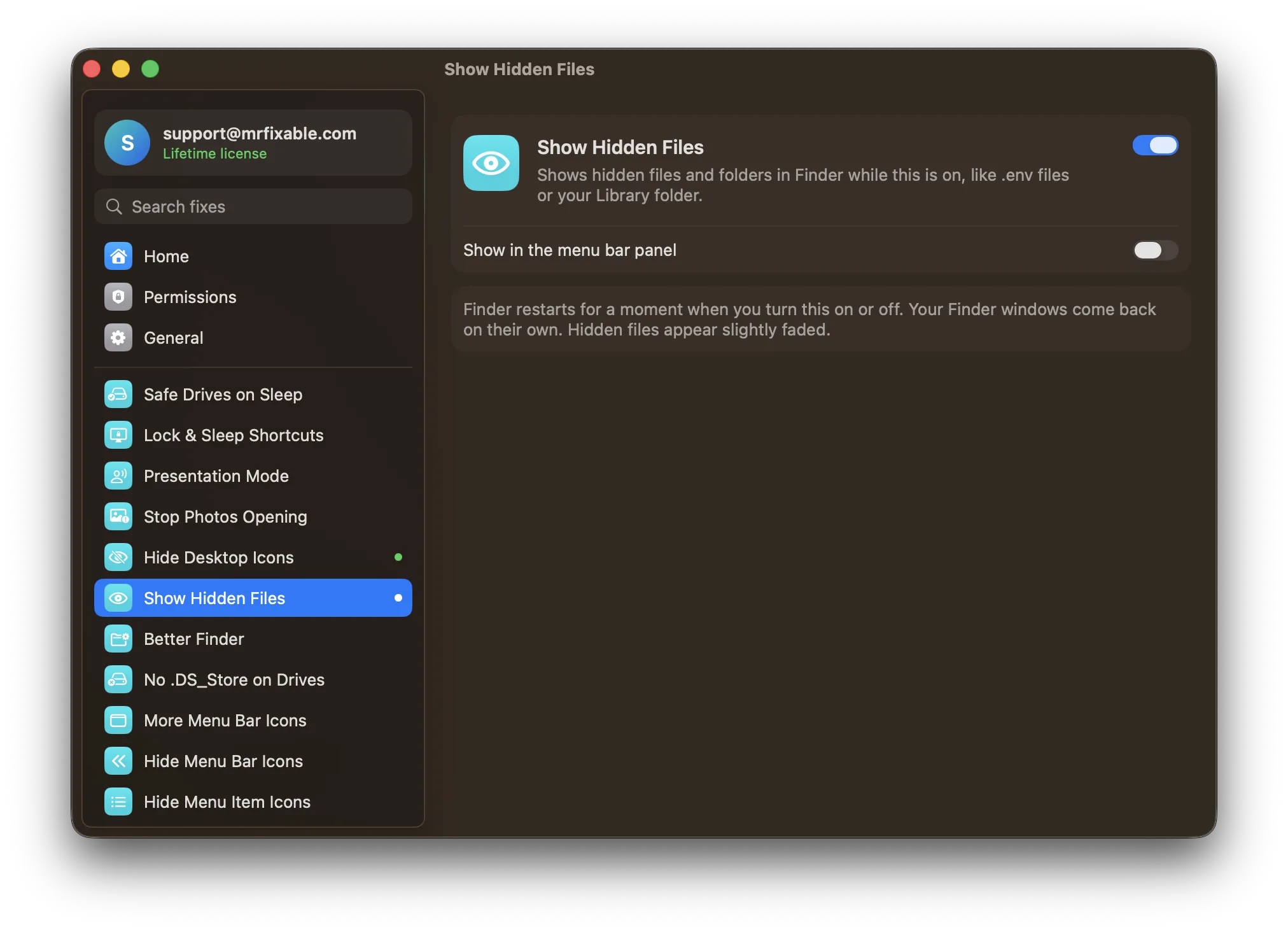
Show Hidden Files in MrFixable shows hidden files and folders in Finder while it's on, such as .env files or your Library folder. Switch it off and they're hidden again, the way macOS has them by default. No Terminal and no commands to remember.
Finder restarts for a moment when you switch it, and your Finder windows come back on their own. Hidden files appear slightly faded, so you can tell them apart from your normal files.
MrFixable costs $19.99 once (lifetime license), runs on macOS 14.2 Sonoma or later, and has a 14-day free trial.
Questions
How do I show hidden files on a Mac?
Open a Finder window and press ⇧⌘. (Shift-Command-Period). Hidden files and folders appear slightly faded, and pressing the shortcut again hides them. To keep them visible, run defaults write com.apple.finder AppleShowAllFiles -bool true in Terminal, then killall Finder. See how to show hidden files on a Mac.
How do I always show hidden files on a Mac?
Open Terminal and run defaults write com.apple.finder AppleShowAllFiles -bool true, then killall Finder. Finder restarts and shows hidden files from then on, until you run the command again with false. MrFixable's Show Hidden Files does the same with a switch, and switching it off hides them again.
How do I unhide hidden files on a Mac?
To see them, press ⇧⌘. in Finder. To make one file visible for good, run chflags nohidden followed by the file's path in Terminal; dragging the file into the window types the path for you. Files whose names start with a dot stay hidden until they're renamed, so leave system files alone.