
To make a custom folder icon on a Mac, open any picture in Preview, press ⌘A and ⌘C, then select the folder, press ⌘I, click the small icon at the top of the Info window and press ⌘V. On macOS Tahoe you can also right-click a folder and choose Customize Folder… to put an emoji or symbol on it.
A custom icon can be any picture: a photo of the family on the holiday folder, a client's logo on their project, a drawing, a screenshot. Finder shrinks it to fit. A little preparation in Preview makes the difference between a blurry rectangle and something that looks like a real icon.
Step 1: get the picture ready in Preview
- Double-click the picture to open it in Preview. If it opens in another app, right-click it and choose Open With › Preview.
- Make it square. Icons are square, so a wide photo ends up as a thin strip. Drag a box around the part you want and choose Tools › Crop (⌘K).
- Remove the background (optional). Choose Tools › Remove Background. If Preview asks to convert the picture to PNG, click Convert, or click Cancel and choose File › Duplicate first to keep the original. Without a background, the icon sits on your Finder window like a real one instead of as a square photo.
- Press ⌘A to select the whole picture, then ⌘C to copy it.
Some tips for icons that look right:
- Big is fine, small is blurry. A picture of at least 512 × 512 pixels stays sharp even at large icon sizes.
- Keep it simple. In list view, icons are tiny. One bold shape or face reads better than a busy scene.
- PNG with a clear background looks the most like a Mac icon. Logos are often available that way.
Step 2: paste it onto the folder
- Select the folder in Finder and press ⌘I (or right-click it and choose Get Info).
- Click the small folder icon at the top left of the Info window, so it's highlighted. Not the big preview lower down: if Paste is grayed out, that's usually why.
- Press ⌘V. The folder takes the new icon right away.
- Close the Info window.
To put the normal icon back, open Get Info, click the small icon at the top and choose Edit › Cut (⌘X).
This works on Sonoma, Sequoia and Tahoe, for files as well as folders. The icon replaces the whole folder: you see your picture, not a folder with a picture on it.
Emoji and symbols: built in on macOS Tahoe
macOS Tahoe 26 added folder customization to Finder, with no picture needed:
- Right-click a folder and choose Customize Folder….
- Click a colored circle to change the folder's color.
- Choose a symbol from the list, or click Emoji and pick one.
The folder keeps its shape, with the symbol or emoji on its front. To undo it, open Customize Folder… again and click Clear.
Customize Folder doesn't take pictures of your own: for those, use the Get Info steps above. It also doesn't exist on Sonoma or Sequoia. And Apple doesn't let you customize the folders that come with your Mac, such as Applications, Library, System and Users, though your home folder is fine.
A picture on the folder, in any color
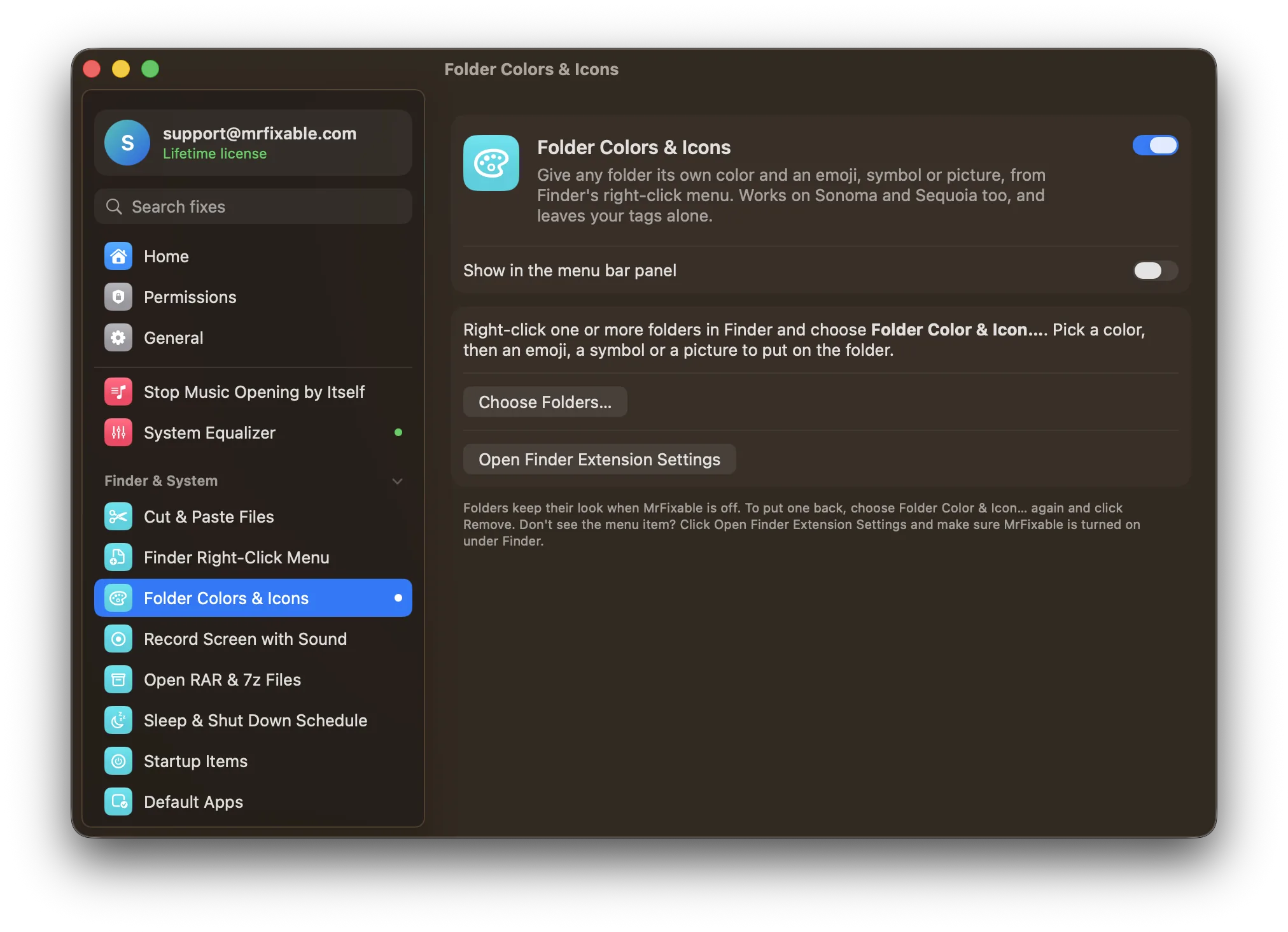
Folder Colors & Icons in MrFixable adds Folder Color & Icon… to Finder's right-click menu. It puts your picture on the folder, so it still looks like a folder at a glance:
- Choose a picture, or drop one onto the window. MrFixable resizes it and places it on the front of the folder.
- Pick the folder's color from fourteen, or any color from the color picker.
- Or use an emoji, or one of 50 symbols drawn in a darker shade of the folder so they're easy to read.
- See it live before you click Apply.
- Select several folders first to give them all the same look.
- Remove puts the usual folder back.
It works the same on Sonoma, Sequoia and Tahoe, doesn't touch your Finder tags, and the folders keep their look when MrFixable is off.
Any custom icon, made by hand or with MrFixable, is stored in a small hidden file named "Icon" inside the folder. Macs never show it, but a Windows PC may if you copy the folder there.
Questions
How do I customize Mac folder icons?
On macOS Tahoe, right-click the folder, choose Customize Folder…, then pick a color, a symbol or an emoji. On any version, you can use a picture instead: copy it in Preview with ⌘A and ⌘C, select the folder, press ⌘I, click the small icon at the top of the Info window and press ⌘V.
Can I change the color of a folder on a Mac?
Yes. On macOS Tahoe, right-click the folder, choose Customize Folder… and click a colored circle. Sonoma and Sequoia have no color option, but you can copy the folder's icon from Get Info into Preview, tint it with Tools › Adjust Color…, copy it and paste it back onto the folder.
How do I change a Mac folder icon back to the default?
Select the folder and press ⌘I to open Get Info. Click the small icon at the top left of the window so it's highlighted, then choose Edit › Cut or press ⌘X. The usual folder comes back. For a Tahoe emoji or symbol, open Customize Folder… and click Clear instead.